
We left off our last session looking at the code for our onInit event of our form. The code was 164 lines long and somewhat redundant. To fix this we are going to use two functions in Alpha Software
- Array
- Eval
If you look back at the previous code insert, You will see the naming of the variables, form objects and table fields are all similar. They each name the cube face being effected by the code plus the cell number. The difference is the leading value. Variables start with v while form objects start with c and the fields have no leading character but when referenced with the table method, you show the pointer ie “t.FrCell1”. Look at our code we now have on the onInit event of our form.
dim SHARED vSquare as C
dim SHARED mcv as N
mcv = 0
dim SHARED mcList as C
mcList = “Click above to see current moves.”+crlf()
vsolution = mcList
if mcv = 0 then
mcv = 1
else
mcv = 0
end if
t = table.current()dim shared facename as C
dim shared xcnum as C
for i = 1 to 6 step 1
if i = 1 then
facename = “FR”
else if i = 2 then
facename = “BK”
else if i = 3 then
facename = “LF”
else if i = 4 then
facename = “RG”
else if i = 5 then
facename = “UP”
else if i = 6 then
facename = “DN”
end if
FOR ii = 1 to 9 step 1
dim xfld as C
xcnum = alltrim(str(ii))
xfld = facename+”Cell”+xcnum
eval(“v”+xfld) = eval(“t.”+xfld)
eval(“C”+xfld+”.Fill.Color”) = eval(“v”+xfld)
xbasic_wait_for_idle()
NEXT ii
NEXT ibutton2.Activate()
In this circumstance we are using two array’s. One nested inside another. The first sets the cube face we want to work with. Then the second array works with the cells on the face. As we step through array i, we set the variable facename to the two digit string which identifies the face objects. When array ii starts we set the variable vcnum to equal the character value of ii. Next we combine the two variables to a third which is declared locally; xfld.
xfld = facename+”Cell”+xcnum
Finally we use the eval function with our variable xfld to perform all the code we wrote in the original onInit event. Final result is instead of 164 lines of code we have only 44 and it runs very fast.
We use a similar process for our Color Picker
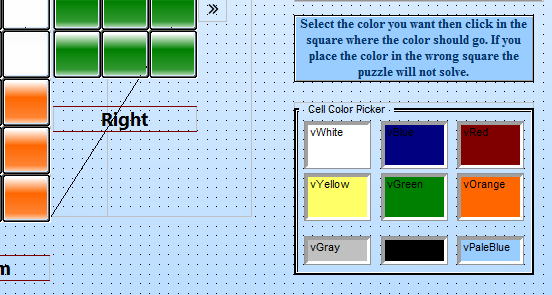
When the user clicks on a color, the onArrive event sets the variable vCellColor = the form object name. In this case, Var->vWhite
'Date Created: 11-Feb-2016 11:27:49 AM
'Last Updated: 12-Feb-2016 01:53:58 PM
'Created By  : NLaws
'Updated By  : NLaws
vCellColor = Var->vWhite
vWhite is set on the form variable dialog and the value is set to the actual color name. (white) When the user clicks on the cell object they wish to change, the following code runs in the onArrive event.
'Date Created: 11-Feb-2016 11:30:15 AM
'Last Updated: 12-Feb-2016 02:14:50 PM
'Created By  : NLaws
'Updated By  : NLaws
vCellSelect = Right("cFRCell1",7)
eval("C"+vCellSelect+".Fill.Color") = vCellColor eval("v"+vCellSelect) = vCellColor t = table.current() t.change_begin() eval("t."+Var->vCellSelect) = vCellColor t.change_end(.t.) xbasic_wait_for_idle() button2.Activate()
Once the variable vCellSelect is set we again use the eval function to set the color value for our variable, form object and our table field value. I said it before and I will say it again the
eval() function
is a programmers best friend; at least it is mine.
If you look at the Color Picker image you will notice three colors not associated with a magic cube. As I stated in the video in the previous post I want the program to help the user figure out how to move cube faces to achieve specific results. The user can set the color of a specific cell and it’s adjoining cells then watch how they move as the various faces are turned. (By using colors other that the base colors it is easy to follow the movement.) For example lets say we are trying to move a red edge piece to it’s proper position but it is on the wrong side but the correct orientation.
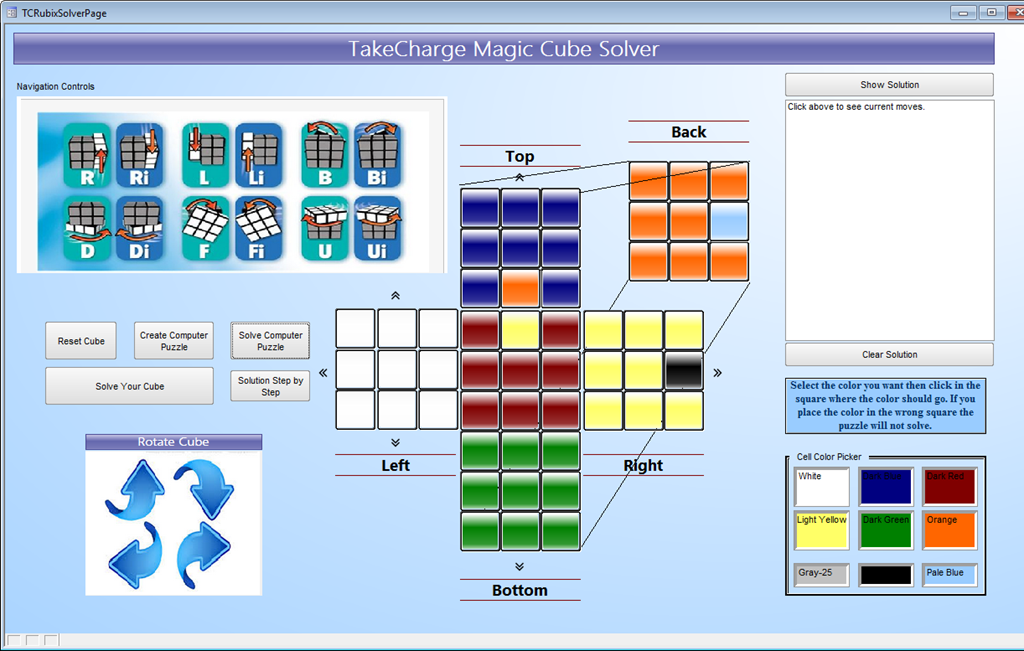
I set the color of the square I wish to move to black and set the adjoining cell to light blue. Now I can test various moves to see how the cell gets re-positioned which should help lead me to the move I want.
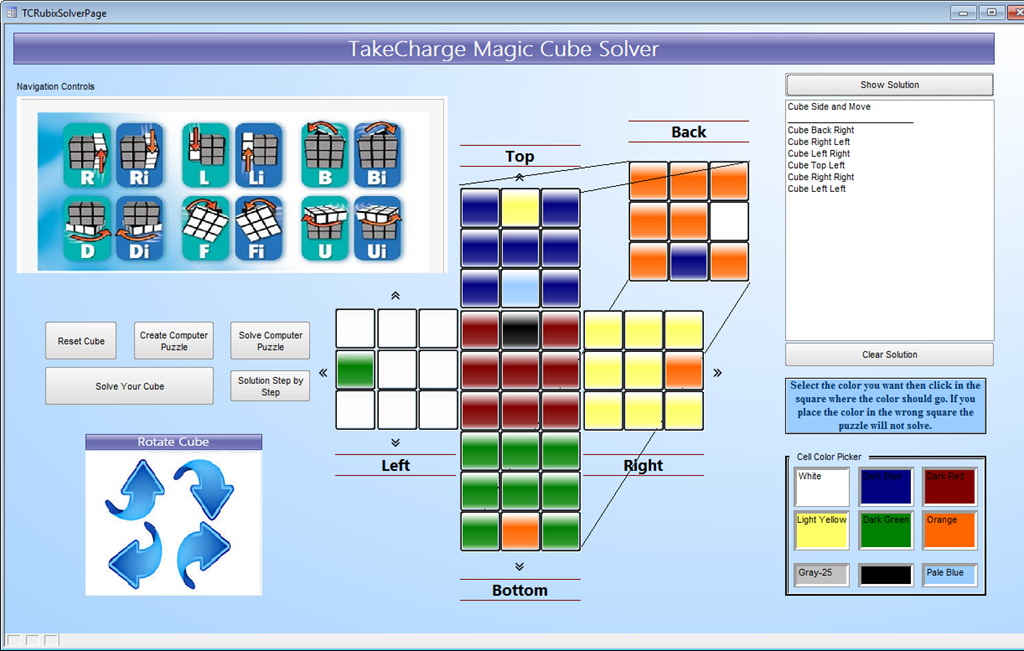
Now our red blue edge is in the right spot and our moves are tracked in the solution window. Notice the solution is inverted. This is so the user can reset the cube by reversing the steps, reading from top to bottom in the list. Here is the current code for Show Solution.
vsolution = ""
mcList = ""
mclist = "Cube Side and Move"+crlf()+"_________________________"+crlf()+table.external_record_content_GET("tcrubixmoves", "rtnbtnname","invert(Recno())","") vsolution = mclist if mcv =1 then mcv = 0 else if mcv = 0 then mcv = 1 end if
vSolution is the variable object on the form we are displaying as a List. mcList is the variable we create using some text and
table.external_record_content_GET("tcrubixmoves", "rtnbtnname","invert(Recno())","")
mcv is the watch variable for our list object so by resetting it’s value the list refreshes when the button is pushed.
Well I think that is enough for today. In our next session we will look at the code for moving the various faces. If you have any questions or comments please leave a comment and I will respond. Thanks again for stopping by and I hope you will join us at the next session.
 Custome Database Design with Alpha Software
Leave a comment