
Hello everyone.
Today we are going to look at using Alpha Software scripts and how they fit into the program design. If you have been following along, you know most of the code I write is attached to the various objects on a form and or the form itself. There are times however when an xbasic script is what is needed. To understand when a script is needed, we must first understand what a script is.
In Alpha Software, a script is like a subroutine. Once written and stored in the code page of your program, it can be called and run from anywhere in the program providing your script adheres to the rules. For example if you script references an object on a form which is not open the script will fail etc.. Scripts are not functions yet they can receive parameters passed via variables providing the variable is global or shared. Scripts are not created on the object but can be called from the object. Finally scripts are created in the Code Editor with the xBasic Editor command.
So when should you create and use a script? If your routine is used several times throughout your program, writing it once then calling it where needed makes good programming sense. If your routine is long or complicated, scripts help to keep the code neat, organized and easier to follow. Finally if your object displays multiple choices, each of which has it’s own subroutine then scripts are the answer.
In our TakeCharge Desktop App our File Organizer launch bar
 has several buttons and each button performs simple task. Therefore the code is on the onPush event of each button. As I have added additional enhancements to our dual pane viewer, the need for object properties manipulation has become apparent. This code is needed as part of the onPush event of each of the LaunchBar buttons. To make the code easier to follow I created it as a script and I call it from the onPush event. Here is a snip-it of code from the FileViewer button on our LaunchBar.
else
    if Btn3.text = "File View" then
        topparent.height = 710
        Btn3.text = "Launch Bar"
        Btn3.default.hbitmap.bmptag = "$$database.open"
        topparent.Repaint()
        button15.push()
        button16.push()
        goto redisplay
    else
        topparent.height = 80
        Btn3.text = "File View"
        Btn3.default.hbitmap.bmptag = "$$generic.wrench"
        topparent.Repaint()
    end if
end if
end
redisplay:
script_play("BtnPrFV")
ListState = "Util"
The code for our script ‘BtnPrFV’ is
button18.show()
button1.text = "New"
button11.text = "View"
button15.text = "Refresh"
button3.text = "Up"
button4.text = "Send to Viewer"
button18.text = "Open"
button1.default.hbitmap.bmptag = "$$folder.new"
button11.default.hbitmap.bmptag = "$$edit.find"
button15.default.hbitmap.bmptag = "$$generic.refresh"
button3.default.hbitmap.bmptag = "$$mini.sort.ascending"
button4.default.hbitmap.bmptag = "$$application.adobe.pdf"
button18.default.hbitmap.bmptag = "$$database.open"
button1.bubble_help = "New Folder at current path level"
button11.bubble_help = "Change source pane view"
button15.bubble_help = "Move up the Path Tree one level."
button3.bubble_help = "Refresh View"
button4.bubble_help = "Send file to Viewer."
button18.bubble_help = "Open The Selected file or Application."
RunType.value = "2"
This script sets the object properties for the buttons above our source folder pane on our dual pane viewer. Each button on the LaunchBar works in the same way, running the specific code for the button then calling a script to set the form button properties.
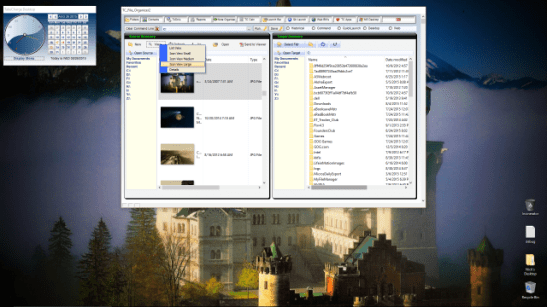
Depending on which button is pushed in the LaunchBar, the button properties and the code for each of these buttons will change.
Lets look at the current code for button 18.
if ListState = "WEB" then
    DIM SHARED pass AS C
    pass = ui_get_password("Security Alert!","Enter Password","","*")
    if Pass <> "Open Says me"
        goto Noaccess
    End if
    t = table.open("weblist")
    t.fetch_first()
    t.batch_begin()
    while .NOT. t.fetch_eof()
        if t.bookmark = vStartDir.value then
            hbody.text = *plain_to_html(t.notes)
        end if
        t.fetch_next()
    end while
    t.batch_end()
    t.close()
else if ListState = "Util" then
    mySelect = TC_File_Organizer2:SourceFldr.activex.Document.FocusedItem.Path
    sys_open(mySelect)
end if
end
noaccess:
ui_msg_box("Warning","I Don't Know YOU!...NOT ALLOWED")
Currently this onPush event has two options ListState = “WEB” or ListState = “QL” . When I am done it will have nine, so to keep the code easy to follow, the onPush event of the button will set the conditions and call the proper script based on ListState.
Compare the code above to the snip-it of code on Button 4.
if ListState = "WEB" then
    script_play("OpenBM")
else if ListState = "QL" then
    script_play("OpenQL")
    xbasic_wait_for_idle()
    button5.push()
else
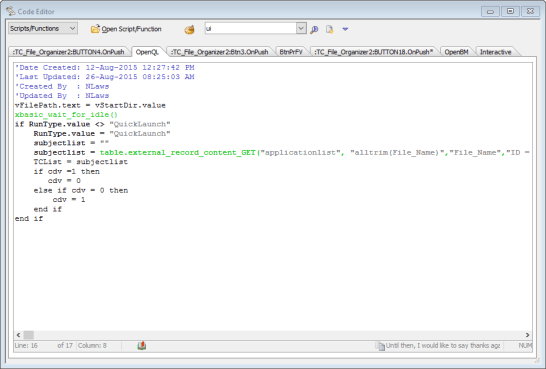
In this example you can see what I am talking about. The value of ListState which is set when the button in the LaunchBar is pushed tells the code editor which script to call. Once the script has run control is passed back to the button and I can have additional code run if needed. Below is the code for both OpenBM and OpenQL
OpenBM
t = table.open("weblist")
t.fetch_first()
t.batch_begin()
while .NOT. t.fetch_eof()
    if t.bookmark = vStartDir.value then
        myselect = t.file_location
        URL_var = myselect
        sys_open(URL_var)
    end if
    t.fetch_next()
end while
t.batch_end()
t.close()
OpenQL
vFilePath.text = vStartDir.value
xbasic_wait_for_idle()
if RunType.value <> "QuickLaunch"
    RunType.value = "QuickLaunch"
    subjectlist = ""
    subjectlist = table.external_record_content_GET("applicationlist", "alltrim(File_Name)","File_Name","ID = 1 .AND. alltrim(File_Name) <> 'Blank'")
    TCList = subjectlist
    if cdv =1 then
       cdv = 0
    else if cdv = 0 then
        cdv = 1
    end if
end if
Look at the code for each of our scripts and you will notice we use the value of our vStartDir list object on our form and it is passed to the scripts and used as needed. In OpenQL we use both Shared and Global variables to pass values back and forth. In essence what this script is doing is ensuring our run command progressive list is set correctly which if it is it passes control back to the button which completes the onPush command. If not, it sets RunType to QuickLaunch then builds our progressive list with the proper values and finally returns control to our calling button.
Imagine if the code in the two scripts above as well as the code for the other seven options were in one container. It would be very complicated looking and hard to support and follow. Using scripts makes the job much easier.
Well that’s all for today. I will continue to work on our Desktop Applications and will share new additions as they are completed. Until then, I would like to say thanks again for stopping by and remember, if you need help with an Alpha Software application or wish to inquire about a custom application for your business go to our website
and inquire or contact
NLawson@cdc-TakeCharge.com
Have a great day.

 Custome Database Design with Alpha Software
Leave a comment