
Hello everyone
Today we will look at additional features I have added to our Desktop app. In our last session we added the Report viewer for the data tables included in our Desktop app and today we are adding an external file viewer and an enhanced run dialog. Lets start with the External File Viewer.
External File Viewer:
Ofter when working on a computer, users will create a document and save it with a name they later forget or possibly have very similar picture images which cannot be distinguished simply by viewing a thumbnail. An Eternal File Viewer will allow the user to open and display the file in question in our viewer simply by selecting it in our list and clicking one button. Once found the file then can be opened in it’s associated program by double clicking it saving the user time and frustration.
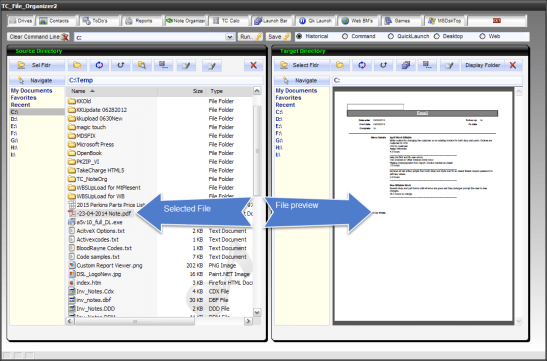
Using our activeX objects makes this add on very easy to do and would come in handy in a document management application. Once the user selects a file in the source folder they click the button above the target window labeled ‘Send to Viewer’. The selected file is displayed in the viewer pane immediately and the button label changes to ‘Display Folder’ so the user can return to a file view when they are done. This external File Viewer handles all file types that naturally are viewable in Windows and if it cannot be previewed the user is prompted to open the file.
Here is the code attached to the onPush event of our button.
ui_freeze(.t.)

if Button4.text = "Send to Viewer" then
    Dim Shared origTrgfld as C = trgfld
    trgfld = TC_File_Organizer2:sourcefldr.activex.Document.FocusedItem.Path
    Button4.text = "Display Folder"
    button4.default.hbitmap.bmptag = "$$file.open"
    TargetFldr.Activate()
    TargetFldr.Refresh()
else if Button4.text = "Display Folder" then
    trgfld = origTrgfld
    Button4.text = "Send to Viewer"
    button4.default.hbitmap.bmptag = "$$folder.open"
    TargetFldr.Activate()
    TargetFldr.refresh()
    xbasic_wait_for_idle()
    button16.push()
else
    record_number = current_record_number()
    query.filter = "recno() = " + record_number
    query.order = ""
    :Report.Print("Viewer Report",query.filter,query.order)
end if
ui_freeze(.f.)
First we check the text currently assigned to our button and that tells us what code to run. If the text is Send to Viewer we declare a new variable origTrgfld and set it to equal our global variable Trgfld then we set the our Target folder path to equal the path of the focused item in our source folder. Next we change the text and image properties of our button. Finally we Activate and Refresh our Target Folder and the document then displays or prompts the user to open in the associated program. If the button text says Display Folder we do the opposite and return the target folder to it’s original state. The final condition is for another feature we will discuss at a future date.
As you can see, very little code is needed because the activeX objects do all the heavy lifting. All we need to know is the syntax for passing the object path to our activeX object. If you want to know more about it look at our post on Super Controls to see more information about the activeX interface.
Enhanced Run Dialog:
Everyone knows Windows comes with a Run Dialog box on their Start Menu. This dialog which is very handy for network administrators and IT people, rarely gets used by the average Joe. I believe it is because the average user knows little about file navigation and the inner workings of Windows. What I did is add the ability to save and assign an alias name to each run command if the user wants and provided a simple progressive look up for easy access of each saved command.

How it works.
I don’t want to write out a long detailed explanation of how the dialog works so if you watch this short video it will demonstrate the dialog in action. Enjoy the video then follow along below.
I hope you enjoyed the show. If you have been following the development of our improved Desktop App you know we included a
- Custom Desktop Menu
- Quick Launch Application Manager
- Document Manager
in our application. Each had it’s own setup and edit screen. Our new Advanced Run Dialog eliminates all of that and we all know if you eliminate steps for a user they will love your program.
We are able to simplify because Window Run Dialog will run any program as long as you have the proper path to the executable. we then only need to provide a path to the selected file or command and Windows does the rest. An added benefit is Windows handles the memory management for the application as well. For example, some programs require specific memory allocation to run and they will not run inside of Alpha Software using sys_open or sys_shell. They will however run under this new procedure. Lets look at the code.
Clear Command Line:
vFilePath.text = ""
vFilePath is the variable name for our command line object.
OnDepart vFilePath:
Dim SHARED wsstring as C
Dim SHARED xstrg as C
wsstring = vFilePath.text
if is_one_of(wsstring, TCList) = .t. then
    DoAction =  "tsearch"
else
    DoAction = "local"
end if
End
All we are doing here is setting a variable ‘DoAction’ to one of two options.
- tSearch – Searches the table holding the saved command and run it
- local – Runs the command entered on the command line
Run:
 Dim SHARED wsstring as C
Dim SHARED xstrg as C
wsstring = vFilePath.text
xbasic_wait_for_idle()
if DoAction = "tsearch" then
    goto tsearch
else
    xstrg = wsstring
    TC_File_Organizer2:sourcefldr.activex.Document.Application.FileRun()
    xbasic_wait_for_idle()
    sys_send_keys(Alltrim(xstrg + "{ENTER}"))
end if
End

tsearch:
if mySelect = "Historical" then
    tbl = table.open("run_hist")
    tbl.batch_begin()
    tbl.fetch_first()
    while .not. tbl.fetch_eof()
        if tbl.file_name = wsstring
            xstrg = Alltrim(tbl.cmd_string)
        end if
    tbl.fetch_next()
    wend
    tbl.batch_end()
    tbl.close()
else if MySelect = "Command" then
    tbl = table.open("run_hist")
    tbl.batch_begin()
    tbl.fetch_first()
    while .not. tbl.fetch_eof()
        if tbl.file_name = wsstring
            xstrg = Alltrim(tbl.cmd_string)
        end if
    tbl.fetch_next()
    wend
    tbl.batch_end()
    tbl.close()
else if mySelect = "QuickLaunch" then
    tbl = table.open("applicationlist")
    tbl.batch_begin()
    tbl.fetch_first()
    while .not. tbl.fetch_eof()
        if tbl.file_name = wsstring
            xstrg = Alltrim(tbl.cmd_string)
        end if
    tbl.fetch_next()
    wend
    tbl.batch_end()
    tbl.close()
else if mySelect = "Desktop" then
    tbl = table.open("applicationlist")
    tbl.batch_begin()
    tbl.fetch_first()
    while .not. tbl.fetch_eof()
        if tbl.file_name = wsstring
            xstrg = Alltrim(tbl.cmd_string)
        end if
    tbl.fetch_next()
    wend
    tbl.batch_end()
    tbl.close()
else if mySelect = "Web" then
    tbl = table.open("weblist")
    tbl.batch_begin()
    tbl.fetch_first()
    while .not. tbl.fetch_eof()
        if tbl.Bookmark = wsstring
            xstrg = Alltrim(tbl.file_location)
        end if
    tbl.fetch_next()
    wend
    tbl.batch_end()
    tbl.close()
end if
xbasic_wait_for_idle()
TC_File_Organizer2:sourcefldr.activex.Document.Application.FileRun()
xbasic_wait_for_idle()
sys_send_keys(Alltrim(xstrg + "{ENTER}"))Dim SHARED wsstring as C
Dim SHARED xstrg as C
wsstring = vFilePath.text
xbasic_wait_for_idle()
if DoAction = "tsearch" then
    goto tsearch
else
    xstrg = wsstring
    TC_File_Organizer2:sourcefldr.activex.Document.Application.FileRun()
    xbasic_wait_for_idle()
    sys_send_keys(Alltrim(xstrg + "{ENTER}"))
end if
End

tsearch:
if mySelect = "Historical" then
    tbl = table.open("run_hist")
    tbl.batch_begin()
    tbl.fetch_first()
    while .not. tbl.fetch_eof()
        if tbl.file_name = wsstring
            xstrg = Alltrim(tbl.cmd_string)
        end if
    tbl.fetch_next()
    wend
    tbl.batch_end()
    tbl.close()
else if MySelect = "Command" then
    tbl = table.open("run_hist")
    tbl.batch_begin()
    tbl.fetch_first()
    while .not. tbl.fetch_eof()
        if tbl.file_name = wsstring
            xstrg = Alltrim(tbl.cmd_string)
        end if
    tbl.fetch_next()
    wend
    tbl.batch_end()
    tbl.close()
else if mySelect = "QuickLaunch" then
    tbl = table.open("applicationlist")
    tbl.batch_begin()
    tbl.fetch_first()
    while .not. tbl.fetch_eof()
        if tbl.file_name = wsstring
            xstrg = Alltrim(tbl.cmd_string)
        end if
    tbl.fetch_next()
    wend
    tbl.batch_end()
    tbl.close()
else if mySelect = "Desktop" then
    tbl = table.open("applicationlist")
    tbl.batch_begin()
    tbl.fetch_first()
    while .not. tbl.fetch_eof()
        if tbl.file_name = wsstring
            xstrg = Alltrim(tbl.cmd_string)
        end if
    tbl.fetch_next()
    wend
    tbl.batch_end()
    tbl.close()
else if mySelect = "Web" then
    tbl = table.open("weblist")
    tbl.batch_begin()
    tbl.fetch_first()
    while .not. tbl.fetch_eof()
        if tbl.Bookmark = wsstring
            xstrg = Alltrim(tbl.file_location)
        end if
    tbl.fetch_next()
    wend
    tbl.batch_end()
    tbl.close()
end if
xbasic_wait_for_idle()
TC_File_Organizer2:sourcefldr.activex.Document.Application.FileRun()
xbasic_wait_for_idle()
sys_send_keys(Alltrim(xstrg + "{ENTER}"))
When looking at this code notice the line that ends with
...Document.Application.FileRun()
This is an activeX function which activates the Windows Run Dialog and is the key to our program working correctly. Also notice if DoAction = tSearch it branches to the label tSearch. This is not necessary I only did it to make the code easier to follow. So, what does this code do? The answer is it checks DoAction to see which condition to run if the condition is not tSearch it passes the value of our variable wsstring to xstrg which is then sent to Windows Run Dialog via sys_send_keys(). Please note the xbasic_wait_for_idle is necessary or Windows will run the command before the variable is passed to it giving you the wrong answer.
If DoAction = tSearch then we look to our Radio Choice variable RunType to see which table to open and search and which condition to run. There are plenty of examples on this blog which discuss table open and table fetch so I am not going to repeat the explanation of how it works. If however you have a specific question, send me an email at NLawson@cdc-takecharge.com and I will reply to your query.
Save:
Most of our code is on the onPush event of our Save Button. Because we can now run any application from our Advanced Run Bar. we will use this procedure to Build our Desktop and Quick Launch Menu’s. The user can navigate to a program in the Source Window and if it is one they use often, they can save it to the Menu they want by selecting the proper radio choice then clicking save. A dialog box appears asking them to verify or change the captured information about the command including an alias name for easy access They click OK when done and the command is saved and the list is immediately updated. Here is the code..
'_________Check for Save Path___________________
Dim SHARED wsstring as C
If obj(topparent.active()).class() = "button" then
    obj(topparent.active_prev()).activate()
    if str(current_object())  = ":TC_File_Organizer2:vFilePath" then
        wsstring = vFilePath.text
    else
        wsstring = TC_File_Organizer2:sourcefldr.activex.Document.FocusedItem.Path
    end if
end if

'__________Set Variables________________________
DIM SHARED varC_result as C

xstrg = wsstring

CName = file.filename_parse(wsstring,"N")
currAddr = TC_File_Organizer2:sourcefldr.activex.Document.Folder.Self.Path
dpth = TC_File_Organizer2:sourcefldr.activex.Document.Folder.Self.Path
mySelect = RunType.value
DocType = "Group Name for Command, Web BookMark or Program"
heading_string = "Enter Command String below."
footer_string = "Click Ok to Save Command or Cancel to Exit"
ok_button_label = "&OK"
cancel_button_label = "&Cancel"

'________Build Command Dashboard xDialog________________
Delete XdialogStyle
dim XDialogStyle as p
XDialogStyle.AccentColor = "#244+242+235"
XDialogStyle.Color = "#196+187+160"
varC_result = ui_dlg_box("Command Dashboard",<<%dlg%
{Windowstyle=Gradient Radial Top Right}
{image=$$large.generic.flag.finish}{sp=5}{'%o={f=Times New Roman,16,B,I}{C=Black}Take Charge Run Command Dashboard%};
{lf};
{ymargin=0,0}
{xmargin=2,2}
{ysize=1}
{blueframe=1,1:Verify Displayed Information and Change if needed!}
{region}
{lf};
 Save To:|[.75mySelect];
 Group:|[.75DocType];
 Name:|[.75CName];
 Location:|[.75currAddr];
 StartIn:|[.75dpth];
 Command:|[.75xstrg];
{lf};
{endregion};
{line=1,0};
{region}
{sp=5}<*35=ok_button_label!OK>{sp=8}<35=cancel_button_label!CANCEL>;
{sp=25}{text=55,1:footer_string};
{endregion};
%dlg%,<<%code%
if a_dlg_button = "Cancel" then
    xstrg = ""
end if
%code%)
if xstrg = "" then
    goto finish
else
button7.Activate()
Button7.push()
xbasic_wait_for_idle()
dim subjectlist as C
if mySelect = "Historical" then
    tbl = table.open("run_hist")
    tbl.enter_begin()
    tbl.cmdgroup = "Historical"
    tbl.cmd_string = xstrg
    tbl.groups = DocType
    tbl.file_name = CName
    tbl.file_location = currAddr
    tbl.startin = dpth
    tbl.date_updated = Date()
    tbl.enter_end()
    tbl.close()
    subjectlist = ""
    subjectlist = table.external_record_content_GET("applicationlist", "alltrim(File_Name)","File_Name","ID = 1 .AND. alltrim(File_Name) <> 'Blank'")
else if MySelect = "Command" then
    tbl = table.open("run_hist")
    tbl.enter_begin()
    tbl.cmdgroup = "Cmd"
    tbl.cmd_string = xstrg
    tbl.groups = DocType
    tbl.file_name = CName
    tbl.file_location = currAddr
    tbl.startin = dpth
    tbl.date_updated = Date()
    tbl.enter_end()
    tbl.close()
    subjectlist = ""
    subjectlist = table.external_record_content_GET("applicationlist", "alltrim(File_Name)","File_Name","ID = 1 .AND. alltrim(File_Name) <> 'Blank'")
else if mySelect = "QuickLaunch" then
    tbl = table.open("applicationlist")
    tbl.enter_begin()
    tbl.id = 1
    tbl.Menu_Name = "QuickLaunch"
    tbl.BtnGroup = DocType
    tbl.IName = "a5_blue_button"
    tbl.cmd_string = xstrg
    tbl.file_name = CName
    tbl.file_location = currAddr
    tbl.startin = dpth
    tbl.date_updated = Date()
    tbl.enter_end()
    tbl.close()
    subjectlist = ""
    subjectlist = table.external_record_content_GET("applicationlist", "alltrim(File_Name)","File_Name","ID = 1 .AND. alltrim(File_Name) <> 'Blank'")
else if mySelect = "Desktop" then
    tbl = table.open("applicationlist")
    tbl.enter_begin()
    tbl.id = 2
    tbl.Menu_Name = "QuickLaunch"
    tbl.BtnGroup = DocType
    tbl.IName = "a5_blue_button"
    tbl.cmd_string = xstrg
    tbl.file_name = CName
    tbl.file_location = currAddr
    tbl.startin = dpth
    tbl.date_updated = Date()
    tbl.enter_end()
    tbl.close()
    subjectlist = ""
    subjectlist = table.external_record_content_GET("applicationlist", "alltrim(File_Name)","File_Name","ID = 2 .AND. alltrim(File_Name) <> 'Blank'")
else if mySelect = "Web" then
    tbl = table.open("weblist")
    tbl.enter_begin()
    tbl.id = 1
    tbl.Menu_Name = "Web"
    tbl.Group = DocType
    tbl.IName = "$$generic.network"
'    tbl.cmd_string = xstrg
    tbl.Bookmark = CName
    tbl.file_location = xstrg
    tbl.startin = xstrg
    tbl.date_updated = Date()
    tbl.enter_end()
    tbl.close()
    subjectlist = ""
    subjectlist = table.external_record_content_GET("weblist", "alltrim(Bookmark)","File_Name","alltrim(Bookmark) <> 'Blank'")
end if
TCList = subjectlist
if cdv =1 then
   cdv = 0
else if cdv = 0 then
    cdv = 1
end if

end if
End

finish:
Once a command is saved, if it is a Quick Launch, Desktop App or Web Address, not only is the list updated; the Menu on the Calendar and Launch Bar are updated as well.
An important note. This code is not completely done. I am sure you noticed there is no error code handling and surly there will at some point be an error in the passing of values to Windows Run Bar. If you wish to use this code you will need to work out your own error code handling.
Well that’s it for today. I hope you find this lesson helpful.
Win 10© will be released this week and I expect to be very busy with current customers using older version of my software and with testing my new software so it may be a few weeks before my next post. Until then, I would like to say thanks again for stopping by and remember, if you need help with an Alpha Software application or wish to inquire about a custom application for your business go to our website
and inquire or contact
NLawson@cdc-TakeCharge.com
Have a great day.
 Custome Database Design with Alpha Software
Leave a comment