
Hello everyone
Today we embark on the most ambitious project to date. Creating a Chess program that thinks. Now you may be saying why bother there are plenty of chess programs and they are a dime a dozen. The answer is a chess program will use
- Classes
- Array’s
- Variables
- Functions
- Programming Loops
- Tables
- Form Objects
- Sub Routines
- Graphics
- Validation Code
- Branching Code
- Error Handling
and most importantly Alpha Software will have to think.
Every lesson to date which I have done shows the reader how to use specific code functions to present data to the user or to control data entry. Each application we designed has all the necessary building blocks for developing an application and all components are hard coded. They do exactly what the programmer and or user (through input),tell them to do. A Chess program will use a mathematical algorithm to decide what to do. (Logic!)
Let me start by saying I have never attempted this type of programming and I do not know of anyone creating a Chess program in Alpha Software so I am way out of my comfort zone. With that said, Let’s begin.
Overview
If you search the web for chess programming, many articles point to and give homage (rightly so) to Huo Chess , an excellent mimi open source chess program. To help me understand the task ahead of us I have looked at his code to see how it works. This is the flow of the program.
- Read current state of board and pass values to variables.
- Build an Array based on those variables
- Filter out any possible moves which are dangerous or not valid
- Make each possible move and determine the strength and threat for each move.
- Assign a weighted numerical value to each move
- Compare the value of each move
- Make move temporarily
- Use the same process to determine the next best Human move
- Repeat for as many moves out as you wish. (The further you go the greater the processing time.)
- Pick the best move and make it.
- Send control back to Human
In theory this is what we will do but with some differences. We will build a table to store the state of the board for each piece and square on the board. A value will not only be assigned to each piece, but to each square and the value will be weighted based on where the game is i.e. beginning, middle and or end.
Our board
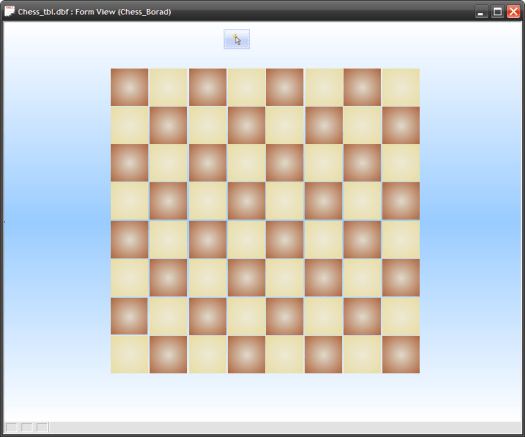 is not a graphic but rather sixty four buttons. Each button is named for the position on the board it maintains. For example the first square in the upper left corner is named a_1and the last button on the board in the lower right is named h_8 When the button at the top of the form is pressed the board is set up with the beginning positions of the game.
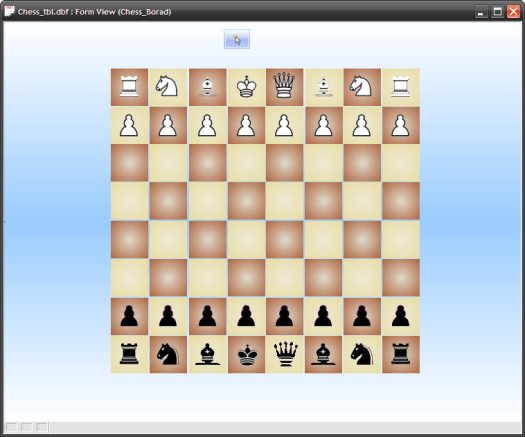 In our game the user will always be white so they would make the first move. To move a piece they click the piece they want, then click the square they want to move to. Starting with a Knight opening, my first move would look like this.
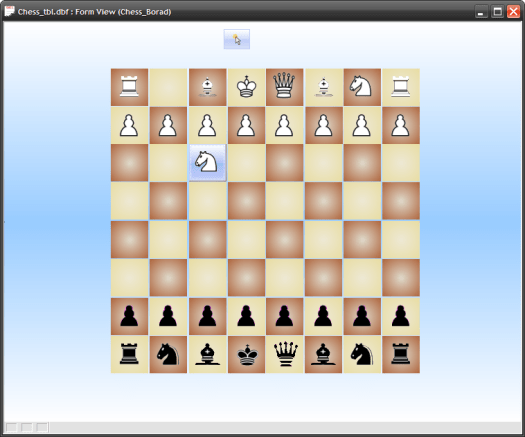 Lets review what has happened so far and actually it is quite a lot. We loaded the board with the starting position of all pieces by reading the values in a table, passed those values to a variable by fetching through the table then assigned a bitmap the the proper square by object name. Next we selected a square then clicked on another square and the bitmap was moved form one square to another.
The table
 This table will change as time goes on but for now it holds the starting values for our chess board.
Setting up the board
When the user clicks the new game button the values are read from the table and assigned to the buttons on the form.
dim vPosition as C
t = table.open("pieceposition")
t.fetch_first()
while .not. t.fetch_eof()
    vPosition = alltrim(t.position)
    eval("topparent:"+vPosition+".Default.Hbitmap.Bmpfile")  = "[PathAlias.ADB_Path]\Engine\Images"+chr(92)+Alltrim(t.Pos_Img)+".png"
    eval("topparent:"+vPosition+".refresh()")
t.fetch_next()
end while
t.close()
parentform.Refresh_Layout()
Notice in the code I am assigning the button name ( stored in the Position field in our table), to the variable vPosition. Next I use the eval function along with our variable to assign the stored image name (stored in the POS_Image field) to the proper button . Finally I use the eval function with the variable to refresh our button object and the image is displayed.
Moving a Chess Piece.
Each time the user selects a piece the computer needs to know
- Is it whites turn?
- What object is he selecting?
- Is he selecting a piece or a location to move to?
- Is the move valid (Adheres to Chess rules)?
- Is he finished?
One way to write it is to hard code the process on each button. This works but is not considered good code practices. Alpha Software provides a good solution for working with object properties without hard coding the object name each time and it is Current_object(). Current object returns the fully qualified name of the current object. When the knight was selected in the image above Current Object returned
Chess_board:b_1
and when the empty square was selected it returned
Chess_board:c_3
Those values are passed to our variable cObjNm which is then used in an if else if statement to determine what to do. (see below)
'Date Created: 04-Sep-2014 10:04:59 AM
'Last Updated: 04-Sep-2014 10:04:59 AM
'Created By  : cdc
'Updated By  : cdc
dim cObjNm as C
cObjNm = Current_object()
if xDo = "Select" .and. eval(cObjNm+".default.hbitmap.bmpfile")  <> "[PathAlias.ADB_Path]\Engine\Images\Blank Trans.png" then
    xPiece = eval(cObjNm+".default.hbitmap.bmpfile")
    xMove = eval(cObjNm+".Object.Name")
    xDo = "Move"
else if xDo = "Move" .and. eval(cObjNm+".default.hbitmap.bmpfile")  = "[PathAlias.ADB_Path]\Engine\Images\Blank Trans.png" then
    eval(cObjNm+".default.hbitmap.bmpfile")  = xPiece
    eval("topparent:"+xMove+".Default.Hbitmap.Bmpfile")  = "[PathAlias.ADB_Path]\Engine\Images\Blank Trans.png"
    xPiece = ""
    xMove = ""
    xDo = "Select"
else
    xPiece = ""
    xMove = ""
    xDo = "Select"
end if
Since this code is run using variables only it works on all buttons, therefor it only needs to be written once and called as a script on each button.
script_play("WhitesMove")
Well that’s it for today’s session. The next session will look at the validity of each move and the updating of our table pieces-positions.. Thanks again for stopping by and Remember, if you need help with an Alpha Software application or wish to inquire about a custom application for your business go to our website
and inquire or contact
NLawson@cdc-TakeCharge.com
Have a great day.
 Custome Database Design with Alpha Software
Leave a reply to Programming in Alpha Software Lesson 4: Sudoku Puzzle Solver Program | Alpha Software How to guide.. Cancel reply