
Hello Everyone
For those of you who have been following along, you know I have devoted many articles to presenting and controlling data in list views. Today we will look at the more traditional Browse Data Views in a one to many set. For the purpose of this lesson we will be looking at our utility program. If you are new to the blog, here is a view of the utility module prior to this lesson.
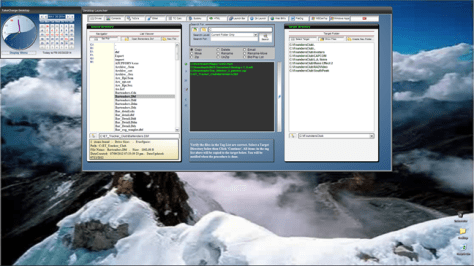 The source and target are list views of drive folders which are separated by the tag list and utility commands.
Our new utility module looks like this
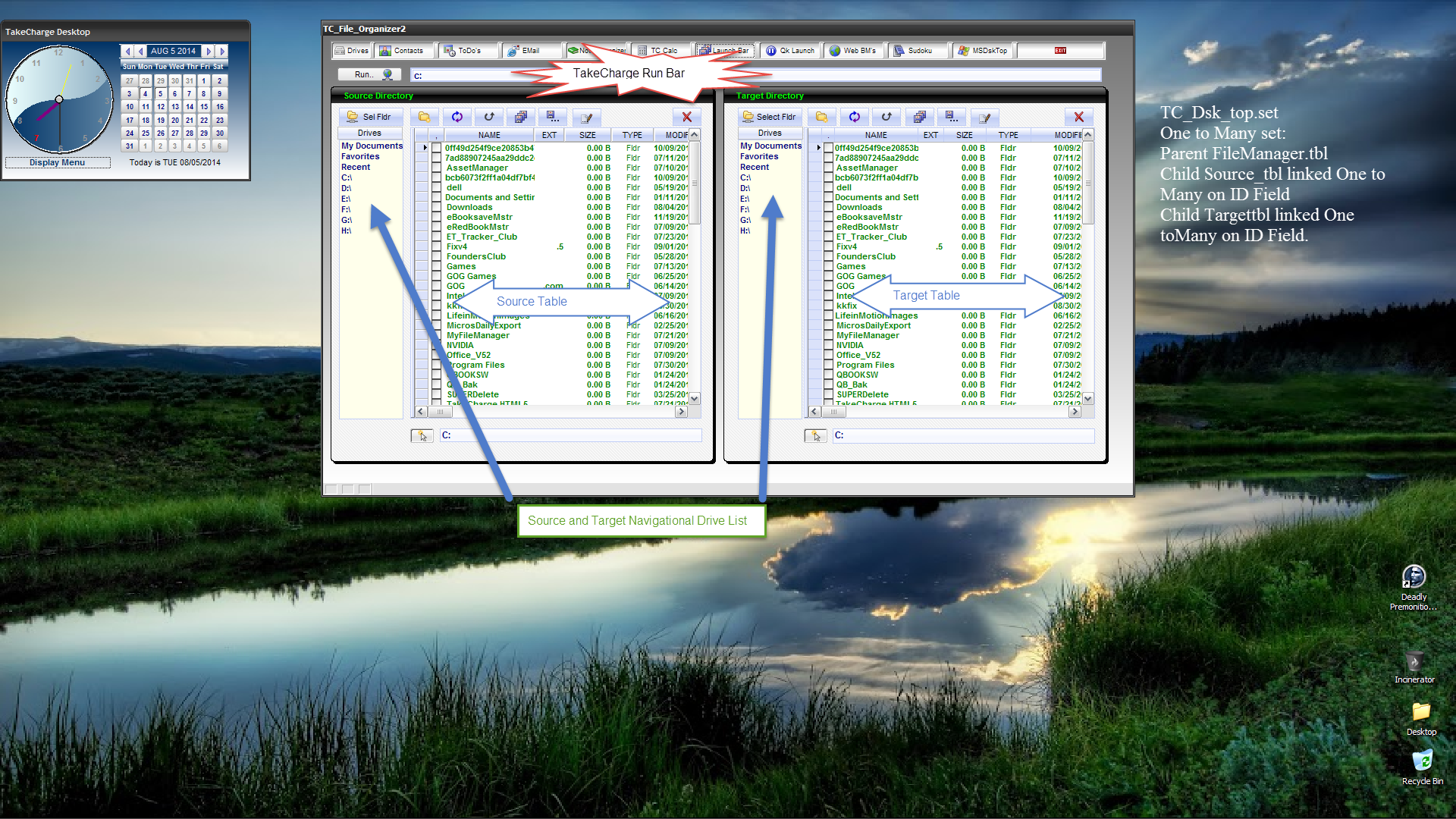
This module is a set linked one to many from
FileManager to Source_tbl and Targettbl
It includes a Run bar, Navigational Drive list for both Source and Target and a Custom Right Click Menu. There is a lot to cover so before we begin, take a moment to watch this short video which demonstrates the Utility Module in action.
Hope you enjoyed the video. Lets start by looking at the set configuration.
FileManager is the parent table and it only requires one field which is ID. ID is Numeric 2, 0
The Source and Target table structures are the same so I am showing the source only below.
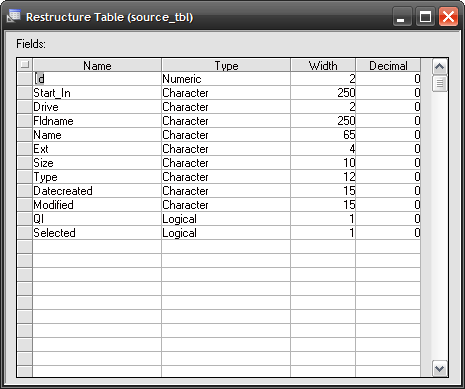 When the Utility Module is called from our Desktop Clock we run two scripts called;
- SD_Display_fldr
- TD_Display_fldr
SD deletes packs and rebuilds the source table view and TD does the same for The Target table. The code for the source table is listed below.
 'Date Created: 16-Jul-2014 11:12:55 AM
'Last Updated: 29-Jul-2014 12:12:16 PM
'Created By  : cdc
'Updated By  : cdc
dim Global szdrive as N
dim Global freeDrive as N
dim Global vfldName as C
dim dirlist as C
dim path as C
dim ptr as P
a_tbl = table.open("source_tbl")
a_tbl.delete_range(".t.")
a_tbl.pack()
a_tbl.close()
path = srfld
fldName = file.filename_parse(Var->srfld,"PN")
freeDrive = Round(file.drive_space_avail("C:")/(1024*1024)/1000,2)
szdrive = Round(file.drive_space_total("C:")/(1024*1024)/1000,2)
ui_freeze(.t.)
dirlist = *for_each(file,file,filefind.get(Alltrim(Var->path)+chr(92)+"*.*",FILE_FIND_NORMAL+FILE_FIND_DIRECTORY+FILE_FIND_ReadOnly+FILE_FIND_System,"PN"))+*for_each(file,file,filefind.get(Alltrim(Var->path)+chr(92)+"*.*",FILE_FIND_NORMAL+FILE_FIND_NOT_DIRECTORY+FILE_FIND_ReadOnly+FILE_FIND_System+FILE_FIND_Archive,"PN"))
tbl = table.open("Source_tbl")
tbl.batch_begin()
for each sname in dirlist
    tbl.enter_begin()
    tbl.ID = 1
    tbl.start_in = sname.value
    tbl.Drive = file.filename_parse(sname.value,"D")
    tbl.Fldname = file.filename_parse(sname.value,"P")
    tbl.Name = file.filename_parse(sname.value,"N")
                  tbl.Ext = file.filename_parse(sname.value,"E")
    ptr = filefind.first(Alltrim(sname))
    if ptr.is_directory() = .t. then
        tbl.type = "Fldr"
    Else
        if Alltrim(tbl.ext) = ".exe" then
            tbl.type = "App"
        else if alltrim(tbl.ext) = ".url" then
            tbl.type = "Web"
        else
            tbl.type = "File"
        end if
    end if
    tbl.Size = bytes_to_mega(Val(Alltrim(filefind.get(sname.value,FILE_FIND_NORMAL,"L"))),2)
    tbl.datecreated = filefind.get(sname.value,FILE_FIND_NORMAL,"C")
    tbl.modified = filefind.get(sname.value,FILE_FIND_NORMAL,"T")
    tbl.enter_end(.t.)
next
tbl.batch_end()
tbl.close()
ui_freeze(.f.)
This same code is run each time there is a call to display a new folder or drive with the exception we do not pack the table after the delete. Packing the table when the module is open will cause an error because the pack operation requires exclusive access to the table. If you look at the code you will see several code snippets we have used before. For example we use ‘for each … next’ to build our list of files in the selected folder path and we use the tbl method for entering the records into our table. This method is very fast and lends itself to using variable as part of the record creation. We also use the batch_begin and batch_end to speed up the record writing process. One final note is even though the source table is open in the set, we open it again in the background using tbl = table_open() This also speed up the data entry but requires us to use tbl.close() at the end of our script.
On our form the Navigation Drive list are created when the user click utilities on our launch bar.
ui_freeze(.t.)
if Btn3.text = "Utilities" then
    topparent.height = 630
    Btn3.text = "Launch Bar"
    topparent.Repaint()
else
    topparent.height = 80
    Btn3.text = "Utilities"
    topparent.Repaint()
end if
vDrv = "My Documents"+crlf()+"Favorites"+crlf()+"Recent"+crlf()+Comma_to_Crlf(file.drives_get(","))
StartIn = vDrv
TStartIn = vDrv
if vfldWatch =1 then
    vFldWatch = 0
else if vFldWatch = 0 then
    vfldWatch = 1
end if
if vTfldWatch =1 then
    vTFldWatch = 0
else if vTFldWatch = 0 then
    vTfldWatch = 1
end if
ui_freeze(.f.)
Notice again both StartIn (Source Drive) and TStartIn (Target Drive) are the same. The watch variables for each however are different. This is because we do not want to force an unnecessary refresh of either object if not necessary.
The OnChange Event of the Navigation List (StartIn) or (TStartIn) effect each table respectfully.
'Date Created: 07-May-2014 11:20:45 AM
'Last Updated: 26-Jul-2014 09:48:59 AM
'Created By  : cdc
'Updated By  : cdc
    dim path as C
    if StartIn = "My Documents" then
        path = win_special_folder("MyDocuments")
        if Right(Alltrim(path),1) = chr(92) then
            Path = Left(Alltrim(path),-1)
        else
            Path = Alltrim(path)
        end if
        srfld = path
    else if StartIn = "Favorites" then
        path = win_special_folder("Favorites")
        if Right(Alltrim(path),1) = chr(92) then
            Path = Left(Alltrim(path),-1)
        else
            Path = Alltrim(path)
        end if
        srfld = path
    else if StartIn = "Recent" then
        path = win_special_folder("Recent")
        if Right(Alltrim(path),1) = chr(92) then
            Path = Left(Alltrim(path),-1)
        else
            Path = Alltrim(path)
        end if
        srfld = path
    else
        path = Alltrim(StartIn.value)
        if Right(Alltrim(path),1) = chr(92) then
            Path = Left(Alltrim(path),-1)
        else
            Path = Alltrim(path)
        end if
        srfld = path
    end if

    '___________Rebuilds List
script_play("Rf_SD_Dsply_Fldr")
The code above is for the Source Navigational List and notice at the end we run the script Rf_SD_Display_fldr. This is the subroutine shown above without the pack command. The OnChage event for the Target Navigational List is the same but effects the targettbl and runs Rf_TD_Display_fldr at the end of the script. The next image shows the File Manager is design mode so you can see the placement of the variables on the form.
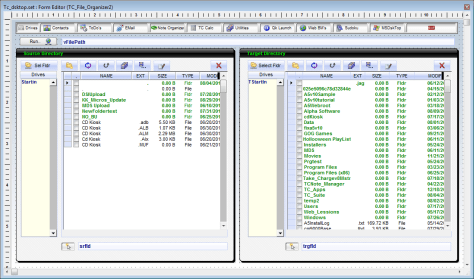 There are other advantages to using a table instead of a list which include but are not limited to
- Variable color equations in our browse
- Formatted columns
- Easy Design control over browse row properties
- Additional Object coding on browse events
Now lets look at the browse event code which include;
OnRowChange
dim sel_file As C
sel_file = file.filename_parse(browse1:start_in,"N")
if browse1:selected.text = "T" then
    VList = vList+recno("source_tbl")
    DoAction = "TagS"
end if

sys_send_keys("{F9}")
OnFetch
rNbr = recno("source_tbl")
t = table.open("source_tbl")
t.fetch_goto(rNbr)
mySelect = alltrim(t.drive)+Alltrim(t.fldname)+alltrim(t.name)+t.ext
t.close()
OnSave
dim sel_file as C
dim origfile as C
if browse1:selected.text = "T" then
    VList = vList+recno("source_tbl")
    DoAction = "TagS"
end if
sel_file = file.filename_parse(browse1:start_in.text,"N")
origfile = browse1:name.text
if DoAction <> "TagS" then
    if origfile <> sel_file
        dim nfname as C
        Var->nfname = file.filename_parse(browse1:start_in.text,"DP")+Alltrim(browse1:Name.text)+Alltrim(browse1:ext.text)
        file.rename(Alltrim(browse1:start_in.text),Var->nfname)
        goto done
    end if
end if
End
done:
parentform.commit()
xbasic_wait_for_idle()
DIM records_found as N
records_found = topparent.queryrun(" .t. ","recno()","","No","Source_Tbl",.f.)
xbasic_wait_for_idle()
button37.push()
and finally OnRowDoubleClick
on error goto mymsg
dim ptr as P
dim path as C

path = ""
if     right(Alltrim(mySelect),2) = "\." then
    path = file.filename_parse(mySelect,"D")
    srfld = path
    goto displayview
else if right(Alltrim(mySelect),2) = ".." then
    path = Left(file.filename_parse(mySelect,"DP")+chr(92),-Len(WORD(mySelect,-2,chr(92)))-3)
    srfld = path
    goto displayview
else
    ptr = filefind.first(Alltrim(mySelect))
    if ptr.is_directory() = .t. then
        srfld = mySelect
        goto displayview
    else
        CLine = mySelect
        sys_open(Cline)
        End
    end if
end if

displayview:
script_play("Rf_SD_Dsply_Fldr")
End
mymsg:
ui_msg_box("Ops!", "We cannot open a file of this type.")
Each of these routines are used to either identify or perform an action against the selected browse record. In our video we demonstrate renaming a file name for individual files and a range of files. This is made possible by the code in the OnSave event. First we build a list of all files in the browse table where selected = true. Then we set the value of two variables sel_file and Origfile. We compare the two and if they are different we run the file_rename function then rebuild and redisplay our source table. The code attached to the ReName button is listed here.
Dim erlist as C
erlist = ""
DIM sel_file as C
DIM records_found as N
records_found = topparent.queryrun("Source_Tbl->Selected = .t.","recno()","","No","Source_Tbl",.f.)
xbasic_wait_for_idle()
dim nfname as C
browse1.Activate()
dim tcnt as N
tcnt = count(Source_tbl->selected,GRP->Grand)
dim i as N
FOR i = 1 to tcnt+1
    on error goto emsg
    if i <= tcnt then
        browse1.fetch_first()
        sel_file = browse1:START_IN.text
        Var->nfname = file.filename_parse(browse1:start_in.text,"DP")+Alltrim(browse1:Name.text)+Alltrim(browse1:ext.text)
        file.rename(Alltrim(browse1:start_in.text),Var->nfname)
        browse1:selected.value = .f.
        xbasic_wait_for_idle()
        browse1.fetch_next()
     end if
NEXT
parentform.commit()
xbasic_wait_for_idle()
DIM records_found as N
records_found = topparent.queryrun(" .t. ","recno()","","No","Source_Tbl",.f.)
xbasic_wait_for_idle()
button37.push()
if erlist <> "" then
    ui_msg_box("Alert",""+erlist)
end if
end
emsg:
erlist = "The following files are either in use by another application"+crlf()+" or locked and could not be renamed."+crlf()
erlist = erlist + sel_file+crlf()
resume next
In this code we use an array equal to the number of records in our list and as we step through it we perform what ever action the user requested which in this case is to rename the selected file in the list. Please note that in each step of the array after the action is performed we set the value of selected to false which drops the record from the browse view then moves to the next record in the list. We demonstrated this in the video above and if you have not watched it you should so you can see this function in action. It is very cool. A final and important step in our code is to rebuild our topparent.query using all records in the table. Not doing this will cause the browse to become unstable and you will get unexpected results as you fetch records in the browse.
Well that’s it for today’s session. On our next session I will show the rest of the utility code and the right click menu design process. Hope you will stop back to follow along. If you have any ideas or would like to see features in the New PC Desktop, drop me a line and I will look at it. Thanks again for stopping by and Remember, if you need help with an Alpha Software application or wish to inquire about a custom application for your business go to our website
and inquire or contact
NLawson@cdc-TakeCharge.com
Have a great day.
 Custome Database Design with Alpha Software
Leave a reply to PC Desktop: Controlling Browse Data Views in a One to Many Set Part2 | Alpha Software How to guide.. Cancel reply