
Hello everyone
This session is a request from another programmer looking for some assistance. He wants to build a drop down control using xBasic and populate the values from another control which may be a database look up or some other type of list control.
Typically you would use the object properties on the form to define either a combo or record list control. Or if the object is a field in the table, you could use field rules on the lookup tab. We are going to look at three choices a developer has for accomplishing this goal.
- Populate using xBasic
- Adding a value to the drop down using a value from a record list drop down control
- Adding multiple values to a drop down from a drop down list computed automatically
Populate using xBasic
Our first image shows the values of drop down list 1 in the text box to the right.
 The code to populate this list is initially placed on the OnInit event of the form.
Dim SHARED list1 as C
list1 = ""

dim SHARED list2 as C
list2 = ""
DIM pObj AS P

pObj = topparent:ddlu1.this
pObj.settings.dynamic_list = <<%str%
Choice1
Choice2
choice3
%str%
The list objects are all variables and the code above builds drop down list one. List 1 and List 2 are variable I created to show how the values can be used to effect other objects (Text box).. To see this in action, lets look at the OnChange event code for drop down list 1.
DIM pObj AS P

pObj = topparent:ddlu1.this
pObj.settings.dynamic_list = <<%str%
Choice1
Choice2
choice3
%str%
list1 = pObj.settings.dynamic_list
list1 = remove_blank_lines(List1)
text4.text = list1
Here you can see we again run the xBasic code to build the list and assign it to list1 which is then assigned to text4 which is the Text Box on the form. From this you can see the xBasic code needed to build the list can be run from any object event on the form so if you add to the str of the dynamic_list the new value will display. Our next image shows this in action.
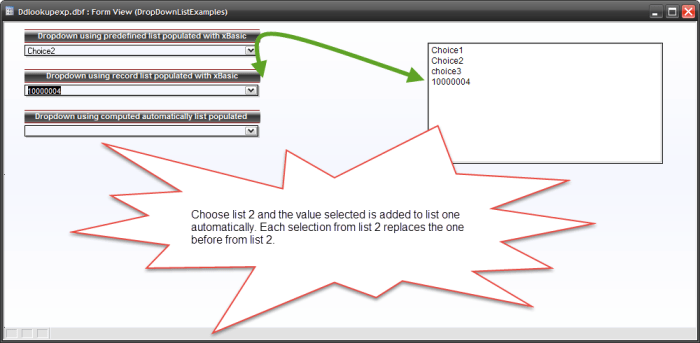 The image basically shows what will happen when the user chooses a value from drop down list 2. Now lets look at that code.
DIM pObj AS P

pObj = topparent:ddlu1.this
pObj.settings.dynamic_list = <<%str%
Choice1
Choice2
choice3
%str% + ddlu2

list1 = pObj.settings.dynamic_list
list1 = remove_blank_lines(List1)
text4.text = list1
Here we add the value selected from drop down list 2 (ddlu2) and add it to the end of our choice string then display the new list in our text box. Fairly simple. Finally lets look at building an ad hoc list which is our third image. .
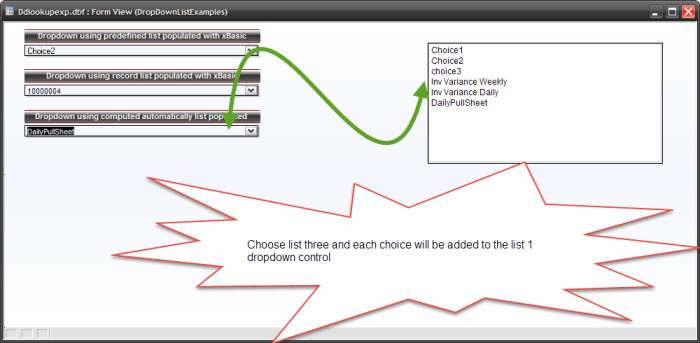 Again the image shows what will happen to drop down list 1 as the user continues to select values from drop down list 3.
In this example we are pulling values from a computed list of all reports available in our Restaurant application. As the user selects reports they are added to the drop down list 1 which could be used to print the reports. Lets look at this code.
list2 = list2+crlf()+ddlu3.text
list2 = remove_blank_lines(List2)


DIM pObj AS P

pObj = topparent:ddlu1.this
pObj.settings.dynamic_list = <<%str%
Choice1
Choice2
choice3
%str% + list2
list1 = pObj.settings.dynamic_list
list1 = remove_blank_lines(List1)
text4.text = list1
Here we use list2 to build each choice separated by a control line feed which is then added to the end of our string.
There are many examples of this process in the Building a Better PC Desktop lessons on this blog. Hopefully the examples help but if they don’t, I encourage you to read through the previous post to see more sophisticated examples.
Well that’s it for today’s session. On our next session will be posted soon and we will examine the code for our new File Utility navigation and tag system. Hope you will stop back. Thanks again for stopping by and Remember, if you need help with an Alpha Software application or wish to inquire about a custom application for your business go to our website
and inquire or contact
NLawson@cdc-TakeCharge.com
Have a great day.

 Custome Database Design with Alpha Software
Leave a reply to cdctakecharge Cancel reply