
Hello everyone.
Hope the Holiday season is going well for all of you. Today we are looking at the ToDo manager and how it relates to our Start menu and File Manager.
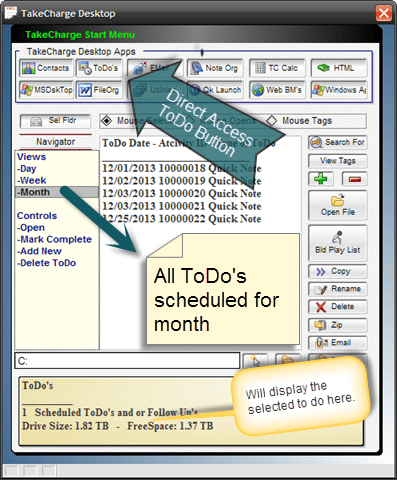
As you can see from the above image, clicking the Direct Access Button in the top tool bar builds a menu system in the Navigator List and based on the user selection shows the reminders or to do’s in the right list window.
Below is a short video which demonstrates how it works and gives an overview of the code. Watch the video then return for an in-depth look at the coding for this routine.
I hope you liked our presentation. Lets start by looking at the code on the Direct Access Button push event.
uaction = "Open"
'StartIn = "Views"+crlf()+"-Day"+crlf()+"-Week"+crlf()+"-Month"+crlf()+crlf()+"Controls"+crlf()+"-Open"+crlf()+"-Mark Complete"+crlf()+"-Add New"+crlf()+"-Delete ToDo"+crlf()
StartIn = <<%a%
Views
-Day
-Week
-Month

Controls
-Open
-Mark Complete
-Add New
-Delete ToDo

%a%
ListState = "ToDo"
subjectlist = ""
subjectlist = "Enter Date - Type of ToDo"+crlf()+"_________________________"+crlf()+"ToDo's for Today"+crlf()+table.external_record_content_GET("activity", "Cont_Date+' - '+Cont_type","Cont_Type","Cont_Date = Date()")+crlf()+crlf()+"Follow Up's for Today"+crlf()+table.external_record_content_GET("activity", "Cont_Date+' - '+Cont_type","Cont_Type","FU_Date = Date()")
vStartDir = subjectlist
ui_freeze(.t.)
if vwatch =1 then
   vwatch = 0
else if vwatch = 0 then
    vwatch = 1
end if
if vFldwatch =1 then
   vFldwatch = 0
else if vFldwatch = 0 then
    vFldwatch = 1
end if
xCond = 1
If you look at the top of the code you will see a rem’d out statement which shows how I normally build a manual list. Below that I created the same list using an Alpha Five function for building list. You will see this used extensively in their xDialog examples. As I stated in the video both work equally well and are interchangeable or can be used together. (refer: Clock Calender Menu design). Once the list is created, I change the value of my watch variable and the list displays on the form.
Now lets look at some of the code for the on change event of our Navigator List.
else if ListState = "ToDo" then
    uAction = "Select"
    if StartIn = "-Day" then
        subjectlist = "ToDo Date - Atcivity ID - Type of ToDo"+crlf()+"_________________________"+crlf()+table.external_record_content_GET("activity", "Cont_Date+\" \"+Act_ID+\" \"+Cont_type","Cont_Type","Cont_Date = Date()")
        vStartDir = subjectlist
        if vwatch =1 then
           vwatch = 0
        else if vwatch = 0 then
            vwatch = 1
        end if
    else if StartIn = "-Week" then
        subjectlist = "ToDo Date - Atcivity ID - Type of ToDo"+crlf()+"_________________________"+crlf()+table.external_record_content_GET("activity", "Cont_Date+\" \"+Act_ID+\" \"+Cont_type","Cont_Date+Cont_Type","Cont_Date >= Date()-dow_iso(Date()) .and. Cont_Date <= Date()+7-dow_iso(Date())")
        vStartDir = subjectlist
        if vwatch =1 then
           vwatch = 0
        else if vwatch = 0 then
            vwatch = 1
        end if
    else if StartIn = "-Month" then
        subjectlist = "ToDo Date - Atcivity ID - Type of ToDo"+crlf()+"_________________________"+crlf()+table.external_record_content_GET("activity", "Cont_Date+\" \"+Act_ID+\" \"+Cont_type","Cont_Date+Cont_Type","Cont_Date >= Date_FirstDayofMonth() .and. Cont_Date <= Date_LastDayofMonth()")
        vStartDir = subjectlist
        if vwatch =1 then
           vwatch = 0
        else if vwatch = 0 then
            vwatch = 1
        end if
    end if
First we must verify the Navigator list is displaying ToDo values and we do this by setting the ListState variable to “ToDo”. Next we determine the status of the Mouse action command. If uAction = “Select” the code is run. Final step is to read the value of StartIN and then build the correct list. Note here that I am using a combination of manually entered values in the list as well as list values returned by the
table.external_record_content_GET()
function.
Now for the real reason for the lesson and that is; how to read and write data stored in a rich text field in a table.
Regardless of the application you are writing, if it involves the user writing notes on their data entry forms, it will be critical for the application to move that data between forms, objects and other programs. Cut and paste leads to errors and unhappy customers as does re entering data. So, pay attention and see how it is done.
    if ListState = "ToDo" then
        if mySelect = "ToDo Date - Atcivity ID - Type of ToDo" .or. mySelect = "_________________________" then
            end
        end if
        dim xActID as C
        dim t as P
        dim bin as B
        myFileS = word(mySelect,2," ")
        t = table.open("act_memos")
        rNbr = tablemax("act_memos","Act_ID = Var->myFileS","recno()")
        t.fetch_goto(rNbr)
        f = t.field_get("Cont_Memo")
        r = rtf.create("")
        r.Binary_Text = f.value_get()
        bin = r.Binary_Text
        DocView = *BIN_TO_PLAIN(bin)
        topparent:Text1.Vertical_align  = "Top"
        FileMgtSystemS:text1.text = "Selected ToDo"+crlf()+"Abbreviated View:"+crlf()+Left(DocView,150)+"..."
        t.close()
        end
    end if
Again I start by verifying ListState = “ToDo”. Next if the user selects a label I tell the script to end, otherwise the code runs. First I declare some variables which are
- xActID – character var used to find record number for the requested memo
- t – pointer variable required for the rtf.create
- bin – Blob variable used to strip out the rich text coding
mySelect is the global variable I use for displaying the value of vStartDir which is the list object. Using the function word(), I extract the value of the activity id from the activity table and then using tablemax I use that value to find the record number in the act_memo table. Using the t.fetch_goto function is the only method I have found that makes this work correctly. Next I use t.field_get() to extract the values in the rich text memo field. This value is then added to the rtf.create object we created. Next I add the rtf object to our Blob variable (bin), then I then use the *BIN_TO_PLAIN() function to convert the blob value to plain text and add it to our DocView variable which is added to our text object on the form.
That sounds like a lot, but when you look at the actual code it’s not. The structure and code used is required to make this work.
Well that’s it for today’s session. I hope you found it informative. In our next session I will discuss our Tape Calculator and how it fits into our desktop. Hope you will stop back. Thanks again for stopping by and Remember, if you need help with an Alpha Software application or wish to inquire about a custom application for your business go to our website
and inquire or contact
NLawson@cdc-TakeCharge.com
Have a great day.


Leave a Reply