
Hello Everyone,
It’s been a while and I do apologize, but sometimes life gets in the way of life and I for one believe you should go with the flow. Today we are looking at the Email Account Manager and the code for attaching single or multiple files to an email.
First, lets watch this short video to see the new feature in action.
Well it looks simple enough but there are several code routines used to make this happen. Lets start by looking at the file attachment code.
Attaching a single File:
When the user selects a file and clicks Email Attachment on the right side of the menu, (see attached )
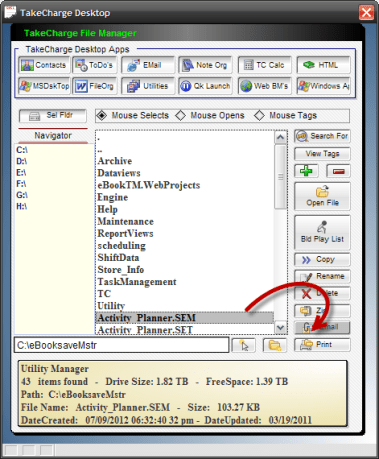
the software determines if the user is sending a single file or multiple files and runs the necessary code to perform the request.
if uAction = "Select" then
    Cname = myFileS
    form.load("EmailAcctDialog","popup","","center","middle")
    EmailAcctDialog.Activate()
    EmailAcctDialog.Show()
    form.close()
else if uAction = "Tag" then
    myselect = "EMail"
    ui_freeze(.t.)
    xCond = 2
    FileMgtSystemS:cond1.refresh()
    if vTLWatch =1 then
        vTLWatch = 0
    else if vTLWatch = 0 then
        vTLWatch = 1
    end if
    FileMgtSystemS:TagList.refresh()
    FileMgtSystemS:text1.text = "NOTICE!! All Files list will be compressed."+crlf()+"and added to an email"
    FileMgtSystemS:vtfilepath.text = vFilePath
    ui_freeze(.f.)
end if
I use our global variable uAction to determine which action the user wants. ‘Select’ equals a single file and ‘Tag’ equals multiple files.
For single files the software simply passes the value of our list object to CName and then opens our Email Account Manager for selecting who will receive the email.
 If the user selects no account and clicks continue the email client is opened without the ‘To’ field filled in otherwise it puts the user selection into the ‘To’ field. It writes ‘See Attached ‘ in the subject and finally attaches the selected file. The code which performs the above actions is attached to the on push event of the Continue button.
parentform.commit()
DIM xto as C
DIM xSubj as C
dim xBody as C
dim rtf_Text as C
dim attachments as C
attachments = CName
xbody = ""
xSubj = "See Attached"
if xContact = "" then
    xTo = ""
else
    xTo = EmailAcctDialog:browse1:mail_address.value
end if
email_client_external(xto,xSubj,xBody, attachments)
parentform.close()
I use email_external_client so the user does not have to set up pop email accounts for our application. It simply uses the Windows default email client.
Attaching Multiple Files:
If the software determines the user is sending more than one file, it builds a tag list then takes the user to the Tag List Viewer to complete the email attachment. ( see attached)
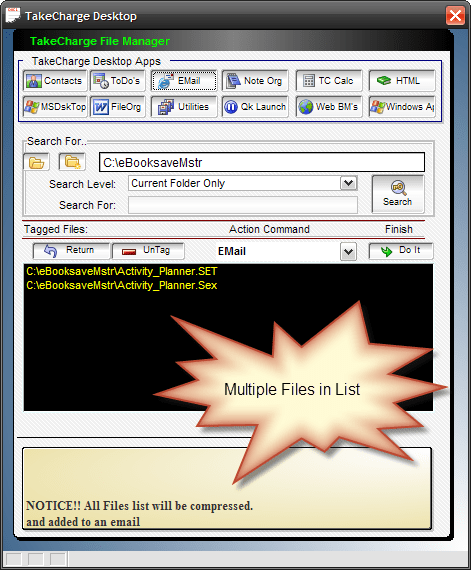 Now the user clicks Do It and the code pops up a dialog asking for a ZipFile Name then zips the files in the list before attaching the zip file to the email. Here is this code.
    dim prmpt_title as c
    dim prmpt_filter as c
    dim prmpt_default as c
    dim prmpt_flag as c
    dir_put(vTFilePath)

    prmpt_title = "Select Zip File Name"
    prmpt_filter = "(*.zip)"
    prmpt_default = vTFilePath+chr(92)+"Zip File Name"

    DIM SHARED zname AS C

    zname = ui_get_file( a5_eval_expression(prmpt_title,local_variables()),prmpt_filter,prmpt_default,"")
    list2 = Listsource
    for each sel_file in list2
        if right(Alltrim(sel_file),1) = "." then
            goto continue6
        end if
        FileMgtSystemS:text1.text = "Zipping... "+sel_file
        ui_yield()
        FileMgtSystemS:text1.Refresh()
        xbasic_wait_for_idle()
        dim ptr as P
        ptr = filefind.first(Alltrim(sel_file))
        if ptr.is_directory() = .t. then
            F1 = Alltrim(sel_file)+chr(92)+"*.*"
            zipfile = zname
            filelist = f1
            zip_files(zipfile, filelist, .f.,4,"D")
        else if ptr.is_directory() = .f. then
            F1 = sel_file
            Cname = zname
            filelist = f1
            zip_files(CName, filelist, .f.,4,"D")
        end if
        continue6:
    next
    CName = Cname+".zip"
    listsource = ""
    form.load("EmailAcctDialog","popup","","center","middle")
    EmailAcctDialog.Activate()
    EmailAcctDialog.Show()
    form.close()
    goto xdone
You can see that after the zip file is created it passes the zip file name with the ‘.zip’ extension to CName then opens the Email Account Manager and performs the same function as in a single file selection.
Well that is all for today. I hope you found this lesson helpful. Next we will be looking again at our File Organizer Module. After working with it a while now I have found it serves little purpose and is additional work for the user. Therefore I will be redesigning the module completely. As I have stated before when developing, you cannot be rigid and stuck with a singular idea. If something is not working or does not deliver the same high standard as the rest of the application, let it go.
Check back in a week or so to see what I come up with.
Thanks again for stopping by and Remember, if you need help with an Alpha Software application or wish to inquire about a custom application for your business go to our website
and inquire or contact
NLawson@cdc-TakeCharge.com
Also, if you have a question about anything you saw in this lesson or other lessons, send me an email and I will attempt to answer your question. Have a great day.
 Custome Database Design with Alpha Software
Leave a comment