
Hello Everyone
Searching the hard drive for files and folders should be simple. On our desktop we will have a link from our Clock Calendar Menu to take the user directly to the File Search Utility and there will be a link on the File Manager as well. When the Search Utility loads it will be on the Tag List form for our File Manager simply because once files are found, the expectation is the user will want to do something with them.
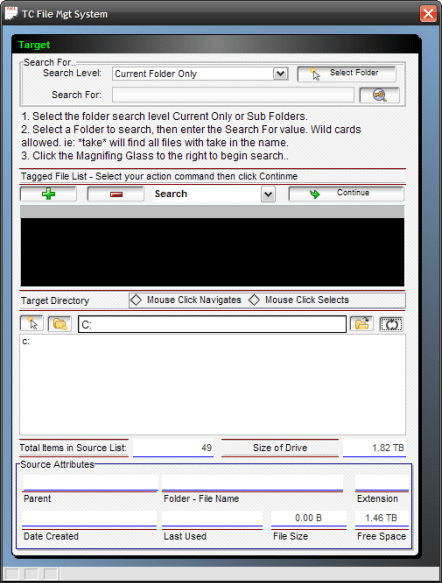
The instructions at the top of the form tell the user what to do. Also, the bubble help for the search string field shows examples of how to use wild cards in the search string. Once they have entered the search string and selected a starting point for the search they simply click the magnifier glass to the right of the search field and away it goes.
Watch this short video to see it in action.
Search Feature Code Review:
The first thing our search code does is it checks to see if the user is searching all sub folders for the root of the had drive and if they are prompts a warning.
if right(alltrim(dolist),1) = ":" .and. FileMgtSystemT:current_recurse.text = "Current plus Sub Folders" then
      DIM SHARED  xMsg_result as N
      DIM SHARED  xMsg_OK_Button as L
      DIM SHARED  xMsg_CANCEL_Button as L
      xMsg_OK_Button = .F.
      xMsg_CANCEL_Button = .F.

      title_var = "System Alert"
      message_text_var = <<%text%
      You have chosen to search the entire drive. This may take some time. ARE YOU SURE?
 %text%
      xMsg_result=ui_msg_box(title_var,message_text_var,UI_OK_CANCEL+ UI_SECOND_BUTTON_DEFAULT+ UI_ATTENTION_SYMBOL)
      'Test to see which button on the message box was pressed....
      SELECT
            CASE xMsg_result = UI_OK_SELECTED
             xMsg_OK_Button= .t.
            CASE xMsg_result = UI_CANCEL_SELECTED
             xMsg_CANCEL_Button= .t.
             End
      END SELECT
end if
The actual search is assigned to a variable called vsf and that is passed our file get function builds our list and our progress bar shows, the status of the search as it progresses. As you saw in the video the search feature is very simple to use “as is” and we hope to make even easier by modifying the form.
Tag List Form:
In the video we discussed the changes we will be making to the File Management System to have it work as a Start Menu as well as a File Manager. We will also be changing the Tag List form as well. Currently the tag form shows the target directory and the attributes for the selected file, but this is not necessary unless the user wants to see then. The form is also crowded looking, so we are going to move things around and hide views to make a better more functional form.
First, the target directory and the Attribute Panel will be hidden on a conditional object and only displayed when the user checks a box or clicks a button to display the page. The other page of the conditional object will hold the user message section. this will allow more room for the message allowing a larger font and a better look. The target path and it’s navigation buttons will be displayed at the top of the form and the default path will equal the source path or the C drive if loaded from the Start Menu. There may be some additional changes as well but for now I believe this will do.
In our next session we will look at these changes as well as the change to the Start Menu.
Thanks again for stopping by and Remember, if you need help with an Alpha Software application or wish to inquire about a custom application for your business go to our website
and inquire or contact
NLawson@cdc-TakeCharge.com
Have a great day.
 Custome Database Design with Alpha Software
Leave a reply to PC Desktop: Note Organizer Search functions using form objects and or xDialog | Alpha Software How to guide.. Cancel reply