
Hello Everyone
Today’s video looks at how you can user property values on objects to modify or change the actions of an on push event. Also we demonstrate the high level append operation and setting a field type to Record List Edit Combo Box. Watch the video then continue with this blog lesson for the details of how it’s done.
Well I hope you liked the video now lets look at the specifics.
First, lets look at the progressive look up for the From field.
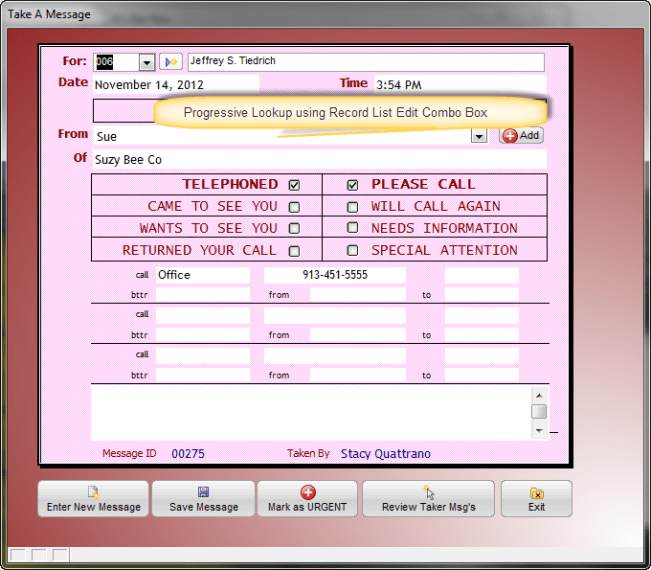
As shown in the graphic we set the field control type to Record List Edit Combo Box. This is done by right clicking on the field object then selecting properties. Next, you must go to choices to set up the list. Under choices, you want to return record values from a table. We are using People which we set up when designing our Contact Management Application. We also will be using Company from the Contact Management Application as well.
- Set From table to People
- Return Value to Contact – a field in People which combines First and Last Name together.
- Set Columns in list to
- Contact
- Comp_ID
- Department
You can now click preview to insure your list displays and you can tell the system to display column headings if you wish. Since people does not have company information in it we must also pull values from the company table. If you think back to the Contact Management lesson we set the linking value for people to company as Comp_ID which is the company’s telephone number without formatting. This is important because once we select the contact, we must use the Contact Name to find the Comp_ID value in people so we can pull the Company name from the Company table.
Let’s look at how that is done.
parentform.commit()
r_nbr = recno("messages")
t = table.open("messages")
t.fetch_goto(r_nbr)
Aname = t.messagefrom
t.close()
CA1 = tablemax("people","Contact = Var->AName","comp_id")
Take_Message:messagefromcompany.text = tablemax("company","id = var->CA1","Company_Na")
First we must commit the record because returning the record number value cannot be used in edit mode. Here we are using the xBasic table method for fetching and retrieving a field value. Fetch_goto takes us to the record we just created and then we assign the value of t.messagefrom to a variable called AName. We then close the message table. Note: This is important. To avoid naming conflicts, always close a table you opened in a session before leaving that session, otherwise the next time the table is called, Alpha Software will assign an alias to the table name which may affect your code.
CA1 is another variable and it’s value comes from the following code:
tablemax(“people”,”Contact = Var->AName”,”comp_id”)
Here we are using AName to find the Comp_ID value so we can fetch the Company name from the Company table which is the last line of our code. With very little coding we accomplished quite a bit.
The next field is the phone1 field. In order for this to work, PhoneType1 must be set to “Office”. I did this in field rules and also set the field to skip so users cannot change the value. With that done, we use the following code to return the phone number for the office from the Company table.
if Take_Message:phonetype1.text = "Office" then
    CA1 = tablemax("people","Contact = Var->AName","comp_id")
    Take_Message:phone1.text = tablemax("company","id = var->CA1","Phone_Nbr")
end if
This code is attacthed to the On Arrive Event of the Phone1 field. As you can see, this code works just like the code above except we return the phone number instead of the Company Name.
Now we will look at adding a new contact to our address book. Remember, our goal of this application is to provide a simple user message taking system for a small business. With that said, the address book does not need to be complicated. In fact we do not open the address book at all. Entries and edits can be done right from the Take Message form. Here is the code.
parentform.commit()
CName = table.external_record_content_get("people", "Contact","Contact","Contact = Var->Aname")
if CName = "" then
DIM Append as P

t = table.open("people")
append.t_db = "messages"
append.m_key = ""
append.t_key = ""
append.m_filter = ""
append.t_filter = "recno() = Var->r_nbr"
append.type = "All"
append.m_count = 3
append.m_field1 = "COMP_ID"
append.m_exp1 = "word(@Messages->Phone1,1,\"-\",1)+word(@Messages->Phone1,2,\"-\",1)+word(@Messages->Phone1,3,\"-\",1)"
append.m_field2 = "F_NAME"
append.m_exp2 = "word(@Messages->Messagefrom,1,\" \",1)"
append.m_field3 = "L_NAME"
append.m_exp3 = "word(@Messages->Messagefrom,2,\" \",1)"
append.t_count = 0

t.append()
t.close()
DIM Append as P

a_tbl = table.open("company")
append.m_key = ""
append.t_key = ""
append.m_filter = ""
append.t_filter = "recno() = Var->r_nbr"
append.type = "All"
append.m_count = 4
append.m_field1 = "ID"
append.m_exp1 = "Word(@Messages->Phone1,1,\"-\",1)+Word(@Messages->Phone1,2,\"-\",1)+Word(@Messages->Phone1,3,\"-\",1)"
append.m_field2 = "Company_Na"
append.m_exp2 = "@MESSAGES->Messagefromcompany"
append.m_field3 = "Dba_Name"
append.m_exp3 = "@MESSAGES->Messagefromcompany"
append.m_field4 = "Phone_Nbr"
append.m_exp4 = "@MESSAGES->Phone1"
append.t_count = 0

a_tbl.append()
a_tbl.close()
Ui_msg_box("Hello", "Contact Now Entered")
else
Ui_msg_box("Oops!","Contact Already Entered. Thank You.")
end if
In this code example we are using the high level operation append to create the new records in both people and company. I decided to do this to illustrate how easy it is to add records to an external table using built in high level Alpha Software operations. As it states in the video, you can use the create append wizard to basically do the setup for you. What you see above is the result of the wizard converted to xBasic and placed on the ‘On Push’ event of the button. Please note that once again since we opened the tables people and company we close then as well. Below is an image of the Append wizard used on the people table.
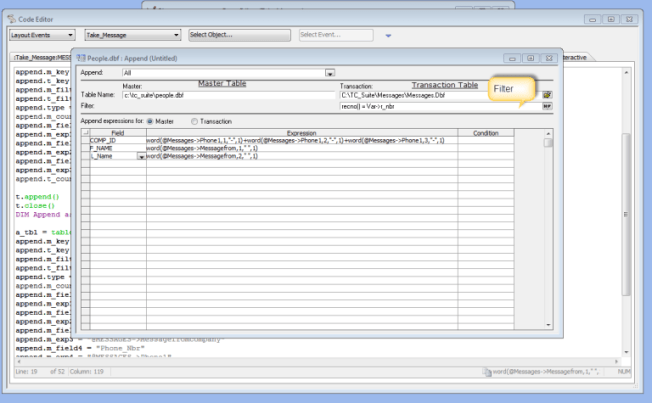
As you can see from the image you basically fill in the fields and Alpha Software does the rest.
The final thing we are going to look at today is controlling code flow with object properties and how to change multiple properties of an object at one time. If you look at the Take Message image above, notice the button names and icons at the bottom of the form. If we click the button labeled Review Taker Messages they change to the image below.

Now the same buttons have new text, new icons, new bubble help and new code. Here is how it’s done.
if vCond = 1 then
    vCond = 2
    Take_Message:button3.text = "Show Message Details"
    Take_Message:button5.text = "Quick Filter"
    Take_Message:button6.text = "Clear Filter"
    Take_Message:button2.text = "Ascending"
    Take_Message:button5.default.hbitmap.bmptag = "$$filter.quick"
    Take_Message:button6.default.hbitmap.bmptag = "$$filter.clear"
    Take_Message:button2.default.hbitmap.bmptag = "$$sort.ascending"
    Take_Message:Button5.bubble_help = "<xdlg>{wrap=50}Filters on Selected Field Value."
    Take_Message:Button6.bubble_help = "<xdlg>{wrap=50}Clears Current Filter. Shows All "
    Take_Message:Button2.bubble_help = "<xdlg>{wrap=50}Sorts Ascending on selected field."
    Take_Message:button3.bubble_help = "<xdlg>{wrap=50}Show Message Details."
else
    vCond = 1
    Take_Message:button3.text = "Review Taker Msg's"
    Take_Message:button5.text = "Enter New Message"
    Take_Message:button6.text = "Save Message"
    Take_Message:button2.text = "Mark as URGENT"
    Take_Message:button5.default.hbitmap.bmptag = "$$file.new"
    Take_Message:button6.default.hbitmap.bmptag = "$$file.save"
    Take_Message:button2.default.hbitmap.bmptag = "$$code.debug.line.breakpoint.conditional"
    Take_Message:Button5.bubble_help = "<xdlg>{wrap=50}Enter New message."
    Take_Message:Button6.bubble_help = "<xdlg>{wrap=50}Save Message "
    Take_Message:Button2.bubble_help = "<xdlg>{wrap=50}Mark as Urgent"
    Take_Message:button3.bubble_help = "<xdlg>{wrap=50}Review Taken Messages."
end if
Take_Message:cond1.refresh()
When the button is clicked, we change the text, the image (icon) and the bubble help using xBasic code. When the button is clicked again, it sets the buttons back to their original state. Now lets look at the Enter New button so you can see how the button text is used to controll the code flow.
if Take_Message:button5.text = "Enter New Message" then
    topparent.New_Record()
else
    If obj(topparent.active()).class() = "button" then
        obj(topparent.active_prev()).activate()
    End If
    topparent.QuickFilter()
end if
If the text on the button equals Enter New Message then that is what runs otherwise it runs code which performs a quick filter on any field selected in the Message Browse.
Well that’s it for today. I hope you found this lesson helpful. Remember, if you need help with an Alpha Software application or wish to inquire about a custom application for your business go to our web site
and inquire or contact
NLawson@cdc-TakeCharge.com
Have a great day.


 Custome Database Design with Alpha Software
Leave a reply to http://www.ripa.me Cancel reply