
Hello everyone and Merry Christmas
If you have been following my blog on programming in Alpha Software, you know it has been several months since my last post. In fact, it has been close to half a year. I make no excuses or offer now apologies. It is what it is.
After the New Year I will be changing the blog to be more like a developer’s diary with short articles about whatever is being worked on or designed on any given day. I will still post examples of programming solutions and do my best to finish several current open projects.
In that vein, lets pick up where we left off.
TakeCharge Project Manager Application:
Another module our application needs is Time and Billing. Many of you are learning Alpha Software to create apps for your business or for someone you wok for. Others like myself, develop applications for anyone who needs our expert skills. Creating the application is just the beginning. Once the app is created and delivered, the customer will need support and future programming needs. This support is typically done on a contract basis. For non-contract customers, billing for work is based on an hourly rate so a time and billing module is perfect for our Project Manager Application. Lets look at our needs.
We need a timer module to start and stop the time tracking. A rate table to track the various rate plans. A note writer to record the work done and an invoicing program to tie it all together and do the actual billing. Additionally we will need a simple means of receiving and posting payments. Now that we know our needs, lets look at our timer module.
For our timer, we will use our clock on our desktop clock calendar.
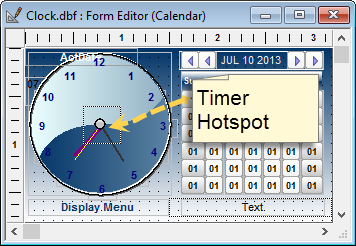
For our timer to work we will need a simple table.
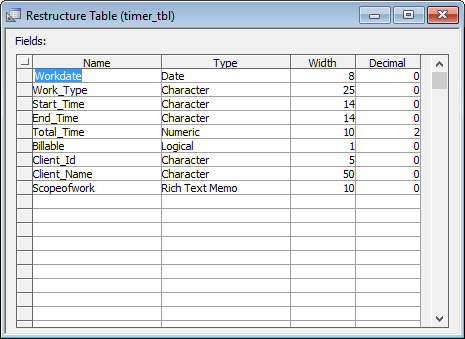
Our table consist of a date field to track the work date and a start and stop timer field as well as a work type field and a billable field. This gives us everything we need for tracking the billable hours and by including client id field we can link the work to our client for billing purposes. Lets look at our form.
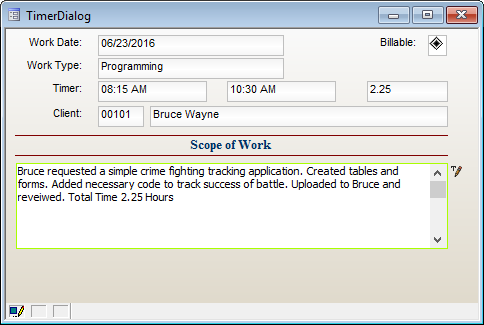
So, How does it work.
When the user clicks on the Hotspot the timer is started and simple dialog is displayed showing;
- Work Date
- Start Time
Filled in. When done, the user clicks the hotspot again and the timer stops. The Timer Dialog is displayed. Now the user fills in the notes and checks if the work is billable or not. Lets look under the hood of our form and at the code which runs the timer.

Our form has changed slightly from the original image (6 months ago). Our form now tracts a rate level and a Work description field. In addition, we added some form control buttons to the bottom of our dialog.
Each of the fields above on our Timer Dialog are considered smart fields. This simply means they have code attached to the object to help the user with data entry. One example is a Combo list which I have defined in field rules for our timer table. Below is an image of the Work Type field rule building our list.

Field rules are a simple yet powerful way to setup and control field rules and data entry. In the above example we are building a lookup list by pointing to an external table which stores the rate sheet values. Not only can I define the lookup, but I can also tell the field to provide links to the table’s form so the user can easily add and edit lookup values.
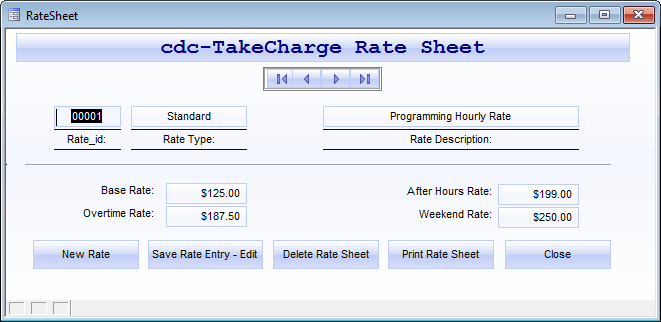
The field rules option in Alpha Software is an excellent tool and one you should practice using.
Look again at the Timer Dialog image above and notice two new objects on the form. Complete (a logical field) and New Timer. My intention is to use these objects as a means of continuing a timer after a scheduled break such as lunch. When the user clicks the timer button on the clock for the second time and our dialog is displayed, if complete is checked then the timer ends. If the user is stopping for a break, then when the Timer Dialog is displayed then simply go to lunch or whatever and when they return click New Timer. This will fill in a new dialog with the original information, set a new start time and blank the end time. When the user clicks the clock again at the end of the work, both timer events will be joined together on the billing time sheet. That routine is not written yet but when it is I will review it with all of you.
Here is the current code on our clock timer Hot Spot;
dim rec_count as N
rec_count = TABLECOUNT("timer_tbl","isblank(\"End_Time\") ")

if rec_count = 0 then
    t = table.open("timer_tbl")
    t.fetch_first()
    t.enter_begin()
    t.workdate = Date()
    t.start_time = time("0h:0m AM")
    t.enter_end(.t.)
    t.close()
    DIM SHARED  nTimer_result as N
    DIM SHARED  nTimer_OK_Button as L
    nTimer_OK_Button = .F.

    title_var = "New Timer"
    'Message is an expression. Need to evaluate the expression in the context of the current form.
    message_text_var = a5_eval_expression("=\"Timer Started: -\"+crlf()+time()",local_variables())
    nTimer_result=ui_msg_box(title_var,message_text_var,UI_OK+ UI_FIRST_BUTTON_DEFAULT+ UI_INFORMATION_SYMBOL)
    'Test to see which button on the message box was pressed....
    SELECT
        CASE nTimer_result = UI_OK_SELECTED
            nTimer_OK_Button= .t.
    END SELECT
else
    form.load("TimerDialog","popup","","center","center")
    TimerDialog.Activate()
    TimerDialog.fetch_Last()
    TimerDialog:billable.value = .t.
    TimerDialog:rate_level.text = "Standard Rate"
    TimerDialog:end_time.text = time("0h:0m AM")
    TimerDialog:complete.value = .f.
    TimerDialog.Show()
    TimerDialog.Commit()
    form.close()
end if
At this point the code simply identifies whether or not a timer is running by doing a tablecount and checking for blank end_time fields. If none our found it starts a new timer. If found, it opens the Timer Dialog form to the last record created and adds the default values then displays the form on the screen. Our new procedure will add a third condition to our statement and hopefully perform the routine described above.
The next object we will look at is our Timer Event Tracker form. This will provide the user with a tool to edit any created timer dialogs and ready them for billing. We will look at that shortly after the New Year.
Happy Holidays
 Custome Database Design with Alpha Software
Leave a comment