
Now that we have completed our lesson on the Sudoku Puzzle Game we are moving on to a Magic Cube Application. As I mentioned at the end of our previous lesson, my granddaughter recently got a Rubix Cube and asked me for help in solving it. I don’t want to actually solve the cube for her which would rob her of the joy of solving complex problems so I decided to create this application instead which will help her learn the various moves and what effect each has on the cells of the cube’s various faces.
If you have followed any of my previous lessons you know I recommend creating a design document before you start programming. Design documents do not need to be complicated. As in this case, they can be just a simple drawing.
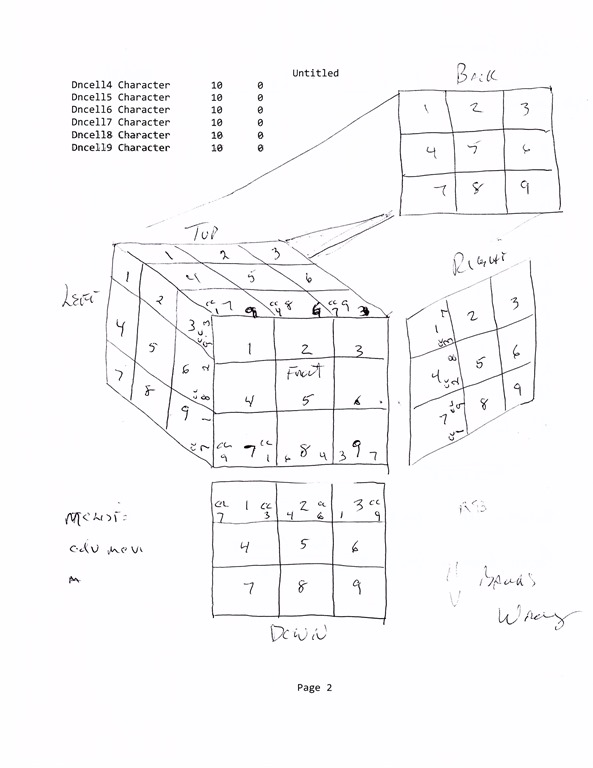
I drew a cube on the scrap paper and numbered the cells of each face. This gave me a visual aid to determine which values are effected by various moves of the cube faces. This is critical since the actual cubes move in very specific manners and the individual cells appear to change relationship when faces are moved but they actually maintain a specific relationship to each surrounding cell. For example, the center of each face can never be changed. They can be rotated but not changed. Sides can only be sides and corners can only be corners. In order for our program to work, we must honor these iron clad rules. With that said, lets watch this short video showing how the application works on the screen.
There is a lot going on here and we will not get to all of it in this session. Lets start with our table.
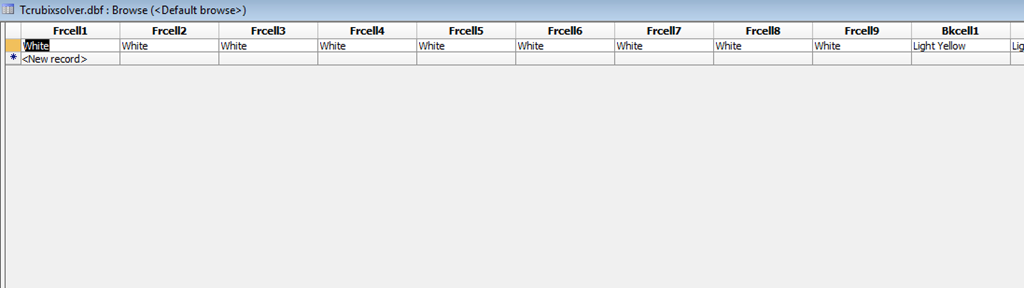
This partial image of our table shows the fields for the Front Face of our cube. Each field has the color as the cell value and the fields are labeled Fr (front) cell 1 through 9. Each face of the cube is setup in the table with the same name structure and the starting color for the cells on each face.
Front FR White
Back BK Light Yellow
Left LF Dark Blue
Right RG Dark Green
Top UP Dark Red
Bottom DN Orange
Each color and each Field has a corresponding variable associated with it.
vWhite = “White”
vRed = “Dark Red”
etc..
vFRCell1 = “”
vFRCell2 = “”
etc..
There are additional variables which will be discussed as they arise.
Our next table is a duplicate of our primary table and is used strictly to store the original values of our cube incase we get into a jam. Our last table is used to record all user interaction on the screen so the program will know how to undo or solve any cube configuration presented. My thought here is similar to my chess game which allows for a mulligan while playing the game and we will be able to use this to record move combinations which specifically effect various cells on the cube face. (Not done yet but I am working on it.)
Working in Design Mode:
Our form has a lot of objects on it so I am presenting a image of the form in design mode as a point of reference. As we go over each element you will be able to refer back to this image rather then me posting several different images.
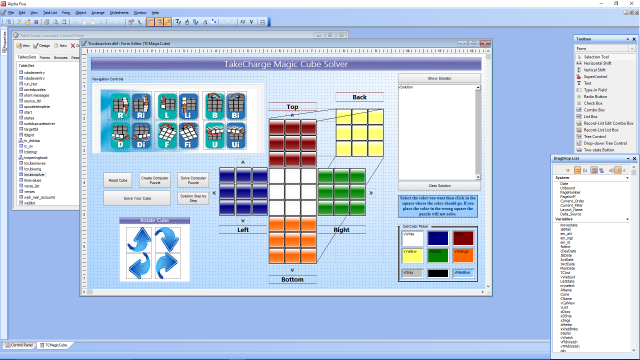
Lets start by looking at the code which runs when the form initiates.
'Date Created: 03-Feb-2016 01:16:35 PM
'Last Updated: 12-Feb-2016 11:59:13 AM
'Created By  : NLaws
'Updated By  : NLaws
dim SHARED vSquare as C
dim SHARED mcv as N
mcv = 0
dim SHARED mcList as C
mcList = "Click above to see current moves."+crlf()
vsolution = mcList
if mcv = 0 then
    mcv = 1
else
    mcv = 0
end if
t = table.current()
vFrcell1 = t.FRCell1
vFrcell2 = t.frcell2
vFrcell3 = t.frcell3
vFrcell4 = t.frcell4
vFrcell5 = t.frcell5
vFrcell6 = t.frcell6
vFrcell7 = t.frcell7
vFrcell8 = t.frcell8
vFrcell9 = t.frcell9
vBkcell1 = t.bkcell1
vBkcell2 = t.bkcell2
vBkcell3 = t.bkcell3
vBkcell4 = t.bkcell4
vBkcell5 = t.bkcell5
vBkcell6 = t.bkcell6
vBkcell7 = t.bkcell7
vBkcell8 = t.bkcell8
vBkcell9 = t.bkcell9
vLfcell1 = t.lfcell1
vLfcell2 = t.lfcell2
vLfcell3 = t.lfcell3
vLfcell4 = t.lfcell4
vLfcell5 = t.lfcell5
vLfcell6 = t.lfcell6
vLfcell7 = t.lfcell7
vLfcell8 = t.lfcell8
vLfcell9 = t.lfcell9
vRgcell1 = t.rgcell1
vRgcell2 = t.rgcell2
vRgcell3 = t.rgcell3
vRgcell4 = t.rgcell4
vRgcell5 = t.rgcell5
vRgcell6 = t.rgcell6
vRgcell7 = t.rgcell7
vRgcell8 = t.rgcell8
vRgcell9 = t.rgcell9
vUpcell1 = t.upcell1
vUpcell2 = t.upcell2
vUpcell3 = t.upcell3
vUpcell4 = t.upcell4
vUpcell5 = t.upcell5
vUpcell6 = t.upcell6
vUpcell7 = t.upcell7
vUpcell8 = t.upcell8
vUpcell9 = t.upcell9
vDncell1 = t.dncell1
vDncell2 = t.dncell2
vDncell3 = t.dncell3
vDncell4 = t.dncell4
vDncell5 = t.dncell5
vDncell6 = t.dncell6
vDncell7 = t.dncell7
vDncell8 = t.dncell8
vDncell9 = t.dncell9
eval("CFRcell1.Fill.Color") = vFRCell1
eval("CFRcell2.Fill.Color") = vFRCell2
eval("CFRcell3.Fill.Color") = vFRCell3
eval("CFRcell4.Fill.Color") = vFRCell4
eval("CFRcell5.Fill.Color") = vFRCell5
eval("CFRcell6.Fill.Color") = vFRCell6
eval("CFRcell7.Fill.Color") = vFRCell7
eval("CFRcell8.Fill.Color") = vFRCell8
eval("CFRcell9.Fill.Color") = vFRCell9
eval("Cbkcell1.Fill.Color") = vBkCell1
eval("Cbkcell2.Fill.Color") = vBkCell2
eval("Cbkcell3.Fill.Color") = vBkCell3
eval("Cbkcell4.Fill.Color") = vBKCell4
eval("Cbkcell5.Fill.Color") = vBKCell5
eval("Cbkcell6.Fill.Color") = vBKCell6
eval("Cbkcell7.Fill.Color") = vBKCell7
eval("Cbkcell8.Fill.Color") = vBKCell8
eval("Cbkcell9.Fill.Color") = vBKCell9
eval("CLFcell1.Fill.Color") = vLFCell1
eval("CLFcell2.Fill.Color") = vLFCell2
eval("CLFcell3.Fill.Color") = vLFCell3
eval("CLfcell4.Fill.Color") = vLFCell4
eval("CLfcell5.Fill.Color") = vLFCell5
eval("CLfcell6.Fill.Color") = vLFCell6
eval("CLfcell7.Fill.Color") = vLFCell7
eval("CLfcell8.Fill.Color") = vLFCell8
eval("CLfcell9.Fill.Color") = vLFCell9
eval("CRGcell1.Fill.Color") = vRGCell1
eval("CRGcell2.Fill.Color") = vRGCell2
eval("CRGcell3.Fill.Color") = vRGCell3
eval("CRGcell4.Fill.Color") = vRGCell4
eval("CRGcell5.Fill.Color") = vRGCell5
eval("CRGcell6.Fill.Color") = vRGCell6
eval("CRGcell7.Fill.Color") = vRGCell7
eval("CRGcell8.Fill.Color") = vRGCell8
eval("CRGcell9.Fill.Color") = vRGCell9
eval("CUPcell1.Fill.Color") = vUPCell1
eval("CUPcell2.Fill.Color") = vUPCell2
eval("CUPcell3.Fill.Color") = vUPCell3
eval("CUPcell4.Fill.Color") = vUPCell4
eval("CUPcell5.Fill.Color") = vUPCell5
eval("CUPcell6.Fill.Color") = vUPCell6
eval("CUPcell7.Fill.Color") = vUPCell7
eval("CUPcell8.Fill.Color") = vUPCell8
eval("CUPcell9.Fill.Color") = vUPCell9
eval("CDNcell1.Fill.Color") = vDNCell1
eval("CDNcell2.Fill.Color") = vDNCell2
eval("CDNcell3.Fill.Color") = vDNCell3
eval("CDNcell4.Fill.Color") = vDNCell4
eval("CDNcell5.Fill.Color") = vDNCell5
eval("CDNcell6.Fill.Color") = vDNCell6
eval("CDNcell7.Fill.Color") = vDNCell7
eval("CDNcell8.Fill.Color") = vDNCell8
eval("CDNcell9.Fill.Color") = vDNCell9
button2.Activate()
I am sure you can see there is a lot of redundant code here, and the eval function is not needed since the object names are hard coded. Each time I have created an Array in past examples, I have shown how the array is written but not what it resolves. Here you can see all the code we will replace with a few arrays making the program faster and more efficient. That code will be our lead off in our next session.
So that’s it for today. I hope you like this lesson we are embarking on and will return to follow along. If you have any questions or suggestions, leave a comment and I will respond. Thanks again and have a great day.
 Custome Database Design with Alpha Software
Leave a comment