
Memory:
We started our previous session by looking at the purpose of applications and how our senses play a part in the conception of new software programs. We looked at the function
Lookup()
and how it is used to find and copy data from one source to another for use by our application. We also stated that functions are used in code which is executed by a trigger event generated either by the user or a predetermined event embedded in our code.
Today we are going to look at using memory to collect and store information which can be used to trigger other code events in our application. Again, lets look at senses . In most cases our imagination is a series of senses we have gathered through life experience that our brain works into a different scenario then originally received. If the stored sensory images are played back as received then they are memories, if not it is imagination. We use our imagination to look at what is , then imagine what can be. In programming this happens all the time. Applications are constantly being created which simply rework an already existing application but fixes or improves one or more aspects of the original application. The images which comprise our memory are made up of the happiest events and the worst events in our life. (No one except a few remember the mundane.) A computer allows for all information to be retrieved through a trigger event. We often recall a memory based on some sensory trigger in the real world; a spoken word, a song, a smell or touch etc. We actually have little control over the process. Whereas In programming the programmer has total control over the process. When you program you determine the retrieval of information which then can be placed in variables stored in memory for use in processing additional information. Now lets look at our practical examples of using lookups to collect and store information in memory.
Lookup
look·up
ˈlo͝okˌəp/
noun
noun: lookup; plural noun: lookups; noun: look-up; plural noun: look-ups
1. the action of or a facility for systematic electronic information retrieval.
2. a facility for lookup.
In Alpha Software the lookup function is specific and does as one would expect it to. It is by function, “a facility for lookup”. If you look at the definition above, you see lookup has a broader application. When in form design you can create a variable from the form dropdown menu. Once created, the variable can be dragged onto your form and used to display information from the current data table or an external data table. If you right click on the variable and go to the Setup Tab of the Properties dialog you can set the control type of the variable and how you want it to work.
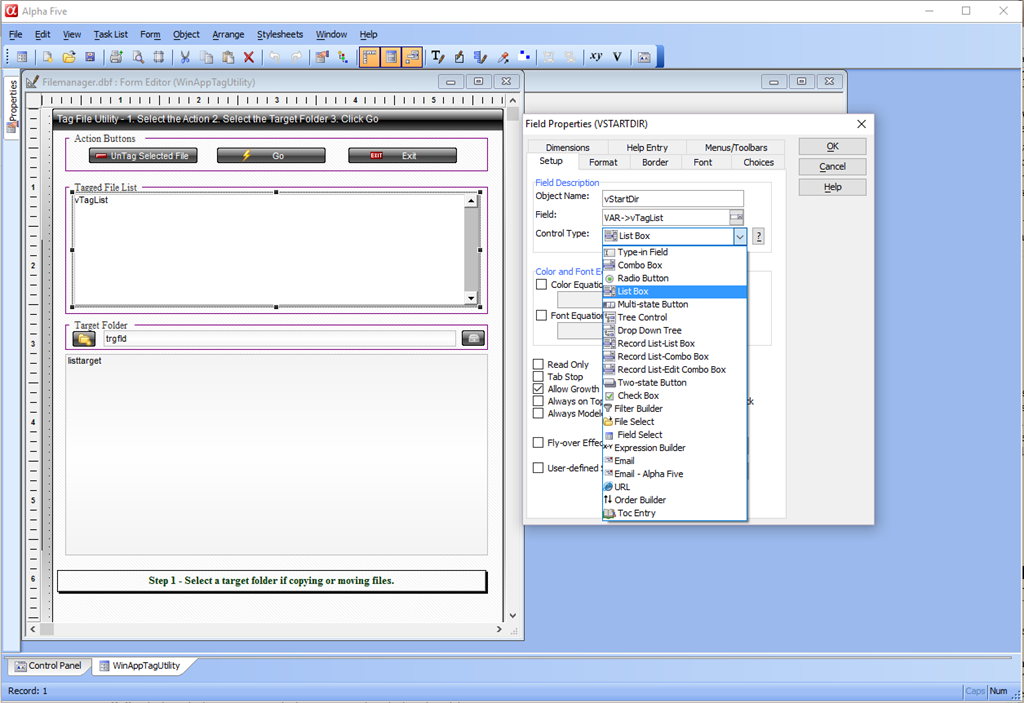
In the example above I have a variable named vTagList which I set the control type to List Box. Next under choices, I build my list.

I set my choice to automatic and my source to Expression. The expression is ListSource which is a global variable that creates a CRLF delimited list. Here is the code.
*for_each(file,file,filefind.get(Alltrim(Var->path)+chr(92)+"*.*",FILE_FIND_NORMAL+FILE_FIND_DIRECTORY+FILE_FIND_ReadOnly+FILE_FIND_System,"PN"))+*for_each(file,file,filefind.get(Alltrim(Var->path)+chr(92)+"*.*",FILE_FIND_NORMAL+FILE_FIND_NOT_DIRECTORY+FILE_FIND_ReadOnly+FILE_FIND_System+FILE_FIND_Archive,"PN"))
In this example, we have a list of files within the selected folder written to the variable ListSource which is stored in memory and bound to our form by making it the choice for our variable vTagList. So, by definition, our List is now a Lookup. You will create lookups like this when you need the user to make a decision and provide feedback to your program before proceeding. Here the user must verify the list is correct before clicking go which then performs the requested action against all files in the list.The types of list you can create are data list, field list, table list, report list, record list and many more. We will look at many of them as we work through future lessons.
Another type of lookup is an Array. If you followed along with our chess program lessons we built an array of our chess board squares and tracked the location of each piece on the board and what moves could be made. Here is part of that Script.
dim WPiece[8] as P
WPiece.initialize_from_table("tblgrid")
for each xcol in List
    dim i as N
    FOR i = 1 to 8 step 1
        SelPiece = lower(xcol)
        if xcol = "A" .and. i = 5
            SelPiece = "a_"
        end if
        cPieceNm = eval("WPiece["+i+"]."+Alltrim(xcol))
        if left(eval("WPiece["+i+"]."+Alltrim(xcol)),1) = "B"
        xMove = SelPiece+alltrim(str(i))
        rNbr = i
        dim Qlist as C = ""
        if word(cPieceNm,1," ",2) = "B Pawn" then
            if Left(Alltrim(xMove),1) = "a" then
                Movelist = IF(rNbr=1,"Swap",IF(rNbr=2,"a1,b1",IF(rNbr=3,"a2,b2",IF(rNbr=4,"a3,b3",\
                IF(rNbr=5,"a4,B4",IF(rNbr=6,"a_5,B5",IF(rNbr=7,"a6,a_5,b6","")))))))
            else if Left(Alltrim(xMove),1) = "b" then…..
In this example the program looks at the move black is attempting to make and determines if the move is first legal and second sound.
If legal, it branches to test the move. If sound it allows the move. If either of the two fail it denies the move. If you wish to see all of our chess code, go to Programming a Chess Program in Alpha Software or paste the following address in your address bar . (https://cdctakecharge.wordpress.com/2014/09/04/programming-chess-in-alpha-software/)
Our final example of a lookup is our clock on our calendar menu form.
Calendar:text15.text = time("0h:0m:0s:a ")
Calendar:text15.Refresh()
xTime = Calendar:text15.text
xHour = val(left(word(xTime,1,":",1),2))*5
xMin = val(word(xTime,2,":",1))
xSec = val(left(word(xTime,3,":",1),2))
Here we set four variables which represent the current time on the computer in total time, hours, minutes and seconds. Then based on the value of each the hands on the clock face are positioned on the screen. The lookup takes place on the Timer event of the form and every second the time() function resets the value of each variable and the rest of the code does the work. You can see all of that code at
Having fun with Graphics or go to https://cdctakecharge.wordpress.com/2013/05/10/having-fun-with-graphics-lesson-4-desktop-widget/
Next we will look at some text formatting functions which will help you in processing information in your application. I hope you found this lesson helpful and invite you to stop back for lesson 3 in the coming weeks.
 Custome Database Design with Alpha Software
Leave a comment