
We have created our Application and reviewed the code and today I moved it to the OneDrive Folder and opened it on my Surface Pro4
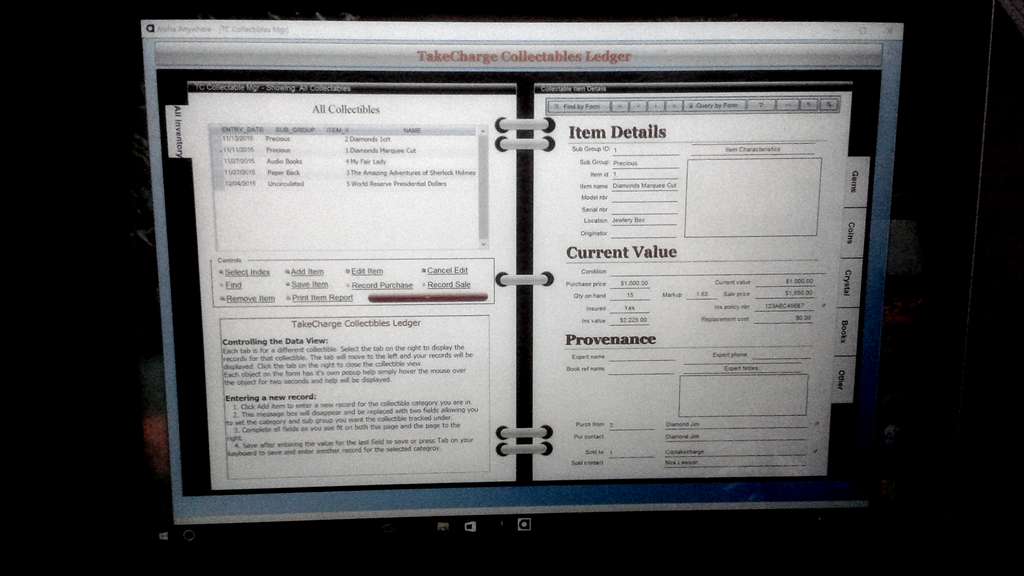
Sorry for the quality of the image, but my Smart phone is older and has a low end camera. Even with that, it looks good on the screen.
Now the question is how do we update our data? Lets look at two different solutions; both the pro’s and con’s of each and how they would work.
Solution 1: is to place the application under the OneDrive folder and it will show up on all devices on that OneDrive Account. Solution 2 is to install the application on each device and use a table to share data entered via a trigger event which would append the data between devices. Lets look at the pros and cons of each.
Install the application once under the OneDrive Folder
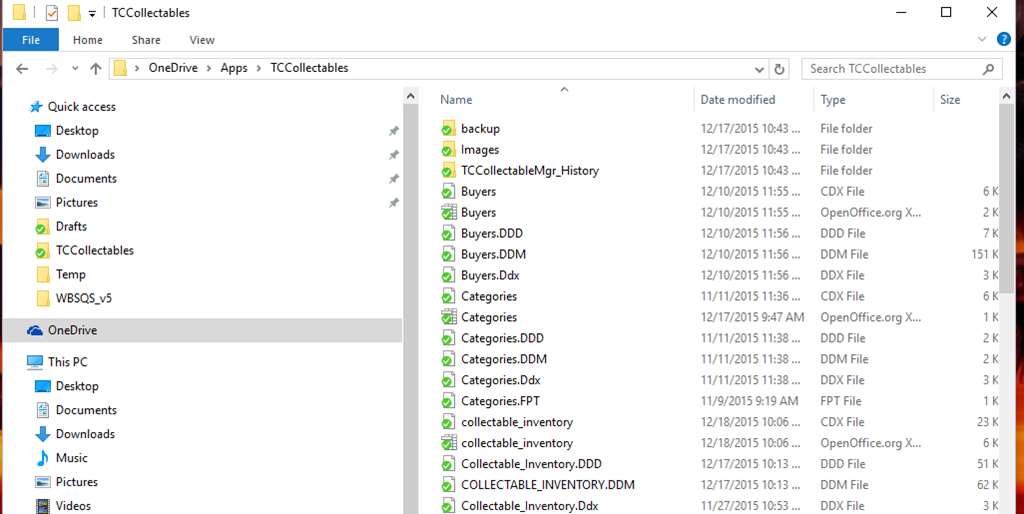
You can see the path of our app is OneDrive\Apps\TCColloectables
Pros
- Maintenance and support of the application is simplified
- No additional routines required to share data
- Data entered on one device shows up on all devices
Cons
- Adding a file to a OneDrive folder is available immediately to all devices but not so for data entered in to a table. It appears OneDrive periodically refreshes existing tables under OneDrive but it does not happen immediately.
- Auto increment values based on simple numbers may become out of sync.
- Device must be connected to Internet.
Solution
- Go to application control panel Refresh Control Panel
- Forcing OneDrive to Sync files requires the following steps
- Close your Application
- Right click on the oneDrive cloud icon in the task bar
- Click Exit
- Go to the search bar on the Start Menu type OneDrive and press enter on the keyboard.
- OneDrive will launch and prompt you to log in.
- OneDrive will resync
- Open your application and the data will be there
- Add the following code to the autoexec script on your application
- a5.System_Mode_set(“control_panel_refresh_check”,”True/False”)
- a5.System_Mode_get(“control_panel_refresh_check”)
- xbasic_wait_for_idle()
That may seem like a lot of steps but it only needs to be done if your application is open and dormant. The best solution is to close the application when not in use then when opened it will auto sync the latest data tables and all is good
Solution 2: Install the application on each device
Pros
- Ensures all data on each device is the same
- Each time a data record is changed values are written to a table under the OneDrive folder.
- Table Opened
- Table zapped
- Data Appended – All
- Table Closed
- This process changes the last access time stamp on the file which triggers OneDrive to re-sync
Cons
- Updates and support would be more complicated.
- Data entry would be slightly slower.
- A utility would need to be written to maintain the transaction table.
- A timed event would need to be written to check for new records in transaction table then run an append, unique replace existing, to update current data on the device. (would require a mode check to insure not in data entry mode.)
- Would still fail to update if device is off line.
For this project we are using Solution 1. because the app is actually designed for a single user so they cannot be in both places at the same time. This means each time they open the application, on either device, it will be sync’d and the data will be current.
The small business application I am doing will use a slightly different approach. Their business application resides on a central server with several workstations. One of the workstations will be a desktop running Windows 10. It will have the Field Service application which will share tables with the Office Application. The Field Tech’s will use Surface Pro 4 tablets. Tickets generated in the office will be available to the Field service app via the server and then they will be available to the Field Service Tech’s via OneDrive. The order is reversed when data needs to flow back to the Office app.
So as you can see developing for the Surface Pro 4 is no different than a standard desktop app with the understanding of data flow. I hope this gets all you developers thinking of ways to take advantage of this new Windows Platform.
In our final lesson we will complete the purchase and sale forms and the code needed to keep the inventory table up to date. If you have questions or suggestions leave a comment and I will get back to you. As always I know your time is important and I appreciate you spending some of it with me. Have a great day and I hope you will join us for the final lesson.
 Custome Database Design with Alpha Software
Leave a comment