
Now that we have looked at Tabs and how they work, you can start to see how the form drives the code. Our next example is Indexing.
Select Index
One of the ways Alpha Software creates an ordered list of selected records is with an Index. The index can be on any field in the primary table, or on a key expression and it can be filtered but does not have to be. Building an index is done in the control panel on the table and sets tab and you can create temporary index’s in xBasic. For our application we created our index’s at the control panel for our table collectible_inventory.
Author BK_AUTHOR CAT_ID=4 Ascending All
Books TEM_NAME CAT_ID=4 Ascending All
Book_Name BOOK_NAME CAT_ID=4 Ascending All
Case_Preserve CASE_PRESERVE (LOCATION) Ascending Unique only
Case_Preserve1 CASE_PRESERVE (EXPERT_NAME) Ascending Unique only
Coins ITEM_NAME CAT_ID=2 Ascending All
Crystal ITEM_NAME CAT_ID=3 Ascending All
Gems ITEM_NAME CAT_ID=1 Ascending All
Item ITEM_NAME .T. Ascending All
Item_Id ITEM_ID Ascending Unique only
Other ITEM_NAME CAT_ID=5 Ascending All
Series SERIES CAT_ID=4 Ascending All
if you look at the above index list for our table you will notice two index’s named Case_Preserve. These are created automatically based on two field rules on the Location field and the Expert_Name field. The rest are designed by me to control the data view on the form.
To view this list from a button on the form I could use
a5_index_selector()
which would display the Primary Index or Query dialog box.
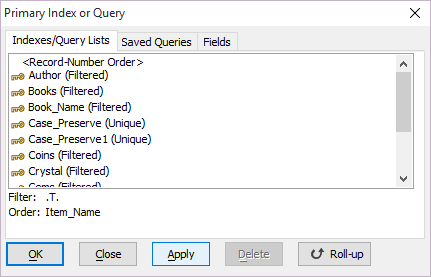
As you can see, this box allows for great flexibility in sorting and selecting records and in most cases it is all you would need. In this case however we do not want all of these choices because the wrong selection would mess up our form data view; so I made my own.
DIM SHARED vIndx as C
DIM SHARED varC_result as C
DELETE a_vIndx
vIndx = ""
DIM a_vIndx[7] as c
dim temp_list as c
if vlable = "Books" then
temp_list = <<%list%
Book Name
Author
Series
Item_Name
%list%
else
temp_list = <<%list%
Gems
Crystal
Coins
Books
Other
Item_ID
Item_Name
%list%
end if
Dim format as p Format.tab_stops="" Format.odd_row_color="White" Format.even_row_color="#234+234+255" Format.odd_selected_color="#0+0+127" Format.even_selected_color="Dark Blue" Format.font="Arial,8" Format.font_color_unselected="Black" Format.font_color_selected="White" Format.lastbutton="OK" Format.group_size=1 Format.number_rows=.f. Format.alternating_bands=.t.temp_list = a5_owner_draw_list_fmt(temp_list,Format) a_vIndx.initialize(temp_list) heading_string = "Select the desired index" footer_string = "Click Cancel to do Nothing" ok_button_label = "&OK" cancel_button_label = "&Cancel" Delete XdialogStyle dim XDialogStyle as p dim XDialogStyle as p XDialogStyle.AccentColor = "#191+191+191" XDialogStyle.Color = "#255+255+255" varC_result = ui_dlg_box("IndexSelector",<<%dlg% {Windowstyle=Gradient Radial Top Left} {region} {text=35,1:heading_string}; {endregion}; {region} | [%d;O={@@}%.40,8vIndx^$$a_vIndx]; {endregion}; {region} {text=35,1:footer_string}; {endregion}; {line=1,0}; {region} <*15=ok_button_label!OK> <15=cancel_button_label!CANCEL> {endregion}; %dlg%,<<%code% if a_dlg_button = "CANCEL" then vIndx = "" end if %code%) if vIndx = "" then end end ifif vIndx = "Gems" then topparent.Index_SetExplicit("Gems") if xtPos = 1 then control_HotSpot1.push() else control_HotSpot8.push() end if else if vIndx = "Coins" then topparent.Index_SetExplicit("Coins") if xtPos < 7 then control_HotSpot4.push() else control_HotSpot9.push() end if else if vIndx = "Crystal" then topparent.Index_SetExplicit("Crystal") if xtPos < 8 then control_HotSpot5.push() else control_HotSpot10.push() end if else if vIndx = "Books" then topparent.Index_SetExplicit("Book_Name") if xtPos < 9 then control_HotSpot6.push() else control_HotSpot11.push() end if else if vIndx = "Other" then topparent.Index_SetExplicit("Other") if xtPos <= 10 then control_HotSpot7.push() end if else if vIndx = "Item_ID" then topparent.Index_SetExplicit("Item_ID") control_HotSpot3.push() else if vIndx = "Item_Name" then topparent.Index_SetExplicit("Item") control_HotSpot3.push() else if vIndx = "Author" then topparent.Index_SetExplicit("Author") else if vIndx = "Series" then topparent.Index_SetExplicit("Series") else if vIndx = "Book Name" then topparent.Index_SetExplicit("Book_Name") end if xbasic_wait_for_idle()
Look at the above code and you will notice I use a simple if else statement to control my list view. If vLable = Books then only Index’s named for the Book view of our form are listed; otherwise I show the other names I want displayed. Next I display a Checkbox dialog box which allows the user to select the index from the provided list and finally I run the code based on their selection. Now I created the dialog box using the xBasic Script Genie which is an excellent tool and I encourage you to use it for all your early xBasic code writing. You will find you need to tweak most of the code it provides but it will save you tons of time and frustration. zNow lets examine the code it runs.
Like the tab code in the previous lesson our code looks at the index name selected and the value of our variable xtPos which is set when the user selects a tab. (see previous lesson) Once it knows the current state it then pushes the appropriate hotspot. By pushing the proper hotspot it is just as if the user selected the tab they wanted. Now the use only needs to click Find to look for the record they want. Notice I placed an xBasic_wait for Idle() at the end of the code. This would allow me to add
control_Busston10.Push()
which is the Find button on the form further reducing steps for the user. The code for the Find button is
topparent.find()
and since our Index is set already if pops up the Find Dialog with the proper index selected.
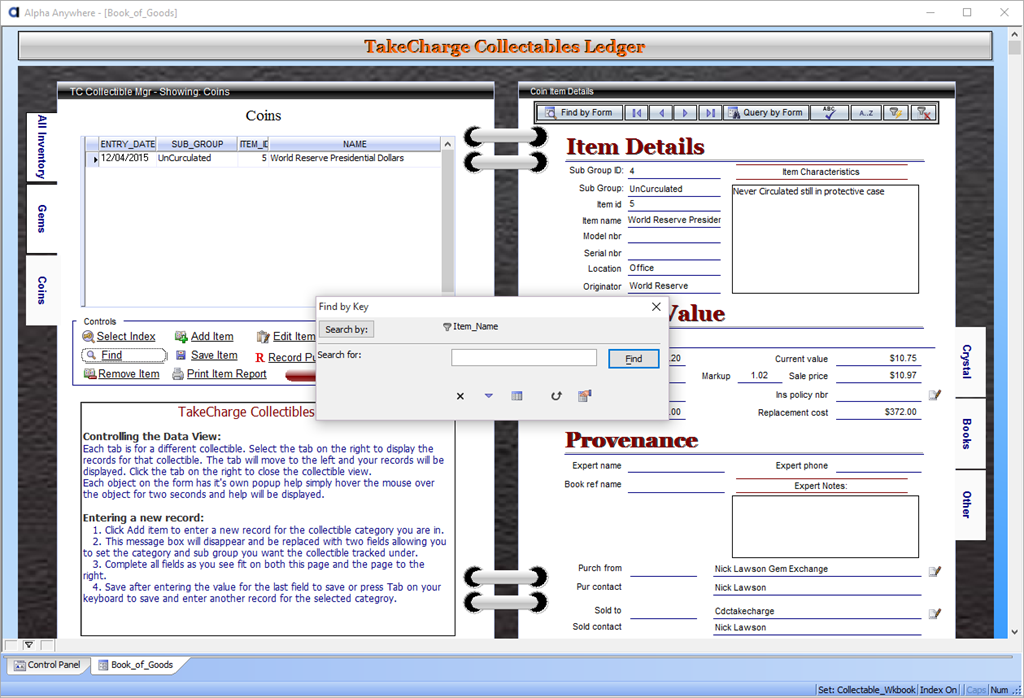
Now lets look at the code on our Add Item button’s onPush event
if vlable = "All Collectibles" then
DIM x as C
DIM SHARED varC_result as C
x = "Oops! Looks like you are in the All Inventory View. "\
+"This view is reserved for easily finding items across collectable types. You cannot enter a new record in this view."\
+crlf()+"The following steps will help you correctly enter a new collectible item."+crlf()+crlf()\
+"1.  Select the tab for the collectable you wish to enter."+crlf()\
+"2.  Click Add New Item. "+crlf()\
+"3.  Click Save after filling in the last field of the form or tab to save and enter another record."\
+crlf()+crlf()\
+"If you wish to cancel an entry click Cancel or if the entry is already entered, Click Remove."
ok_button_label = "&OK"
cancel_button_label = "&Cancel"
Delete XdialogStyle
dim XDialogStyle as p
XDialogStyle.AccentColor = "White"
XDialogStyle.Color = "Blue White"
varC_result = ui_dlg_box("Important Message",<<%dlg%
{Windowstyle=Gradient Radial Bottom Right}
{region}
{image=$sys_information}{sp};
{lf=4}
|{text=75,15:x};
{endregion};
{lf=4};
{line=1,0};
{region}
{lf=4};
{SP}<*80=ok_button_label!OK>
{endregion};
%dlg%)
goto fini
else
'xdataview = 1
parentform.allow_change(.T.)
topparent.New_Record()
if vlable="Gems" then
    Cat_Id.value = 1
else if    vLable="Coins" then
    Cat_Id.value = 2
else if vlable="Crystal" then
    Cat_Id.value = 3
else if vlable="Books" then
    Cat_Id.value = 4
else if    vlable="Other" then
    Cat_Id.value = 5
end if
end if fini:
This code is very straight forward. I simply use an if statement to determine what view the user is on. If at all inventory then I popup my xDialog message box otherwise I start a new record and enter the proper category id into the Cat_ID field. Once that value is set, the field rules filters the subgroup look up automatically.
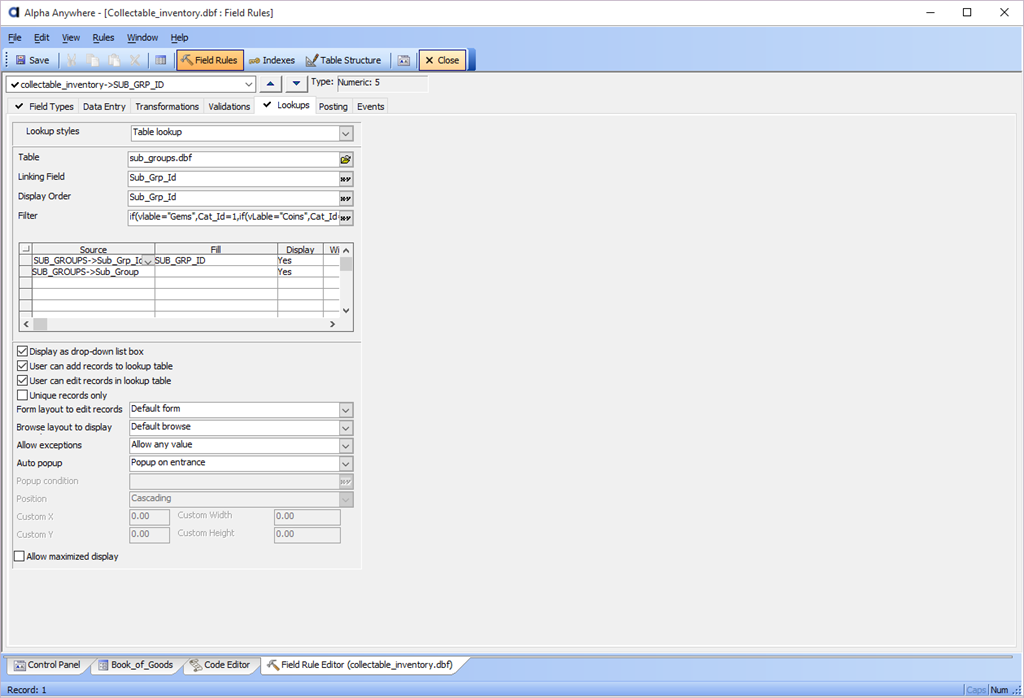
The filter you see in the image is
if(vlable="Gems",Cat_Id=1,if(vLable="Coins",Cat_Id=2,if(vlable="Crystal",Cat_Id=3,if(vlable="Books",Cat_Id=4,if(vlable="Other",Cat_Id=5,.t.)))))
The rest is controlled by the SetTabCtrl script which gets set when the hotspot is pushed.
The remaining buttons on the form are very standard so I will not waist your time explaining them. If some of you have a question about one of them then send me an Email and I will respond as quickly as possible.
So now our form is complete and tested. Next we will need to build our Purchase and Sales table – set and set up our One Drive interface. Finally; we get to work on the reason for this lesson.
In our next lesson we will decide how we want our OneDrive table to work. Will it be a live table or work as a data switching table? Tune in to find out. If you have questions or suggestions leave a comment and I will get back to you. As always I know your time is important and I appreciate you spending some of it with me. Have a great day and I hope you will join us for lesson 6.
 Custome Database Design with Alpha Software
Leave a comment