
Hello everyone.
Today we are starting our blog off with a short video which demonstrates the form and function of our collectibles database up to this point. Watching the video will help you understand how and why I wrote the object code as I did. Sit back relax and enjoy the show.
I hope you enjoyed the video now lets look at the code demonstrated.
Tabs
To start with we will look at the code on the OnPush event of each tab. I am saying tab but actually each tab is a text object and the code is on the OnPush event for a Hotspot over each tab. This is done to allow rotated text on the tab objects.
parentform.commit()
xtPos = 7
ui_freeze(.t.)
control_text26.Show()
Control_text27.Fill.Style = “Transparent”
control_text27.hide()topparent:Control_frame1.Text = “TC Collectibles Mgr: Showing GEMS”
topparent:Control_frame2.Text = “GEMS Details”xdataview = 0
vLable = “Gems”
topparent.Index_SetExplicit(“Gems”)
script_play(“SetTabCtrl”)
parentform.Refresh_Layout()
ui_freeze(.f.)
On our form when the user clicks a tab the above code runs. Each tab is basically the same. The difference is in the properties value for each object. For example, the code above is on the Gems tab and below is the Crystal Tab.
parentform.commit()
xtPos = 9
ui_freeze(.t.)
control_text26.Show()
control_text22.Show()
control_text23.Show()
Control_text27.Fill.Style = “Transparent”
Control_text21.Fill.Style = “Transparent”
Control_text20.Fill.Style = “Transparent”
control_text27.hide()
control_text21.hide()
control_text20.hide()xdataview = 0
vLable = “Crystal”
topparent:Control_frame1.Text = “TC Collectible Mgr – Showing: Crystal”
topparent:Control_frame2.Text = “Coin Item Details”
topparent.Index_SetExplicit(“Crystal”)script_play(“SetTabCtrl”)
parentform.Refresh_Layout()
ui_freeze(.f.)
As the tabs on the right are selected, going down the page, the text objects on the right above and including the selected tab are hidden and the corresponding tab on the left is shown. This gives the appearance of the tab moving from right to left. The variable ‘xtpos’ is used to tell the software which tab has focus and is used when selecting an index. xtpos is declared on the form and is shared. The variable xdataview is another variable used for form control and is shared as well. (Currently I set the value to 0 but as of now I am not using the variable. If I do not need it by time I am done, I will delete it.) Next the code sets a filtered index based on the tab selection. Finally, each tab runs a script
script_play(“SetTabCtrl”)
which is used to enable or disable fields on the form. The reason this is important, is not all fields are used in each collectible view so we restrict the tab order to match the proper view. Here is the code.
if vlable = “Books” then
‘______Enable Tab___
Sub_Grp_ID.Enable()
Sub_Group.Enable()
Bk_Genre.Enable()
bk_author.Enable()
Series.Enable()
Content_Rating.Enable()
Bk_Item_ID.Enable()
Bk_Qty_On_Hand.Enable()
BK_Item_Name.Enable()
BK_Location.Enable()
BK_Originator.Enable()
BK_Purchase_Price.Enable()
‘______Disable Tab___
SG_ID.Disable()
SG.Disable()
Item_ID.Disable()
Item_Name.Disable()
Model_Nbr.Disable()
Serial_Nbr.Disable()
Location.Disable()
Originator.Disable()
Condition.Disable()
Purchase_Price.Disable()
Current_Value.Disable()
Qty_ON_Hand.Disable()
Markup.Disable()
Sale_Price.Disable()
Insured.Disable()
Ins_Policy_Nbr.Disable()
Ins_Value.Disable()
Expert_Name.Disable()
Expert_Phone.Disable()
Book_Ref_Name.Disable()
Seller_ID.Disable()
Buyer_ID.Disable()
Sub_Grp_ID.Activate()
else
‘______Disable Tab___
Sub_Grp_ID.Disable()
Sub_Group.Disable()
Bk_Genre.Disable()
bk_author.Disable()
Series.Disable()
Content_Rating.Disable()
Bk_Item_ID.Disable()
Bk_Qty_On_Hand.Disable()
BK_Item_Name.Disable()
BK_Location.Disable()
BK_Originator.Disable()
BK_Purchase_Price.Disable()
‘______Enable Tab___
SG_ID.Enable()
SG.Enable()
Item_ID.Enable()
Item_Name.Enable()
Model_Nbr.Enable()
Serial_Nbr.Enable()
Location.Enable()
Originator.Enable()
Condition.Enable()
Purchase_Price.Enable()
Current_Value.Enable()
Qty_ON_Hand.Enable()
Markup.Enable()
Sale_Price.Enable()
Insured.Enable()
Ins_Policy_Nbr.Enable()
Ins_Value.Enable()
Expert_Name.Enable()
Expert_Phone.Enable()
Book_Ref_Name.Enable()
Seller_ID.Enable()
Buyer_ID.Enable()
SG_ID.Activate()
end if
In all the years I have been developing applications for business the one thing which makes all of my customers happy is controlling the data entry and making the data entry clerks happy. Having the data entry work in a logical and uniform way always makes them happy which makes the owners happy and keeps them as customers.
When you look at the code you can see there are only two options which are vLable = “Books” or not. On our form we have a conditional object
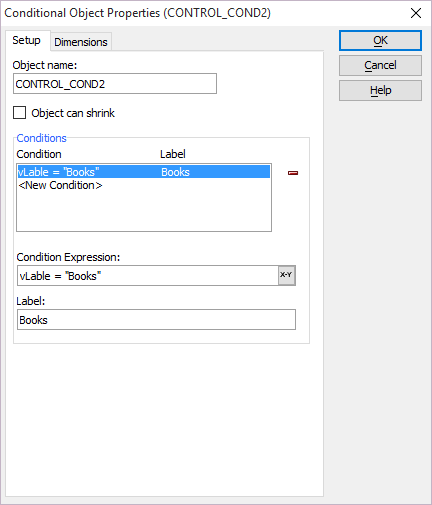
This object has two conditions which are Books or default and the control switches based on the value of our variable vLable
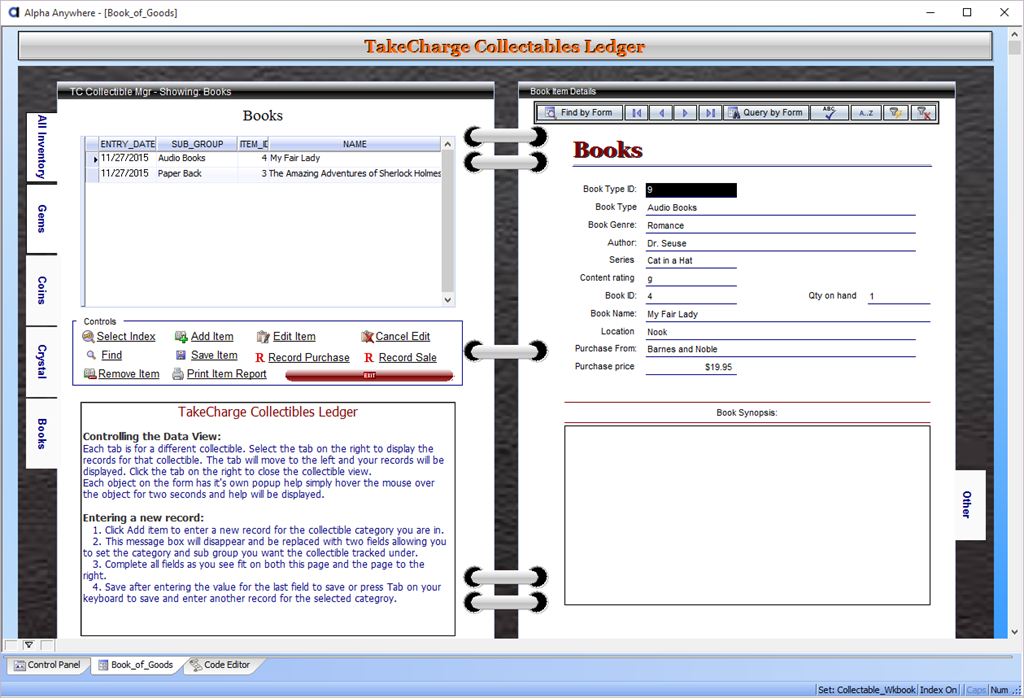
When vLable equals “Books” the form looks like this
Otherwise the right page looks like this
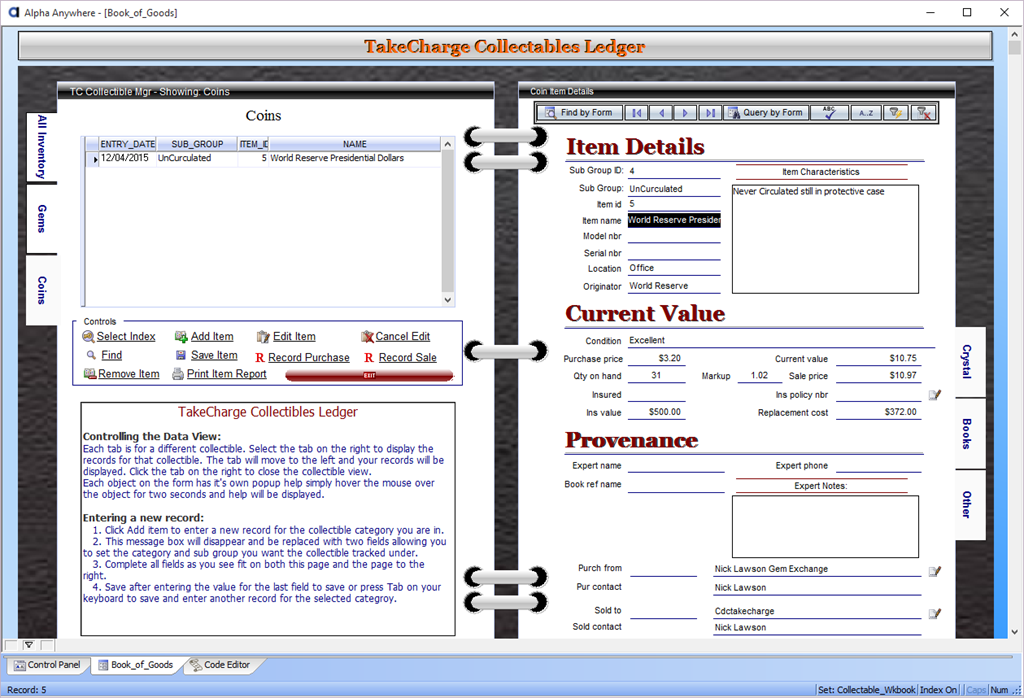
As you can see the fields displayed are quite different and if w did not run the SetTabCrtl script then entering a new record would flip the conditional object to the opposite view and give focus to a field on that view which would greatly confuse the person doing the data entry.
Now lets look at the code for the tabs on the left page.
parentform.commit()
xtPos = 7
ui_freeze(.t.)
‘_____Move Tabs______
control_text22.hide()
control_text23.hide()
control_text24.hide()
control_text25.hide()
Control_text21.Fill.Style = “Solid”
Control_text20.Fill.Style = “Solid”
Control_text19.Fill.Style = “Solid”
Control_text18.Fill.Style = “Solid”
control_text21.show()
control_text20.show()
control_text19.show()
control_text18.show()xdataview = 0
vLable = “Gems”
topparent:Control_frame1.Text = “TC Collectible Mgr – Showing: Gems”
topparent:Control_frame2.Text = “Gem Item Details”topparent.Index_SetExplicit(“Gems”)
script_play(“SetTabCtrl”)
parentform.Refresh_Layout()
ui_freeze(.f.)
This code is on the tab for coins yet it sets the vLable to “Gems”. As explained in the video this is to make the book work as it would in the real world. That’s it for tabs. If you are following along, be sure to modify the code to reflect the object names you give each object to avoid syntax errors.
This lesson is already fairly long so I am going to stop here and will continue later. In our next lesson we will look at the rest of the code on the form and start to discuss the layout for our surface pro 4 forms. If you have questions or suggestions leave a comment and I will get back to you. As always I know your time is important and I appreciate you spending some of it with me. Have a great day and I hope you will join us for lesson 5.
 Custome Database Design with Alpha Software
Leave a comment