
The course and history of programming has made business programs of like kind very equal. In the general layout look and workings of business programs one may appear to be slightly superior to another of kind yet when all is considered, the difference is not so great to say one application or program is greater than another. Program A may look different than Program B but underneath where the program works they in fact do the same thing. Both collect data, process data and report data. So if this is true, how do you make your program stand out so people will buy it?
The answer is you. Not your experience nor your education or wisdom because all programmers have that and it is conceit to think one’s wisdom is greater than all others. By you I mean your attention to detail and your commitment to make your application look and work better than your competitions. Electronic collection of data must be seamless and without fail; data entry must be fast and natural for the person doing the data entry; processing of data must meet the needs of the business or person and reporting must be unique and complete. You cannot take shortcuts. If your code is sloppy or your forms are not easy to work with your application will not be popular and your market will look else ware for their solution. So now that we know the task ahead of us, let’s begin.
In our last session we looked at the initial table setup and our set which joined all the tables together. That set was designed to demonstrate how the data would be reported and grouped. It was not ideal for data entry. One way to find out if your set works for data entry is to open the set in it’s default form.
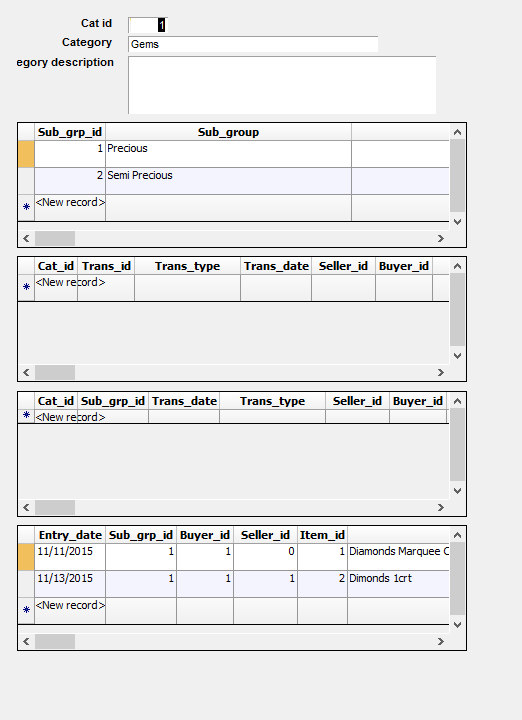
As you can see, this form is not very user friendly so I changed the set to this.
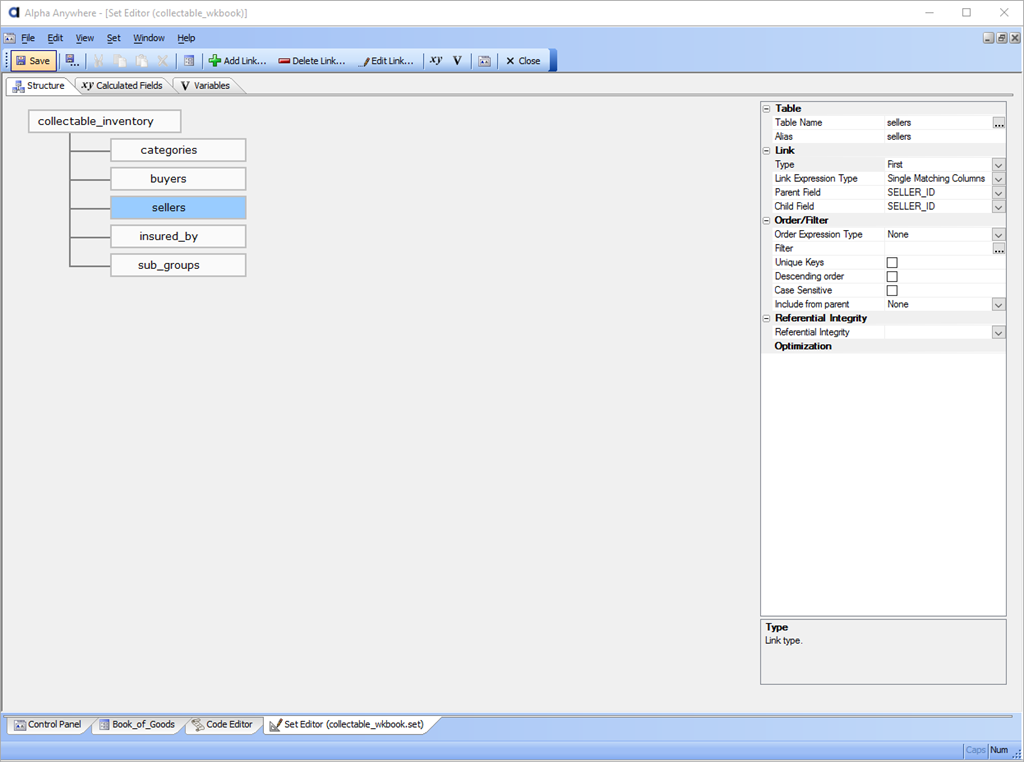
What this set design gives us is the ability to enter all information needed in our collectable inventory table with lookup links to information in the supporting tables and the information can be queried and ordered using values from any of our tables. This will become clearer in the form design. Lets look at the new form.
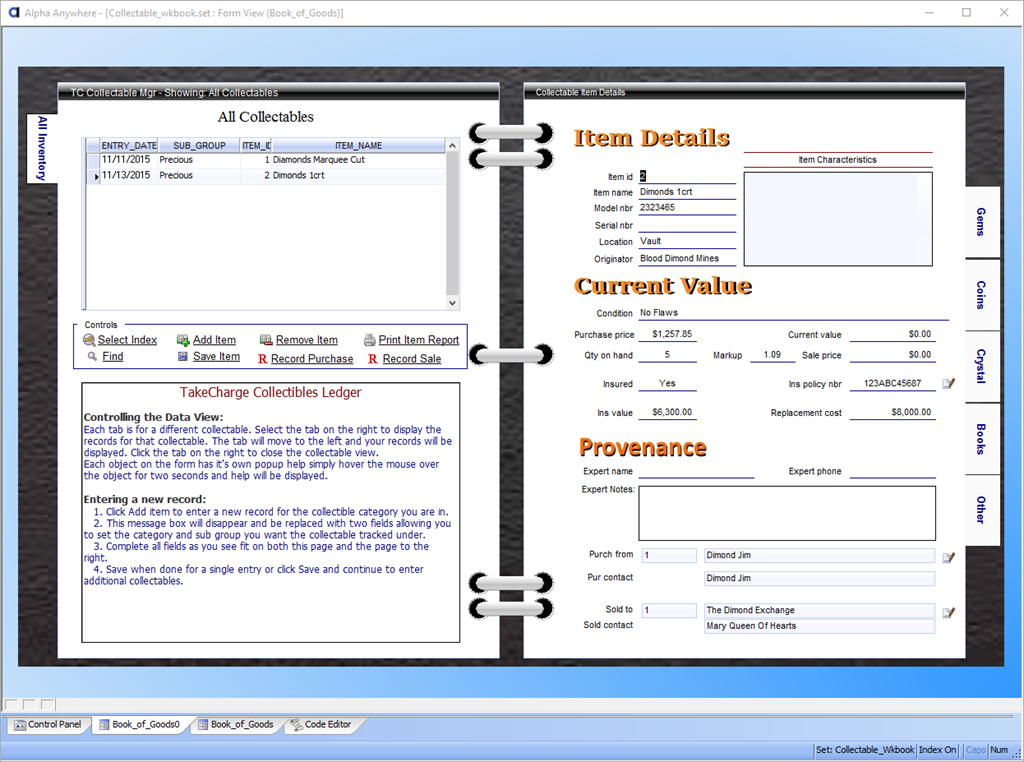
Now our form is not complete yet but you can see where we are going with it. Each tab is a collectable group and when the tab is selected on the right the page turns showing the data for that group. (This is done by setting a filtered index to display only data for the selected group.) The tab then moves to the left side of the form and disappears from the right side giving the illusion of a page turn. If the user clicks the tab on the left, the tab moves back to the right and the data view is changed to the topmost tab on the right. Very cool! The image below shows two different views based on the tab selected. Notice that data displayed is changed, but the form stays the same.
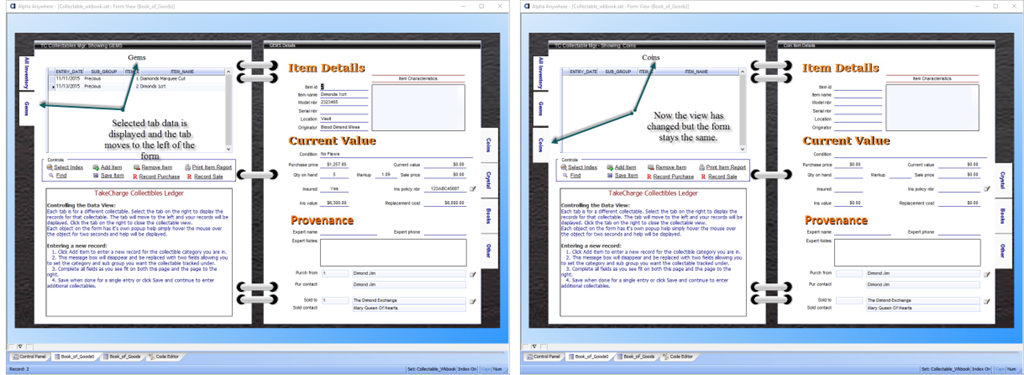
Form Overview
The one browse on the form is strictly for ordering and fetching records and is not used in the data entry process. That is controlled by a button on the form which will automatically set the tab order for speed of entry and control continuous entry if needed. The data entry takes place on this form and follows a tab order of left to right,top to bottom. It skips the note fields since typically data entry people will enter notes only as needed and speed of entry is a higher concern. Each object on the form has bubble help attached to it and the delay is set to 2 seconds so as not to become annoying. This allows the user to easily see what each field and object on the form does so learning to use the form is fast and non-threatening.
Notice on the form there are two buttons,
- Record Purchase
- Record Sale
These buttons will popup a form which allows the user to create a purchase order or a sales invoice. Now this may not be needed when working at home, but if the user is at a trade show and working on the surface pro tablet it should come in very handy. We will not look at the code which controls the tabs today because there is more that I want to do. When it is done, I will show you how and why I did it the way I did.
Field Formatting
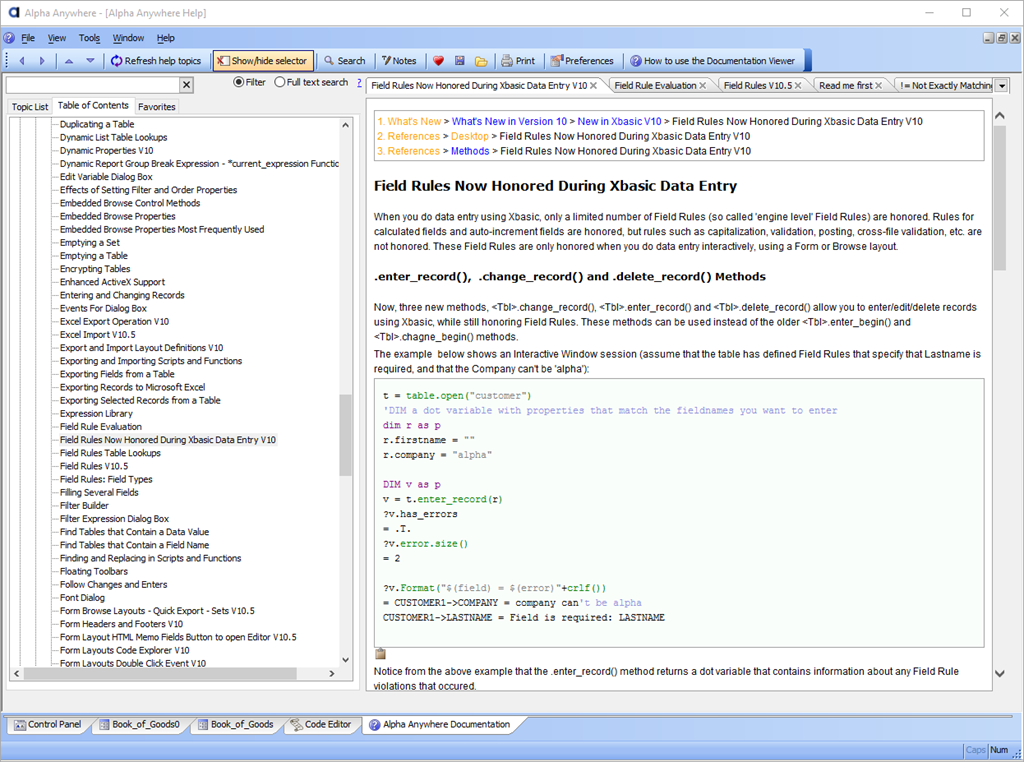
Lets talk about data field formatting. If you have been following my blog for any length of time, you know I like to set my field property values on the form using xBasic. In this application I am using field rules instead. The reason is many of these fields will show up on various forms and I want them to look and perform the same regardless of the form or report they are on. In field rules you set the property once and it works that way each place it is displayed. It would be tedious to go through all the field rules so if you need help, just click help at the top of your control panel and choose Open Documentation from the drop down menu. The image below shows the excellent help for field rules.
Recap
At the beginning we said our application must be simple to use and have fast data entry. It was going to provide purchasing, sales and inventory control of our collectible items and finally it will have the ability to work remotely on our surface pro 4 and automatically share data between the two platforms. Outside of some additional tweaking and a few reports and forms we have accomplished all but the surface pro 4 form and data sharing code. In our next session we will look at our completed desktop app, review the code and start the discussion of our remote module. If you have questions or suggestions leave a comment and I will get back to you. As always I know your time is important and I appreciate you spending some of it with me. Have a great day and I hope you will join us for lesson 4.
 Custome Database Design with Alpha Software
Leave a comment