
Hello Everyone
As stated at the end of our last session we will look today at enhancing our File Utility Module in our PC Desktop Application created using version 10 of Alpha Software.
Take a moment to watch this short video showing the new module in action, then follow along below to see how it is done.
This will actually be a short session since very little code is needed to create this module. Lets start by looking at our File Manager is design mode.
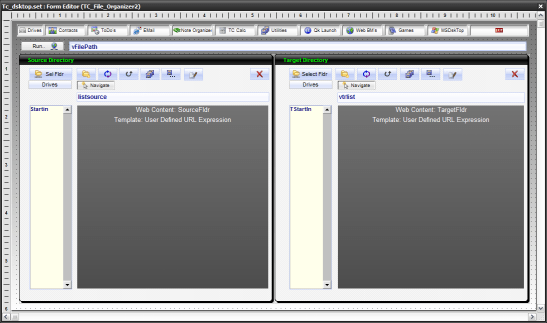
Compared to our original design the only changes to our form is two SuperControls and two new buttons ‘Navigate’. As in our previous lesson on SuperControls we are using the Web Content supercontrols with User Defined URL Expression. For the source folder the expression is
srfld+chr(92)
and the target is
trgfld + chr(92)
Note: chr(92) creates a back slash ‘\’
Since these active X objects are actually Windows Shell2 all of Windows functionality is built in. This includes file utilities, navigation, right click menu’s, keyboard shortcuts and viewing. I imagine any new features in Windows10 explorer will be available as well. So if everything can be done within the Shell objects why do we need any buttons at all? The answer is when the Surface Pro 3 is detached from the keyboard it works like a tablet and the right click menu’s will not work unless Microsoft comes up with a clever change. So lets examine our Navigation button.
The code for our button onPush event is simple.
dim path as C
If obj(topparent.active()).class() = "button" then
    obj(topparent.active_prev()).activate()
    if str(current_object())  = ":TC_File_Organizer2:lsource" then
        path = lsource.text
        if Right(Alltrim(path),1) = chr(92) then
            Path = Left(Alltrim(path),-1)
        else
            Path = Alltrim(path)
        end if
        srfld = path
    else
        if sourcefldr.activeX.Document.Folder.Self.IsFolder = .t. then
            path = sourcefldr.activeX.Document.FocusedItem.Path
            if Right(Alltrim(path),1) = chr(92) then
                Path = Left(Alltrim(path),-1)
            else
                Path = Alltrim(path)
            end if
            srfld = path
            lsource.text = path
        end if
    end if
end if

xbasic_wait_for_idle()
button15.push()
First our code uses the obj function to determine if the current object is a button then if so it redirects the code back to the previous object. If that object is our path field it navigates to the path stored in the field otherwise it navigates to the Document Focused Item Path. Finally it pushes button 15 which sets the Document View to 4 or Detail view. The target navigation button works the same way only using different variable and object names. Now our File Utility Module looks like this.
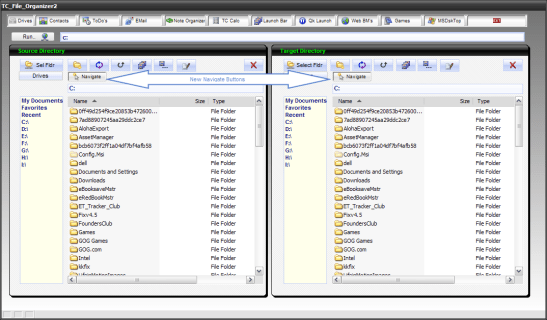
In our next session we will look at adding the file viewer and possibly a HTML writer in our File Manager. Until then, I would like to say thanks again for stopping by and remember, if you need help with an Alpha Software application or wish to inquire about a custom application for your business go to our website
and inquire or contact
NLawson@cdc-TakeCharge.com
Have a great day.
 Custome Database Design with Alpha Software
Leave a comment