
Hello everyone
Today we will look at activeX objects and the new SuperControl objects in Alpha Software and using xBasic to pass arguments to and control the view of our form objects. Below is a short video which demonstrates several different SuperControls. Please take a minute to watch the video before continuing with the session. It will help you understand what I am doing.
I hope you enjoyed the show now lets begin.
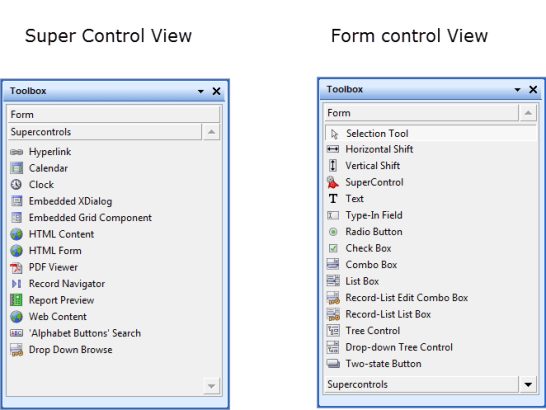
When your form is in design mode you have access to the drag drop toolbox seen above. We will focus primarily on the SuperControls. Lets start with the navigational control.
Record Navigator
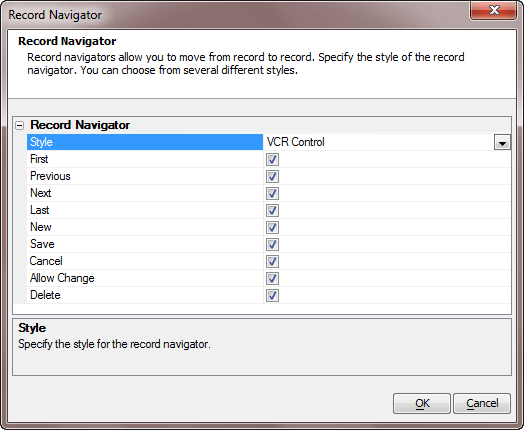
As I mentioned the user interface for the SuperControl is very specific and easy to understand. Here we selected the style control we wanted then checked the box for each button we wanted on our control. It automatically pointed to the underlying table on our form.
 We will save the embedded xDialog for last since it is the most complex.
Report Preview
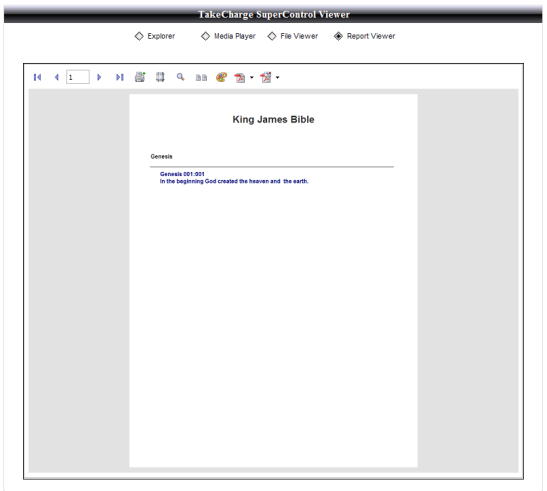
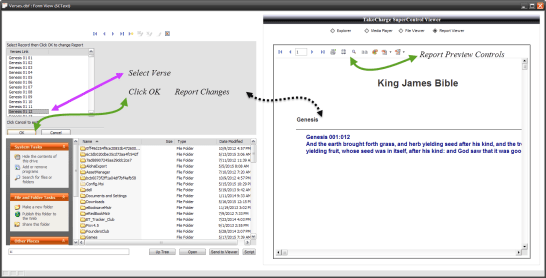
This is one of my favorite SuperControls since I hide the Alpha Software application in my applications. This control allows me to display any report and pass query and order controls to the report easily. Lets look at the interface.
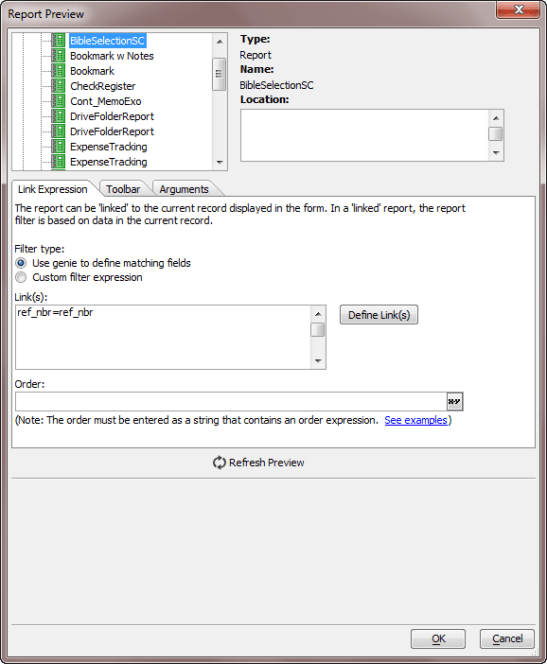
For our form I used the default settings linking each record to the report individually. For more complex reports simply add the filter order to the report design just as you normally would and your report will display correctly.
Web Content
In our example we are using the Web Content SuperControl three different ways.
- File Viewer
- File and Folder Utility
- Explorer
Each uses the same SuperControl Designer for setup but we pass different arguments to it to control the action and view.
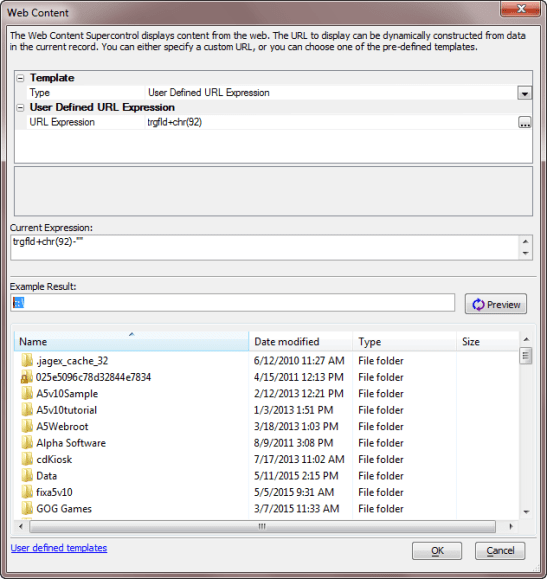
Again as you can see there is little to be done in the way of setup. Type is set to User Defined and the expression points to a variable which equals the C drive on the computer.
To make it work as a file viewer we simply send the following code to our supercontrol.
if xcd1 = 1 then
    topparent:ACTIVEX1.activex.url = SCText:activex3.activex.Document.FocusedItem.Path
    ActiveX1.Activate()
    ActiveX1.Refresh()
else if xcd1 = 4 then
        trgfld = activeX3.activeX.Document.FocusedItem.Path
    activeX4.Activate()
    ActiveX4.refresh()
end if
xcd1 is are radio control on our form which controls our conditional object view. One is our media activeX object and 4 is our file viewer This code is attached to the OnPush event of the button labeled Send to Viewer on our form. If the item in our explorer that has focus is a media file it goes to ActiveX1. If the focused item is a viewable file it goes to our path variable which then goes to our Explorer SuperControl. (Please Note: To view a PDF file you must have Acrobat Reader installed on the computer.) If the file cannot be viewed, Windows will ask if you want to open the file. If yes it opens in the Windows associated application for the file type. We need to add no code to make this happen. To make it work as a file manager and explorer we simply refresh the view and allow Windows to do all the work. Very cool.
Now for the big one.
Embedded xDialog.
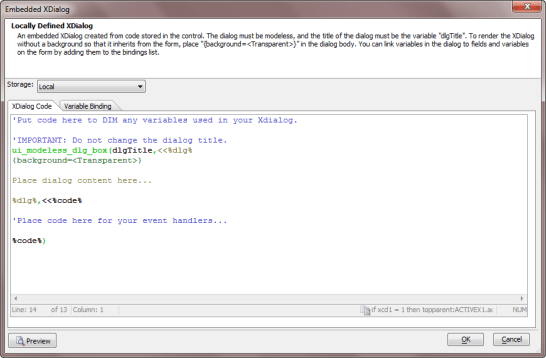
To create this SuperControl I first created the xDialog I wanted then I copied the code into the proper sections of the SuperControl Designer. Here is the initial state of the Designer.
 Here is the code I placed in the designer to create my browse dialog..
'Put code here to DIM any variables used in your Xdialog.
DIM SHARED varC_result as C
DIM myList_FuncCode AS C = <<%CodeFunctions%

FUNCTION DoSort AS C (byref CurrentSortField AS C , byref CurrentSortDirection AS C, NewSortField AS C, pTableDef AS P,  arrContents AS P )
    DIM cResult AS C
    DIM SortDirection AS C
    DIM SortField AS C

    IF NewSortField = CurrentSortField
        ' clicked on same field, reverse sort
        IF CurrentSortDirection = "D"
            CurrentSortDirection = "A"
        ELSE
            CurrentSortDirection = "D"
        END IF
    ELSE
        CurrentSortField = NewSortField
        CurrentSortDirection = "A"
    END IF

    SortDirection    = CurrentSortDirection
    SortField        = CurrentSortField
    arrContents.sort(SortDirection, stritran(SortField, "->", "__"))
    cResult = DumpContents(pTableDef, arrContents)

    DoSort = cResult
END FUNCTION


FUNCTION GetContents AS C ( pTableDef AS P, arrContents AS P, lv AS P )
    DIM cResult AS C

    arrContents.Clear()

    DIM FieldList AS C
    DIM Content_Expression AS C
    DIM t AS P
    DIM Filter AS C
    DIM arrTemp[1] AS P

    IF .NOT. file.exists(table.filename_get(pTableDef.TableName))
        EXIT FUNCTION
    END IF

    t = table.open(pTableDef.TableName, FILE_RO_SHARED)
    arrContents.resize(t.records_get())
    arrTemp.resize(arrContents.size())
    t.close()

    Filter = pTableDef.Filter

    Filter = convert_expression( Filter, "VC","",lv)

'    arrContents.initialize_from_Table(pTableDef.TableName, Filter, pTableDef.Order)
    arrTemp.initialize_from_Table(pTableDef.TableName, Filter, pTableDef.Order)
    arrContents.resize(arrTemp.size())
    arrContents.copy_from(arrTemp)


    cResult = DumpContents(pTableDef, arrContents)
    GetContents = cResult
END FUNCTION


FUNCTION DumpContents AS C ( pTableDef AS P, arrContents AS P )
    DIM cResult AS C
    DIM cEval AS C

    pTableDef.FieldList    = alltrim(pTableDef.FieldList)

    IF pTableDef.FieldList = ""
        EXIT FUNCTION
    END IF

    cEval = *for_each(x, "TrimCRLFs(x." + stritran(table.name_normalize(x),"->", "__")+")", pTableDef.FieldList)
    cEval = alltrim(cEval)
    cEval = stritran(cEval, crlf(), "+"+quote("|")+ "+")
    IF pTableDef.ReturnValueExpression <> ""
        cEval = quote("{DATA=") + " + TrimCRLFs(x." + stritran(table.name_normalize(pTableDef.ReturnValueExpression),"->", "__") + ")+" + quote("}")+ "+" + cEval
    END IF

    cEval = "*for_each(x, " + cEval + ", arrContents)"
    cResult = eval(cEval)


    DumpContents = cResult
END FUNCTION

FUNCTION TrimCRLFs AS A ( data AS A )
    IF typeof(data) = "C"
        TrimCRLFs = stritran(data, crlf(), " ")
    ELSE
        TrimCRLFs = data
    END IF
END FUNCTION


%CodeFunctions%
DIM myList_Funcs AS P = compile_template(myList_FuncCode)
DIM myList_arrContents[1] AS P

DIM SHARED  myList AS C
DIM myList_CurrentSortField AS C = ""
DIM myList_CurrentSortDirection AS C = "A"

DIM myList_pTableDef AS P
DIM myList_pTableDef.ReturnValueExpression AS C = "ref_nbr"
DIM myList_pTableDef.FieldList AS C = <<%txt%
vlink
%txt%
DIM myList_pTableDef.TitleRow AS C = "{AUTOSIZE}Verses Link"
DIM myList_pTableDef.TableName AS C = "verses"
DIM myList_pTableDef.Filter AS C = "(recno() > 0)"    ' recno() > 0 is required in order to avoid showing deleted variables
DIM myList_pTableDef.Order AS C = "ref_nbr"


myList_pLV.titlerow = myList_pTableDef.titlerow
myList_pLV.titleevents = "myList_Sort_vlink"
myList_pLV.style = "report,singlesel,showselalways,fullrowselect"
myList_pLV.dragbehaviour = ""
myList_pLV.dropbehaviour = ""
myList_pLV.contents = myList_Funcs.GetContents(myList_pTableDef, myList_arrContents, local_variables())

myList_pLV.events = <<%code%
function OnRightClick as c(lv as p,listView as p,args as p)
    WITH lv
        listView.Selection = listView.GetRowValue(args.GetClickRow())
        OnSelectionChanged(lv, listView )

        'to call a function outside the events code, you must use the ui_dlg_eval() function
        'menu = ui_dlg_eval(dlg_title,"a5wcb_PublishRclick(selectedFilename)")

'        ui_msg_box("OnRightClick",listview.selection)
    END WITH
end function

function OnDoubleClick as c(lv as p,listView as p,args as p)
    WITH lv
        myList  = listView.GetRowValue(args.GetClickRow())
'        ui_msg_box("OnDoubleClick",myList)
    END WITH
end function

FUNCTION OnSelectionChanged AS V (lv AS P, listView as p )
    WITH lv
        myList = listView.Selection
'        ui_msg_box("OnSelectionChanged",myList)
    END WITH
END FUNCTION

FUNCTION OnKeyDown as v(vars as p,listView as p,args as p)
    DIM key AS C
    Dim KeyName as c

    key = args.GetKeyName()
    KeyName = key

    IF key = "{Delete}" .OR. key = "{Num Del}"
        KeyName = "{Delete}"
    ELSE IF args.keycode = 13 ' enter
        KeyName = "{Enter}"
    ELSE IF args.keycode = 8 ' backspace
        KeyName = "{Backspace}"
    END IF

    'ui_msg_box("OnKeyDown", KeyName)
END FUNCTION
%code%
heading_string = "Select Record then Click OK to change Report"
footer_string = "Click Cancel to exit"
ok_button_label = "&OK"
cancel_button_label = "&Cancel"
Delete XdialogStyle
dim XDialogStyle as p
XDialogStyle.AccentColor = "White"
XDialogStyle.Color = "#0+51+102"


'IMPORTANT: Do not change the dialog title.
ui_modeless_dlg_box(dlgTitle,<<%dlg%
{background=<Transparent>
{region}
{text=55,1:heading_string};
{endregion};
{region}
{listview=50,15myList^=myList_pLV};
{watch=myList!foo};
{endregion};
{region}
{text=55,1:footer_string};
{endregion};
{line=1,0};
{region}
<*15=ok_button_label!OK> <15=cancel_button_label!CANCEL>
{endregion};
%dlg%,<<%code%

IF left(a_dlg_button, len("myList_Sort_")) = "myList_Sort_"
    DIM NewSortField AS C
    NewSortField = substr(a_dlg_button, len("myList_Sort_")+1)
    myList_pLV.Contents = myList_Funcs.DoSort(myList_CurrentSortField, myList_CurrentSortDirection, NewSortField, myList_pTableDef, myList_arrContents)
    a_dlg_button = ""
END IF


IF a_Dlg_button = "myList_refresh"
    a_dlg_button = ""

    myList_pLV.contents = myList_Funcs.GetContents(myList_pTableDef, myList_arrContents, local_variables())
END IF

IF a_dlg_button = "OK"
    a_dlg_button = ""
'Locate Text in a field in a record in current form.
dim pObj as p
'get a pointer to the current window
pObj = topparent.this


dim TextToLocate as c
TextToLocate = convert_type(myList,"c")

if TextToLocate = "" then
    ui_msg_box("Error","You must specify non-blank text to Locate.",UI_STOP_SYMBOL)
    end
end if
dim tbl as p
tbl = pObj.table_get()
dim locateFlag as l
locateFlag = tbl.fetch_loc_next(TextToLocate, "Vlink")
if locateFlag = .t. then
    pObj.resynch()
else
    ui_msg_box("Note","Text not found.",UI_INFORMATION_SYMBOL)
end if
END IF

%code%)
Placing the code in the proper section of the control designer is important. If you do it right, the dialog displays otherwise you get an error or a blank space on the form. I recommend creating a simple xDialog to experiment with first. This will save you much pain.
Just to recap, SuperControls are fun cool and very professional looking and best of all, easy. I encourage you to experiment with each type to see how they work then try adding the best to your application.
Thanks again for stopping by and Remember, if you need help with an Alpha Software application or wish to inquire about a custom application for your business go to our website
and inquire or contact
NLawson@cdc-TakeCharge.com
Have a great day.
 Custome Database Design with Alpha Software
Leave a comment