
Hello everyone. Today we will continue our lesson of Incorporation xBasic in Design and will look at another simple application I wrote. A Recipe Catalog.
Our focus today is controlling data entry using xBasic. Often when a form is created it is for a single purpose; presenting a menu, data entry, query views or record searching. In today’s world people have become used to one screen doing many things due to smart phones and tablets. On a smart phone or tablet the same small view area does many things based on user selection. Each press of a button offers up different views of the same area and when you touch a certain spot a different action is executed. We want to do the same thing with our desktop application.
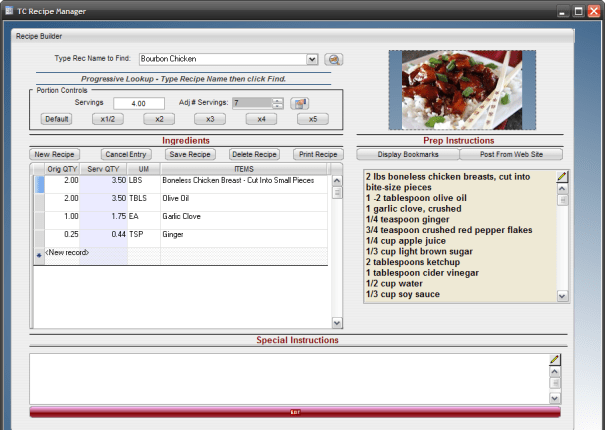
The above image is of our Recipe Catalog application which is a perfect example of a single screen performing multiple functions.Lets look at how it works.
At the top of the form we have a progressive lookup which allows the user to search for recipes by name or by using the smart button dropdown.Next is a recipe calculator which will take the ingredients for the basic recipe and automatically adjust based on the selected servings. Below that is our ingredient record table and to the right is our recipe memo field. Two button are above the memo field, display bookmarks and Post From Web Site. The Display Bookmarks button when pressed changes to Display Notes and changes back when clicked again.The Display Bookmark Browse is a list of websites the user has saved which holds recipe’s the user has an interest in. Selecting a web address and clicking the button Goto to Web Address will automatically open the selected web site allowing the user to find more recipe’s. Once found the user can select Post from web site to add the recipe to the Note field. Finally at the bottom of the form are some action buttons for record control and printing.
As you can see, the entire application takes place on one simple screen. So how does xBasic fit into the design? Lets see.
Progressive Lookup
The progressive lookup is a variable called vRecname which has a type of combo box. The object name is RecipeName and choices for the control are computed automatically using an expression that returns a CRLF delimited list.
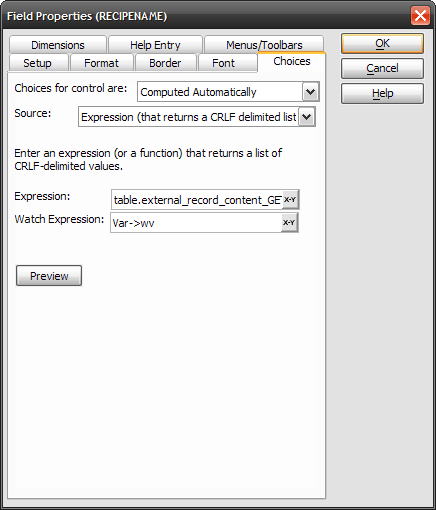
The expression is populated by table_external_record_content_get() which points to recipehdr. The actual expression is
table.external_record_content_GET(“recipehdr”, “Recipename”,”Recipename”)
The watch variable is wv When the user selects a recipe then clicks the find button the onPush event runs the following code.
'Date Created: 20-Dec-2013 12:58:27 PM
'Last Updated: 22-Apr-2015 08:33:12 AM
'Created By  : cdc
'Updated By  : Natn
parentform.commit()
dim pObj as p
pObj = topparent.this
dim TextToLocate as c
TextToLocate = convert_type(vRecname,"c")

if TextToLocate = "" then
    ui_msg_box("Error","You must specify non-blank text to Locate.",UI_STOP_SYMBOL)
    end
end if
dim tbl as p
tbl = pObj.table_get()
dim locateFlag as l
locateFlag = tbl.fetch_loc_next(TextToLocate, "Recipehdr->Recipename")
if locateFlag = .f. then
locateFlag = tbl.fetch_loc_prev(TextToLocate, "Recipehdr->Recipename")
end if
if locateFlag = .t. then
    pObj.resynch()
else
    ui_msg_box("Note","Text not found.",UI_INFORMATION_SYMBOL)
end if

rNbr = recno("recipehdr")
if wv = 1 then
    wv = 2
else
wv = 1
end if
Data Queries
In essence what we are doing is a data query against the RecipeHdr table. Our record content get function returns the names of stored recipies in the recipehdr table. When the user types a recipe name the value is passed from the records get function to our variable vRecName which is then used to locate our parent record using a text locate function against our parent table. When the proper file is queried, the recipe details show up in our child browse. This occurs becuase our set which houses our form and is called
tc_recipe_builder
links recipehdr to recdetail in a one to many relationship on the rec_ID field.
Browse Table View
Our browse view consist of four columns (fields) from our child table recDetail.
-
OrigQty – Value stored in the original recipe
-
ServeQty – Quantity needed for Portion Control
-
UM – Unit of Measure
-
Items – Ingredient description
All of these columns are user enter fields and the ServeQty field automatically updates based on user input in the Portion Control section of the form. I will explain how this works later.
.Image Objects
The recipe image is an image object that points to the image field in recipehdr. This field stores the full path name of the image the user sets for the recipe.
Conditional Object
Currently on our form we use two conditional objects. The first switches the Recipe name search field to Recipe Name type in field and the other controls the Prep Instruction view. Both work the same way which is to assign a watch variable and when the variable changes the conditional objects changes and refreshes on the screen.
Memo Fields
In this particular example I chose to use a standard memo field since text formatting is not required for the field to work correctly. Data can be entered through keyboard input or by posting from the website where the recipe is stored. I will explain how that works later as well.
That’s all for today. We will continue with this lesson next time where we will discuss image fields in depth and how the Portion control works; (This will demonstrate how to update records in a child data table using xBasic code.) Finally we will look at Posting the recipe from a website.
Thanks again for stopping by and Remember, if you need help with an Alpha Software application or wish to inquire about a custom application for your business go to our website
and inquire or contact
NLawson@cdc-TakeCharge.com
Have a great day.
 Custome Database Design with Alpha Software
Leave a comment