
Hello everyone.
Before we start this next chapter ‘Incorporating xBasic in Design’ I want to give a follow up on our Chess Program. In the last post I introduced a new table for analyzing our moves. I also discussed how the table would advance through the options i.e. protect, attack and strategize. Well I want to report that this approach is working very well. In fact, I played one game where black won in ten moves. It did it by sacrificing a knight. When whites pawn took the knight, this opened a hole in white’s defence. Black moved in the Queen putting White’s King in check. At his point white had only three possible moves
Block the attack with a pawn – Black Queen takes the pawn which took the Knight again putting the King in Check
Move the King to e2 – Black moved the Bishop into play putting the King in Check
Move the King to d2 – Black moves the Bishop into play attacking e2 then on the next move moves the queen to e2 Check mate.
Needless to say I was very impressed with the program logic. It identified the sacrifice, then exploited the weakened defence.
With that said, I am not done because under certain conditions, the program disallows legal moves and I have not figured out the proper solution yet. When I do, I will post all final code and a sort video showing the game progress.
Part of our job as programmers is to design screens which control both data input and the user. What I mean by that is some times the user movement must be restricted either by company policy and or to protect them from themselves. Our first example of incorporating xBasic in design is controlling the Window bar display.
The Window bar function in Alpha software is actually called A5_Windowbar and it allows the user to;
Use A5_Windowbar_Close()
Use A5_Windowbar_Show()
Use A5_Windowbar_Toggle()
Test if Open Use A5_Windowbar_IS_Open()
Lets look at each.
Windowbar_Close
Windowbar close actually only hides the window bar. It does not actually close it.
Windowbar_Show
Shows the Windowbar if it is closed
Windowbar_IS_Open
Test the state of the Windowbar and returns .T. if visible and .F. if not.
Windowbar_Toggle
Switches between Show and Close
In the application settings you can set the Windowbar to be open or closed but what if the user wants both options. I have a client which uses an application with many intergrated parts. Their office staff will open Orders, Inventory, Requisitions and many more forms at the same time in normal use of the application. Recently they asked for an addition to their application which would allow field tech’s to log in and directly access service tickets and enter the results of the field service. Now the field service tech has no need of the rest of the applicaiton and the data entry for the Field Service Notes needs to be simple and fast. A perfect place to use xBasic in the Design process.
I started by creating a log in screen. This required an underlying table of users, passwords, authorization levels and departments.
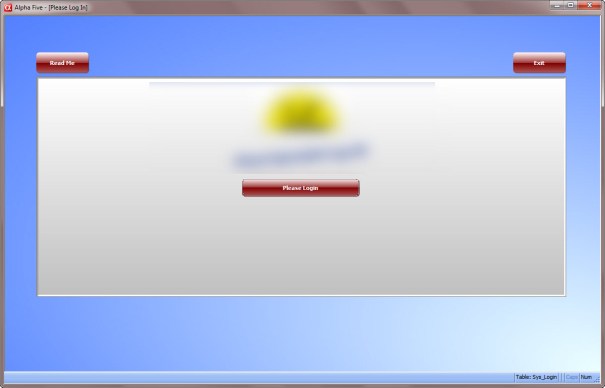
Look familuar. It is a modified log-in from our Message Taking Application. When The user logs in the software fetches thier record and only displays options for them.
- Administrator
- Open Office Application
- Open Field Service Application
- Manage Users
- Office Staff
- Open Office Application
- Service Tech’s
- Open Field Service Application
Here is the code.
tbl = table.current()
tbl.index_primary_put("User_Password")
dim prmpt_title as c
dim prmpt_prompt as c
dim prmpt_default as c
dim prmpt_mask as c
DIM goodtogo as L
DIM user_password as C
DIM stored_password AS C
Dim stored_level as L
Dim GLOBAL is_admin as L
Dim xDept as C
Dim user_ID as C
goodtogo = .F.
user_name = ""
user_password = ""
user_id = ""
prmpt_title = "Password"
prmpt_prompt = "Enter your password"
prmpt_default = ""
prmpt_mask = "*"
vpassword = ui_get_password(prmpt_title,prmpt_prompt,prmpt_default,prmpt_mask)
IF vpassword = "" THEN
 END
END IF
tbl.fetch_first()
WHILE .not. tbl.fetch_EOF()
 IF tbl.tr_password = VAR->vPassword THEN
  stored_password = VAR->vPassword
  user_password = tbl.tr_password
  xDept = tbl.department
  vUser = alltrim(tbl.name)
  user_ID = tbl.tr_ID
  stored_level = tbl.TR_administrator
  goto open
 END IF
 tbl.fetch_next()
END WHILE
open:
SELECT
 CASE len(alltrim(stored_password)) = 0
  ui_msg_box("Password Not Valid","You must enter a valid password for access."+crlf()+crlf()+"Please try again.")
  End
 CASE else
  IF stored_password <> alltrim(user_password) THEN
   ui_msg_box("Password Not Valid","That password does not match current users."+crlf()+crlf()+"Please try again.")
   End
  ELSE
   goodtogo = .T.
   IF stored_level = .T. THEN
    is_admin = .T.
   ELSE
    is_admin = .F.
   END IF

  END IF
END SELECT
IF goodtogo = .t. THEN
 topparent:Text1.Text = "Welcome, "+vUser
 topparent:Text1.Object.Visible = .T.
 topparent:button3.Text = "Log Out"
 topparent:button1.Object.Visible = .f.
 topparent:Button1.Object.enabled = .f.
 topparent:Text3.Object.Visible = .T.
 IF is_admin = .T. THEN
  topparent:button5.Object.Visible = .T.
  topparent:button6.Object.Visible = .T.
  topparent:button7.Object.Visible = .T.
 ELSE
  IF xDept = "Office" THEN
   topparent:button5.Object.Visible = .T.
  ELSE IF xDept = "Field"
   topparent:button6.Object.Visible = .T.
  END IF
 END IF
 topparent:button3.Activate()
END IF
Now this code is attached to the on_Push event of the log in button. The first thing it does is set the index needed to fetch the correct user record. Next we declare our variables both local and Global. Then we assign our default values. Finally we display our ui_get_password() dialog. The password entered by the user is stored in vpassword and we then fetch through our table to find the matching value in tbl.tr_password. The rest of the code is error checking to determine if the user is valid and what level they are authorized to access which then sets the object properties for the allowed buttons.
Where do we affect the Windowbar. Good question. The Windowbar is turned off on the opening of the application by adding the following code to the ON_Activate event of our log in form..
if A5_WINDOWBAR_IS_OPEN() = .T.
A5_WINDOWBAR_TOGGLE()
end if
When the user selects a menu option, the Windowbar is shown for Office users (A5_Window_Bar_Show()) and hidden for field service tech’s. When they close their menu, the Windowbar is automatically hidden. This allows office workers to open as many modules as they need and when they break for lunch they simply close thier menu and all other forms are hidden by hiding the Windowbar. When they return from lunch and log back in they have everything open just as they left it. Filed Service Tech’s never see the Windowbar.
Well that’s it for today’s session. Thanks again for stopping by and Remember, if you need help with an Alpha Software application or wish to inquire about a custom application for your business go to our website
and inquire or contact
NLawson@cdc-TakeCharge.com
Have a great day.
 Custome Database Design with Alpha Software
Leave a comment