
Hello Everyone
Today we will be looking at the opening book for our chess program and the code for all the functions related to the opening book. Before we begin please take a moment to watch this short video which demonstrated the use of the opening book and the new features we are adding to our game.
If you have been following along, you would have noticed changes to our game board. Lets review them.
- Menu Buttons
- Game – Displays a dialog box providing four options
- New Game
- Pause Game – Pauses the game and closes.
- Restore Game – Restores previously paused game
- Resign – Ends game
- Players – Displays a dialog box with three player options
- White Human Black Computer – Default
- White Human Black Human
- White Computer Black Computer
- Open Book
- Save Game to Open Book
- Goto Open Book
- Exit – Clicking (Note: Exit will end the game and will NOT save the current state of the game. Use Pause Game from the Game Menu to save the current state of the game before closing.)
- Game – Displays a dialog box providing four options
The other new feature to our game is the Opening Book which has two views
Data View
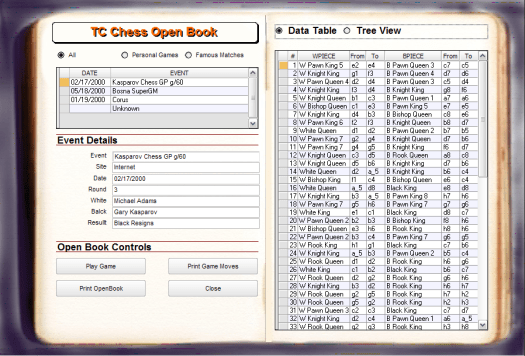 and Tree View
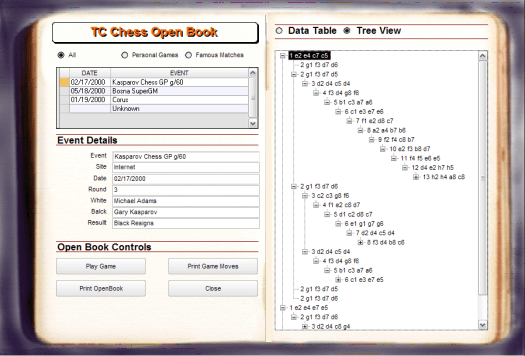 In the Data View the user is presented with a data table showing all the moves for the selected game and the tree view shows a tree view of all moves across all games in the book in MoveNbr order. As more games are logged into the opening book, the tree view becomes more valuable as it will show the most successful attack moves by white and defense moves by black. In order to read the tree view one must have a basic understanding of how to read Opening Book notations, so I will explain below.
1.Each line of squares going left to right on the board is called a “file”. For example, at the start of the game, both Kings are on the same file. Files are lettered with small letters: a, b, c, d, e, f, g, h. No matter what color you play, the “a” file is always on White’s left and Black’s right! The Kings are on the “e-file.” (up to this point I have been referring to them as columns.)
2.Each line of squares going top to bottom on the board is called a “rank”. For example, at the start of the game, all your pawns are on the same rank. Ranks are numbered 1, 2, 3, 4, 5, 6, 7, 8. The first rank is always where White sets up his major pieces; the eighth rank is where Black sets up his major pieces. No matter what color you play, the rank in front of Black is always #8!
3.Each square is identified by its file and rank. So at the start of a game White sets up his King on e1 and Black sets up his King on e8.
4.Each piece has a capital letter associated with its name. The King = K; Knight = N; Queen = Q; Rook = R; Bishop = B. There are so many pawns that no letter is used for a pawn. (In our Open Book we do not add the piece letter to the notation because the data view shows the complete name. Also we do name the pawns in the data view dividing them between King and Queen and numbering them from 1 to 8.)
5.Every time you move, you write the letter for the piece that moved followed by the name of the square it moved to. For example, Ke2 or Qh5 or Bh8 or Nf6. No dashes; it’s that easy. For pawn moves you don’t write the “p”, just the destination square: e4, e5, h8. Remember: Capital letters are pieces, small letters files (Our Opening Book shows the originating square and target square for all moves for example e2 e4 for white or e7 e5 for black.)
6.If more than one piece of the type that moved can move to the same destination square, put the name of the rank or file where the piece came from after the piece name to make the move unique: Rae1 or N8d7.
7.When you capture with a piece, put an “x” between the name of the piece and capture square: Kxe2, Qxh5.
8.When you capture something with a pawn, instead of putting the name of the piece on the left, you put the file (not the square) it came from, then the x and the square on which it captured. For example: dxe5 or hxg6. Pawn captures are the most commonly misused part of keeping score, so practice this correctly.
9.When a pawn reaches the final rank, indicate the square and the promoted piece: a8Q, c1N
10.When you castle, you write O-O for kingside, O-O-O Queenside (the number “O’s is equal to the number of squares the Rook moved!)
11.A check is indicated by a plus at the end of the move: Rh8+ or Qxe2+.Mate can be “#” or “mate”
Depending on feedback, I may adjust our Opening Book to match the standard Algebraic Notation, but for now it stays the same.
Lets look at the code to make the tree view.
MvTree = ""

if xMvView = 1

else
MvTree = table.external_record_content_GET("openmoves", "Alltrim(gamemvs1)+Alltrim(gamemvs2)+Alltrim(gamemvs3)+alltrim(gamemvs4)","left(Alltrim(gamemvs1),-7)+recno()","")
end if
cond1.refresh()
To understand the code look at the image below of our Opening Book in the Design Editor.
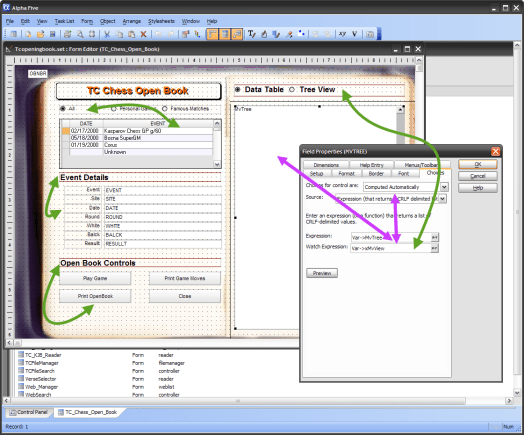 Our tree view is a tree control object which is computed automatically with a watch variable. The Radio choice variable on our form which controls our conditional object view also triggers the watch variable and builds our tree. Similar code is used when the game is Human against Computer. The computer follows the opening book until no move is found then runs our min/max algorithm. (Not complete yet!)
If the user selects a saved game and clicks Play Game the following code is used to manipulate the objects on the Chess Board.
dim Global xfrmW as C
dim Global xtoW as C
dim Global xfrmB as C
dim Global xtoB as C
dim SHARED OBNbr as N
OBNbr = TC_Chess_Open_Book:obnbr.value
DIM records_found as N
dim erlist as C
erlist = ""
records_found = topparent.queryrun("Openmoves->OB_Nbr = Var->OBNbr","MoveNbr","","No","Openmoves",.f.)
topparent.hide()
xbasic_wait_for_idle()
browse2.Activate()
browse2.fetch_first()
cnt = count(Openmoves->MoveNbr,GRP->Grand)
dim ii as N
FOR ii = 1 to cnt+1
 if ii <= cnt then
 xfrmW = browse2:wmvfrma.text
 xtoW = browse2:wmvtoa.text
 xfrmB = browse2:Bmvfrma.text
 xtoB = browse2:Bmvtoa.text
 DIM window_name as C
 window_name = ":"+"Chess_Borad"
 DIM varP_Object as p
 varP_Object = obj(window_name)
 if .not. is_object(varP_Object) then
 ui_msg_box("Error","The window '"+window_name+"' does not exist.",ui_stop_symbol)
 else
 varP_Object:Button9.activate()
 varP_Object:Button9.show()
 varP_Object:Button8.activate()
 varP_Object:Button8.show()
 varP_Object:Button7.activate()
 varP_Object:Button7.show()
 varP_Object:Button6.activate()
 varP_Object:Button6.show()
 varP_Object:Button9.push()
 end if
 xbasic_wait_for_idle()

 browse2.fetch_next()
 end if
NEXT
parentform.commit()
xbasic_wait_for_idle()
DIM records_found as N
records_found = topparent.queryrun(" .t. ","recno()","","No","Openmoves",.f.)
xbasic_wait_for_idle()
end
emsg:


topparent.show()
This code is fairly simple, we fetch our data view table starting with the first record and step through the query view until we reach the last record. Each move is assigned to a variable and then a button on the Chess Board is pushed which passes the variable to the proper square and executes the move.
The code for saving a game after you have played it is simple as well so I am not going to show it here. I am sure you can figure it out on your own.
Well that’s it for today’s session. The next session will look at the final code needed which is the actual algorithm that makes the computer think. Stay tuned.
Thanks again for stopping by and Remember, if you need help with an Alpha Software application or wish to inquire about a custom application for your business go to our website
and inquire or contact
NLawson@cdc-TakeCharge.com
Have a great day.
 Custome Database Design with Alpha Software
Leave a comment