
Hello Everyone
This is part 2 of Controlling Browse Data Views in a One to Many Set. Since posting part 1 the other day I have received an email requesting information on how I made the check mark show up in the selected files, so we will start there. First Lets recap the previous post.
We start by looking at the new TC File Manager module
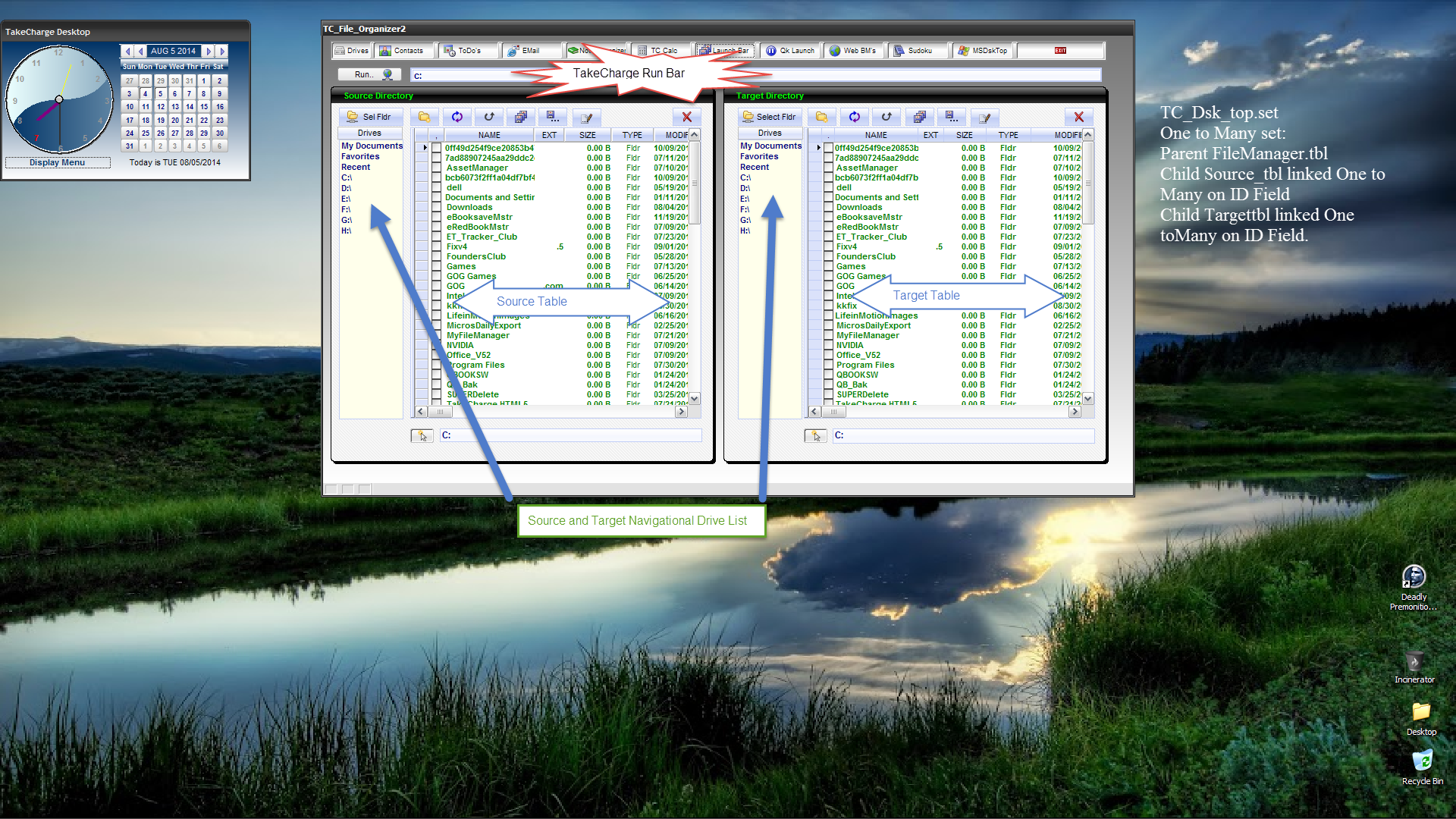
This module is a set linked one to many from
FileManager to Source_tbl and Targettbl
It includes a Run bar, Navigational Drive list for both Source and Target and a Custom Right Click Menu. On the previous post we have a video demonstrating how the File Manager works. If you have not watched it, take the time to do so. This will help you follow along on the code review.
Next we looked at the event code for our browse views on the form; specifically the source table browse. The events we reviewed were;
- OnRowChange – Tells the system if a file name is to be changed.
- OnFetch – Assigns the tbl recno() to a variable
- OnSave – Performs the file name change if required
- OnRowDblkClick – Opens selected folder or file.
We also looked at the code which controls the browse views for both the source and target tables and finally we looked at the code for performing file name changing for multiple files at once. If any of this is of interest to you, go here to review the last post. Now we are ready to begin.
Assigning values to records in a one to many set browse with xBasic
To start with, we must determine which records are selected and we do this by using the function Selected_Records(). This is an Alpha Software function which builds a list of all records ranged in a browse. I assign those values to a list variable vList then I assign a value for a global variable DoAction which is used in the OnSave event then I use For Each … Next to step through the list and apply the change to the selected field using the object table method for fetching and changing record values in a browse. The actual code is listed below.
vList = ""
vlist = browse1.Selected_Records()
DoAction = "TagS"

for each sel_rec in vlist
 TC_File_Organizer2:Tables:source_tbl.fetch_goto(val(sel_rec))    TC_File_Organizer2:Tables:source_tbl.change_begin()
   TC_File_Organizer2:Tables:source_tbl.SELECTED = .t.
 TC_File_Organizer2:Tables:source_tbl.change_end(.t.)
next
vList = ""
This code is attached to our Right Click Menu option Tag Files (see below)
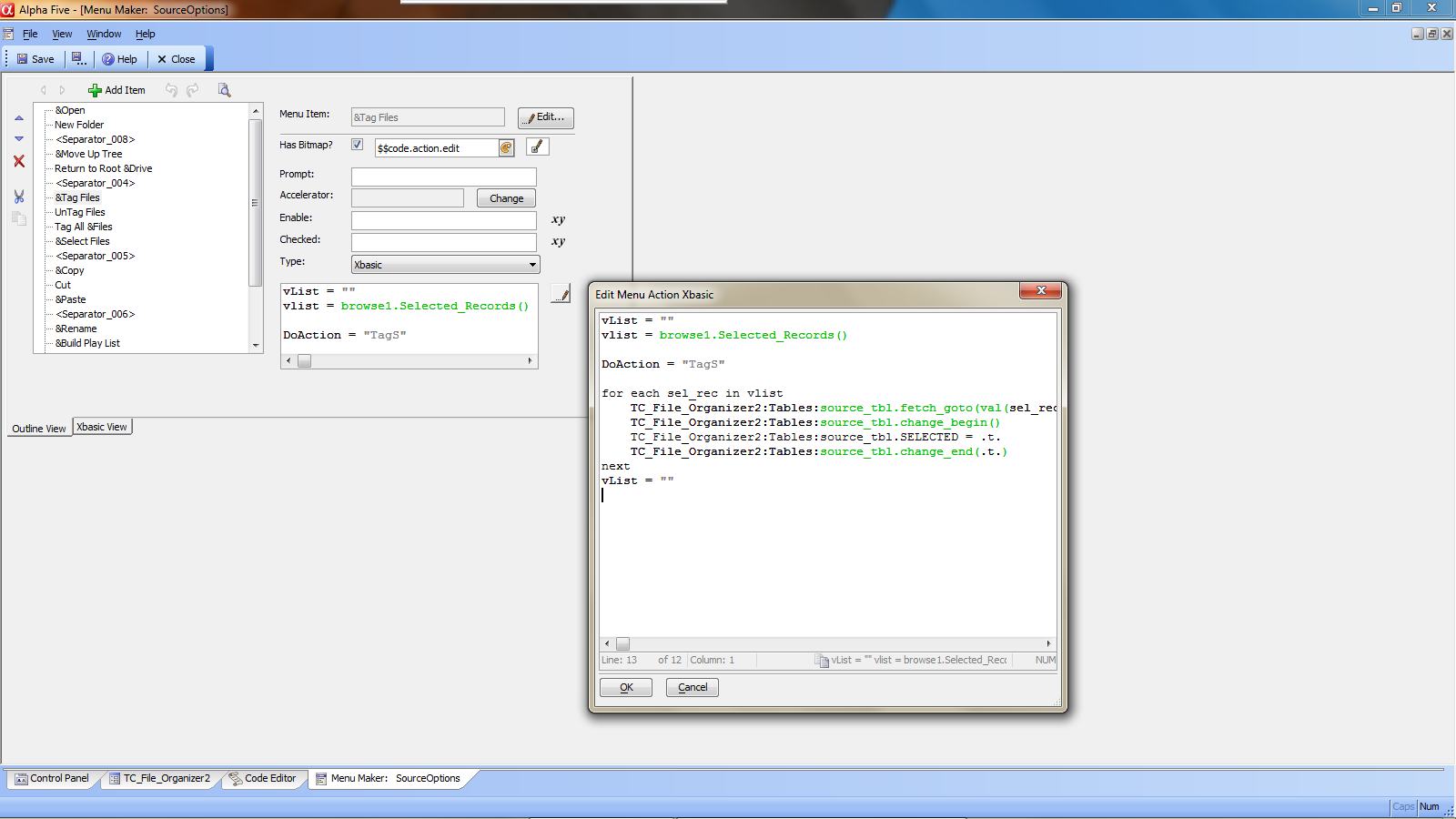 If you enlarge the image, you will see that Alpha Software provides an easy to use template style menu creator. To get there follow these steps.
From the control panel in your application
- Click on the code tab
- Right Click on the Window pane and select New
- Select Menu on the Sub Menu which displays
- Choose the Menu template you wish to use and follow the on screen instructions carefully.
The code for the run bar is simply a few variables which are populated based on predetermined conditions of the text string in vFilePath The if else if statement test the conditions and sends the results to the proper variable which is then processed with the function sys_open(). The actual code is listed below.
wsstring = vFilePath.text
if left(wsstring,4) = "HTTP" then
    URL_var = Alltrim(wsstring)
else if left(wsstring,4) = "www." then
    URL_var = "HTTP://"+Alltrim(wsstring)
else if    Right(left(wsstring,2),1) = ":"
    goto theend
else if Right(left(wsstring,2),1) = chr(92)    .or. Right(alltrim(wsstring),4) = ".exe" then
    goto theend
else
    URL_var = "HTTP://www."+Alltrim(wsstring)
end if
sys_open(URL_var)
End
theend:
sys_Open(wsstring)
END
Now there is more to this File Manager Utility module but most of it is repeating the same code with changes to the variable values which tell the system which function to run. You have a great starting point and this would be a good exercise for anyone learning xBasic, so see if you can complete the code for the copy, move and delete buttons on our form.
Well that’s it for today’s session. If you have any ideas or would like to see features in the New PC Desktop, drop me a line and I will look at it. Thanks again for stopping by and Remember, if you need help with an Alpha Software application or wish to inquire about a custom application for your business go to our website
and inquire or contact
NLawson@cdc-TakeCharge.com
Have a great day.
 Custome Database Design with Alpha Software
Leave a comment