
Hello Everyone
If you read yesterdays blog entry I showed how to add values to a drop down control from another drop down control. The example was simple in design and required a basic understanding of list objects. Today I will cover Advanced procedures for building list dynamically.
To do this we will look at our new two panel File Management System.
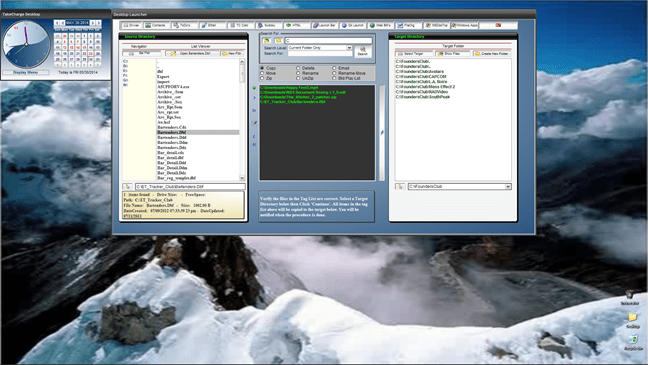 The File Manager form has a dynamic drive list, a conditional control line feed list, a tag file list, a combo object (drop down list) and a list which changes based on the change in a watch variable. Before we get into all of this code, watch this short video to see each of the list types in action. This will help you better understand what you are about to learn.
Well I hoped you enjoyed the show. As you saw, there are any examples of how one object affects another. Yesterday we looked at how to create a list dynamically and add values to it, so we will not cover that again today. Lets start with the code demonstrated in the video.
Auto Tag File Button – OnPush Event
if Button20.Default.Hbitmap.Bmptag  = "$$generic.add.small" then
    button20.default.hbitmap.bmptag = "$$generic.remove.small"
    ListState = "Add"
    goto show
else
    button20.default.hbitmap.bmptag = "$$generic.add.small"
    ListState = "Tag"
end if
End
show:
ListSource = srfld+chr(92)+vStartdir.value + crlf()
if vSLWatch = 0 then
    vSLWatch = 1
else
    vSLWatch = 0
end if

if ListSource = "" then
    button9.hide()
    button10.hide()
else
    button9.show()
    button10.show()
end if
We start by testing the state of the button and set it’s pressed condition accordingly. Then we assign either Add or Tag to a variable called ListState Next, if a value is selected in our Source Directory vStartDir we auto add it to our tag list. If not, we add all files in the directory to the tag list. (Note: This procedure may change, I am not sure I like it.) Now lets look at the OnChange event of our vStartDir.
vStartDir OnChange Event
vstartdir.refresh()
vfilepath.value = srfld
myFileS = vFilePath+chr(92)+vStartDir
dim ptr as P
dim path as C
vstartdir.Activate()
path = myFileS
if     right(Alltrim(myFileS),2) = "\." then
    button16.text = "Open Root Folder"
    goto scrEnd
else if right(Alltrim(myFileS),2) = ".." then
    button16.text = "Open Prev Folder"
    goto scrEnd
else if file.filename_parse(myFileS,"E") = ".zip"  then
    button16.text = "Open Zipped File"
else
    button16.text = "Open "+vStartDir
end if
ui_freeze(.t.)
vfiledc = filefind.get(myFileS,FILE_FIND_NORMAL,"C")
vfileext = file.filename_parse(myFileS,"E")
vfilelu = FILE_GET_DATE_TIME(myFileS,"D")
vfilename = file.filename_parse(myFileS,"N")
vfoldername = Left(Alltrim(file.filename_parse(myFileS,"DP")),-1)
vfilesize = bytes_to_mega(Val(Alltrim(filefind.get(myFileS,FILE_FIND_NORMAL,"L"))),2)
text1.text = "Utility Manager"+crlf()+vFilesfound+"   items found   -   Drive Size: "+vSDS +"   -   FreeSpace: "+vFSS+crlf()+"Path:  "+Alltrim(vFoldername)+crlf()+"File Name:   "+Rtrim(vFilename)+vFileExt+"   -   Size:   "+vFilesize+crlf()+" DateCreated:   "+vFileDC+" -  DateUpdated:   "+vFileLU
text1.Refresh()

vFilePath = path
script_play("fAttrib")
if ListState = "Add" then
    ListSource = ListSource+srfld+chr(92)+vStartdir.value + crlf()
    if vSLWatch = 0 then
        vSLWatch = 1
    else
        vSLWatch = 0
    end if
end if
if ListSource = "" then
    button9.hide()
    button10.hide()
else
    button9.show()
    button10.show()
end if
ui_freeze(.f.)
scrEnd:
Now there is a lot of code on this event and most is used for other functions. The code we want is
if ListState = "Add" then
    ListSource = ListSource+srfld+chr(92)+vStartdir.value + crlf()
    if vSLWatch = 0 then
        vSLWatch = 1
    else
        vSLWatch = 0
    end if
end if
if ListSource = "" then
    button9.hide()
    button10.hide()
else
    button9.show()
    button10.show()
end if
If ListState is add, we build our list one value at a time and refresh the tag list by assigning a new value to our watch variable. A watch variable is any variable declared which when changed causes the referenced list to redisplay.
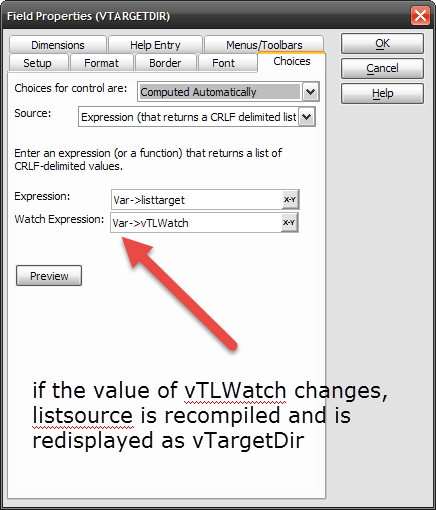 Notice that the choice for my list is computed automatically from a control line feed list. Our code above builds our list and the watch variable forces the redisplay. Simple once you think about it. if we want to add all files in the folder to our tag list we run this code attached to the OnPush event of the Tag All button
Tag All Button OnPush event
Listsource = ""
path = vFilepath
ListSource = *for_each(file,file,filefind.get(Alltrim(Var->path)+chr(92)+"*.*",FILE_FIND_NORMAL+FILE_FIND_DIRECTORY+FILE_FIND_ReadOnly+FILE_FIND_System,"PN"))+*for_each(file,file,filefind.get(Alltrim(Var->path)+chr(92)+"*.*",FILE_FIND_NORMAL+FILE_FIND_NOT_DIRECTORY+FILE_FIND_ReadOnly+FILE_FIND_System+FILE_FIND_Archive,"PN"))
if vTLWatch = 0 then
    vTLWatch = 1
else
    vTlWatch = 0
end if
if ListSource = "" then
    button9.hide()
    button10.hide()
else
    button9.show()
    button10.show()
end if
In this case we use the *for_each() function to build a list of files in the selected folder and again the result is assigned to ListSource then the watch variable is changed and the tag list re-displays.
Now lets look at the code on the remove item button. Not the one which clears the list, it simply sets listsource to null then changes the watch variable value. We will examine the code for removing any value in the list.
Remove Selected Item
dim list2 as C
dim list3 as C
list2 = ""
list3 = ""
dim pnbr as N
list2 = ListSource
pnbr = word_num(list2, vTagList)
list3 = *line_remove(list2, pnbr)
ListSource = list3

if vSLWatch = 0 then
    vSLWatch = 1
else
    vSLWatch = 0
end if

if ListSource = "" then
    button9.hide()
    button10.hide()
else
    button9.show()
    button10.show()
end if
To perform this function we must declare two additional variables with a local scope only. We also declare a local numeric variable called pnbr (pointer number). We use this in conjunction with the word_num() function to determine what row number in the list the selected item holds. Then the number which is now stored in the variable pnbr, is passed to the line_remove() function. The result is passed to list3 which is then assigned to listsource and our watch variable is called and the tag list re-displays.
Now you can see, managing the values in any list object is actually quite simple. You just need to create a variable list object which you set to become a list and pass that value to the list object on your form. Help with list can be found in the Alpha Software help under List Processing Functions.
Well that’s it for today’s session. On our next session I will discuss the code for searching and finding files on the system hard drive. Hope you will stop back. Thanks again for stopping by and Remember, if you need help with an Alpha Software application or wish to inquire about a custom application for your business go to our website
and inquire or contact
NLawson@cdc-TakeCharge.com
Have a great day.
 Custome Database Design with Alpha Software
Leave a comment