
Hello Everyone.
Today we are looking at a new feature for our PC Desktop which is a Launch Bar. Now throughout the history of Windows Desktop many Launch bars have been created, tried and forgotten; so why bother. Well I created this launch bar in response to customer feedback from people trying my new desktop system. Basically they are asking for a easier to use file utility system and the Launch Bar is my answer.
First lets look at the launch bar closed.
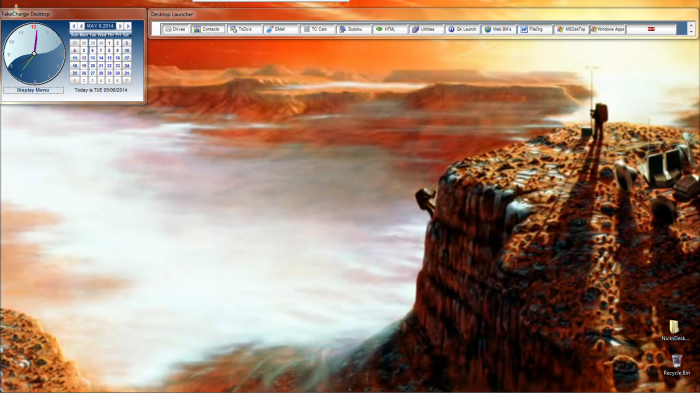 As you can see, our Launch Bar takes up little room and fits neatly next to our Clock Calendar. It has the same links to our application modules and Windows Desktop applications as our New Start Menu and it has one other feature. When the user clicks Utilities in the center of the bar it rolls down and displays the New File Utility System.
Below is the bar expanded.
 Users felt the tag system was awkward and they often had to fix the tag list before running the utility command. They felt being able to see the tag list as it is being built would be better so now they can.
When the user select items in the source list it is automatically placed in the tag list. This allows for minimum key strokes for utilities against single files or folders. If the are tagging multiple files and or folders they have a button to the right of the Source List to add as many files or folders from any location to the tag list before performing the utility action command.
When they are done, they simply click the Utility button (which now says Launch Bar) at the top of the form and the Launch Bar will roll up to it’s nice small size.
This video will show you how the launch bar works with animation.
I hope you liked the video and see the possibilities of this feature.
The code we are going to examine is only the code that rolls up or down of the Launch Bar form.
Lets start with the Utility Button.
if Btn3.text = "Utilities" then
    dl = "Grow"
'    topparent.height = 672
'    dl = "Stop"
'    topparent.repaint()
'    Btn3.text = "Launch Bar"
else
    dl = "Shrink"
'    topparent.height = 72
'    dl = "Stop"
'    topparent.repaint()
'    Btn3.text = "Utilities"
end if
xlen = topparent.height
I will explain the rem’ed out code in a little bit. All we actually need on the button is to set our variable dl to Grow or Shrink then set the variable xlen to the current height of our object (the Launch Bar).
Next is our code on the OnTimer Event
if dl = "Grow" then
    xlen = topparent.height
    if topparent.height  <= 672 then
        ui_freeze(.t.)
        xlen = xLen+80
        topparent.height = xLen
        ui_freeze(.f.)
    else
        topparent.height = 672
        dl = "Stop"
        topparent.repaint()
        Btn3.text = "Launch Bar"
    end if

else if dl = "Shrink"
    xlen = topparent.height
    if topparent.height  >= 72 then
        ui_freeze(.t.)
        xlen = xLen-80
        topparent.height = xLen
        ui_freeze(.f.)
    else
        topparent.height = 72
        dl = "Stop"
        topparent.repaint()
        Btn3.text = "Utilities"
    end if
end if
The OnTimer Event first checks to see what dl’s value is. If it is Grow then the height property value of the form is adjusted up by 80 pixels on each run through the OnTimer event until the form has a height greater than or equal to 672 pixels which is the final height and if it is Shrink, it adjust the height property down by 80 pixels until the form has a height of 72 pixels; the size of the Launch Bar.. I then set the dl variable to stop which ends the timer event. I also set the button text to the opposite value so when the user clicks the button again the opposite side of the code runs.
Notice that the OnTimer event as topparent.repaint() called out. I am showing it but it is now necessary. The OnTimer event automatically repaints the screen.
Now for the rem’ed out code on our button. If you do not want the roll up or roll down to be animated, then turn off the timer event and unrem out the code on the button. that’s it.
Well that’s it for today’s session. On our next session we will look at the code for our new File Utility navigation and tag system. Hope you will stop back. Thanks again for stopping by and Remember, if you need help with an Alpha Software application or wish to inquire about a custom application for your business go to our website
and inquire or contact
NLawson@cdc-TakeCharge.com
Have a great day.
 Custome Database Design with Alpha Software
Leave a comment