
Hello Everyone
Today we are looking at the punch list for our File Manager Module. As we have discussed, the File Manager will also double as the Start Menu for our desktop. Therefore, we must consider both applications when working on our punch list. Initially our list for this module was fairly short but as I started the changes I found more and more I could do to enhance the user experience in both modules.
File Manager
Today’s topic will look at line items one and four as well as the additional changes I made to enhance the application. The first thing you will notice is the menu is 40% smaller than before.
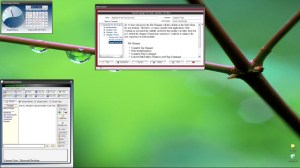
Now it fits on the screen and is about the standard size for a menu. Notice also that the layout for the form has changed again.
(I can’t say this enough; when designing, do not get locked into a certain look or feel for your application or you may end up with a product which is ordinary rather than exceptional.)
I left the TakeCharge Desktop App buttons at the top of the form and moved the utility buttons to the right side. This is more in tune to what a user might expect. I converted the folder path field to a run command line and completed the compression utility (zip).
To see these changes watch this short video then come back to see how the code is written.
As you can see, the module is much improved and easy to use. Lets start by looking at the code for the Run Command.
Our command line is a variable called vFilePath. Any value entered in this variable is read when the run button is pushed and executes accordingly. Here is the code on the on push event for our button.
on error goto oops
if Left(vFilePath,4) = "web:" then
 wsstring = word(vFilePath,2,":")
 URL_var = "http://www.google.com/search?site=web&hl=en&q="+Alltrim(wsstring)

 sys_open(URL_var)
else
 sys_Open(vFilePath)
end if
end
oops:
dim xdialogStyle as p
ok_button_label = "Con&tinue"
cancel_button_label = "&Cancel"
xdialogStyle.color = "White"
xdialogStyle.accentcolor = "Gray-40"
ui_dlg_box("Custom User Interface Dialog: - ",<<%dlg%
{font=Times New Roman,14}{color=Gray-80}
{image=$sys_error}{sp=10};
An Important Message!;
{windowstyle=Gradient Radial Top Left}
{lf};
{line=1};
{region}
{font=Times New Roman,12}{color=Dark Teal}
   The value you entered cannot ;
     be Run by Windows.;
{endregion};
{line=1};
{font=Times New Roman,12}{color=Gray-80}
<*25=ok_button_label!CONTINUE> <26=cancel_button_label!CANCEL>;
{font=Times New Roman,10}{color=Gray-80}
{sp=5}Click Continue or Cancel to Exit;
{endregion};
%dlg%)
To start with we check to see what has been entered on our command line. The only condition we need to be aware of is if the command starts with ‘web:’. If it does then the system passes the value of the string after the ‘:’ to our web search variable (wsstring) which is then called in our URL_var which uses sys_open() to run the search in the google search engine. Otherwise it simply uses sys_open to open the requested folder, app or command. I used error goto to trap any possible error the user may make by typing in a bad command or path and display a simple dialog box to handle the error.
Now lets discuss the Zip Utility.
Compression utilities can and most are fairly complicated to use for the average computer user. Knowing this, I wanted to amke ours as simple as possible giving the user simple clear instructions and minimum steps to both zip and un-zip files.
Zipping Files
As with all utilities in our system, you start by tagging the files you want to zip then click the zip utility button. This changes the view to the tag list view, set the command to zip and allows the user to review his/her choice before continuing. The code on the zip utility botton looks like this.
myselect = "Zip"
ui_freeze(.t.)
xCond = 2
FileMgtSystemS:cond1.refresh()
if vTLWatch =1 then
 vTLWatch = 0
else if vTLWatch = 0 then
 vTLWatch = 1
end if
FileMgtSystemS:TagList.refresh()
FileMgtSystemS:text1.text = "NOTICE!! All Files list will be compressed."
FileMgtSystemS:vtfilepath.text = vFilePath
ui_freeze(.f.)
All we are doing is setting a control variable ‘myselect’ to Zip and xCond to 2. This displays the taglist page and sets the Do It command to zip. Next we run our watch command to refresh our list and finally pass some simple help instruction to our text object.
Do It Zip Command
The actual Zip command is simple. What we must do is gather and pass the various variables to the command then Alpha Software does the rest.
else if Var->mySelect = "Zip" then
 dim prmpt_title as c
 dim prmpt_filter as c
 dim prmpt_default as c
 dim prmpt_flag as c

 prmpt_title = "Select Zip File Name"
 prmpt_filter = "(*.zip)"
 prmpt_default = vTFilePath+chr(92)+"Name of Zip File"

 DIM SHARED zname AS C

 zname = ui_get_file( a5_eval_expression(prmpt_title,local_variables()),prmpt_filter,prmpt_default,"")
 list2 = Listsource
 topparent:text2.Object.width = .1
 topparent:text2.show()
 for each sel_file in list2
  UpdateList = 4.4 / *count(listSource)
  if right(Alltrim(sel_file),1) = "." then
   goto continue5
  end if
  FileMgtSystemS:text1.text = "Zipping... "+sel_file
  ui_yield()
  FileMgtSystemS:text1.Refresh()
  xbasic_wait_for_idle()
  dim ptr as P
  ptr = filefind.first(Alltrim(sel_file))
  if ptr.is_directory() = .t. then
   fldname = sel_file
   fldList = FILEFIND.GET_RECURSE(fldname,"*.*",FILE_FIND_NORMAL+FILE_FIND_NOT_DIRECTORY, "PN" + crlf())
   list3 = remove_blank_lines(fldList)
   fldlist = list3
   UpdateList = 4.4 / *count(FldList)
   F1 = fldList
   zipfile = zname
   filelist = f1
   FileMgtSystemS:text1.text = "Zipping All Files in List to:  "+Alltrim(file.filename_parse(zname,"NE"))
   topparent:text2.Object.width = topparent:text2.Object.width + UpdateList
   ui_yield()
   zip_files(zipfile, filelist, .t.,1,"D")
  else if ptr.is_directory() = .f. then
   F1 = sel_file
   zipfile = zname
   filelist = f1
   FileMgtSystemS:text1.text = "Zipping All Files in List to:  "+Alltrim(file.filename_parse(zname,"NE"))
   topparent:text2.Object.width = topparent:text2.Object.width + UpdateList
   ui_yield()
   zip_files(zipfile, filelist, .t.,1,"D")
  end if
  continue5:
 next
 listsource = ""
 goto xdone
The first variable we address is the zip file name we want and the location for the zip file. We use a simple ui_get_file() function to accomplish this. The user selection is then passed to zname. Next we check the values in list2 which is our taglist to determine if the line item is a folder or not. If it is a folder, we create a new list using
filefind.get_recurse()
This insures all files including files in sub folders get included. Once our list is converted to files only, we pass each value in the list to variable F1.
Zname is passed to zipfile and F1 is passed to filelist. These are our variables for our zip_files() function. The ‘.t.’ in the command line tells Alpha Software to delete existing files if they exist in the zip file. The 1 represents the number of batches used in building the zip file. 1 being the fastest. and ‘D’ tells it to store the full path of the files being zipped.
Because this session is already pretty long, I will stop here and we will continue in the next post showing the un-zip code and the various ways it will work based on the user choices.
Well that’s it for today’s session. I hope you found it informative. Thanks again for stopping by and Remember, if you need help with an Alpha Software application or wish to inquire about a custom application for your business go to our website
and inquire or contact
NLawson@cdc-TakeCharge.com
Have a great day.
 Custome Database Design with Alpha Software
Leave a comment