
Hello everyone
Once again, we are going to look at how to better improve form and function in our application. This time we will look at how the use of a conditional object helps in both of those areas as well as controlling data entry.
Alpha software says this about conditional objects;
A conditional object is a multi-level rectangular frame used to conditionally display and hide groups of objects. Conditional objects behave like tabbed subforms, except that instead of tabs, the object has multiple layers, which appear and disappear based on the expressions you enter. A layer appears when its expression evaluates to TRUE. If no expression evaluates to true, the default layer appears.
In another section of their help they refer to the layers of the conditional object as pages which is what they are. Back in the good old DOS days screen paints were slow and tedious. Someone developed a virtual page which could be used by developers to paint the screen as they wanted on the page in memory and then display it instantly when it was done. Back then if your application did that it was like magic. Also, since it was happening in memory it was much faster than the slow painting on screen. Next, using assembly someone wrote a com file which would paint specific parts of the screen leaving the rest as it was and the conditional object was born. Windows is built on this concept and they call the page a virtual machine. In fact each application you open on Windows is actually a virtual machine which passes instructions to Windows which handles the instruction and sends the request back to the virtual machine which changes the display on the monitor.
In our application, Alpha Software is the virtual machine only it is hidden using the a5.hide function and our forms are displayed by using form.load with pop up enabled so the forms show even though Alpha 5 does not. Now our forms look like little application on their own and we are going to use a conditional object to further control the objects, data and or user interface on our File Manager form.
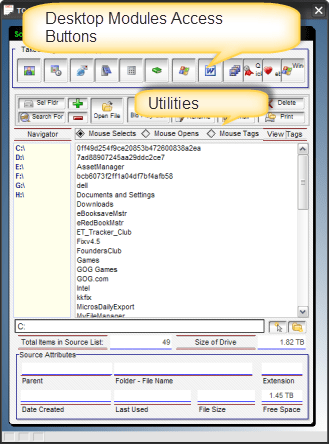 The above image is our File Manager. In an earlier session we demonstrated that when a utility was performed against the selected tag list, the user was shown a separate tag list form. (see below)
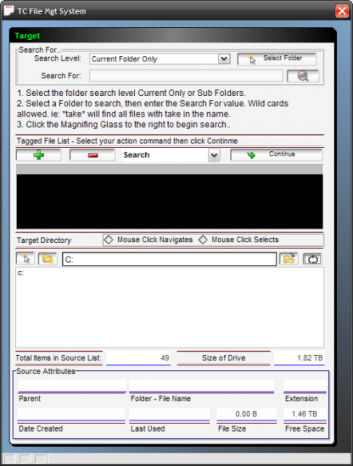 Looking at the two forms it is easy to see they look alike so with a little planning and the use of a conditional object we can make both forms into one.
The conditional object needs a variable or object to watch for change then based on the change the conditional object displays the page requested.
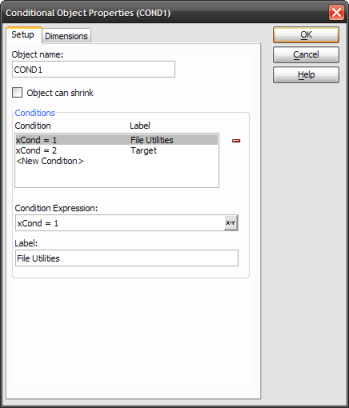 Our variable or condition is xCond which is a variable we created on our form. If xcond = 1 then show File Utilities which is the main form. If it is 2 then show the target form. (see below).
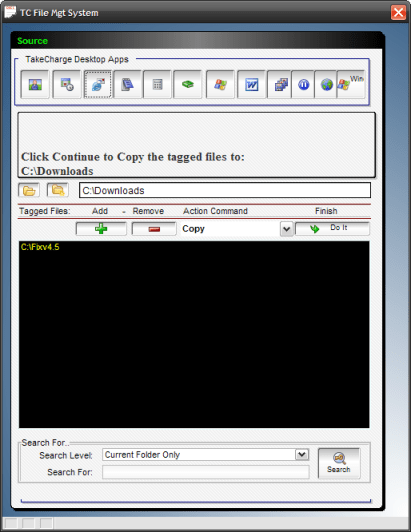
The actual code is placed on our utility buttons and is;
xCond = 2
topparent.Cond1.refresh()
Simply by rearranging objects and eliminating un-needed objects we are able to make the tag list form fit on the File Manager form.
In addition to this change we have started adding the Start Menu functionality to our File Manager Form. Below is a short video which shows it in action. Watch the video then look below for some of the code that makes it happen.
Well as you saw in the video, our improved Menu system is comings along nicely and already has features not available in Windows. Now lets look at some of the code.
When the Start Menu loads we push the object Btn7 which changes our two list objects to show Window Special folders. The code to do this is
FileMgtSystemS:Btn7.push()
which is part of the form.load code on our Clock Calendar.
The code on Btn7 sets the initial state of our list for the Start Menu
uaction = "Select"
StartIn = "Select Folder"+crlf()+"____________"+crlf()+"-Desktop"+crlf()+"-My Documents"+crlf()+"-Programs"+crlf()+"-Favorites"+crlf()+"-Recent"+crlf()
ListState = "MSF"
subjectlist = ""
subjectlist = "Select a Windows Special Folder to the left."+crlf()
vStartDir = subjectlist
if vwatch =1 then
   vwatch = 0
else if vwatch = 0 then
    vwatch = 1
end if
if vFldwatch =1 then
   vFldwatch = 0
else if vFldwatch = 0 then
    vFldwatch = 1
end if
Next when the user selects an option in our StartIn list, the code sets a variable which will control the action in our StartDir on change event, and it tells the StartDir variable what values to display in the list window. Here is the code which controls the StartDir list view based on the user selection in the StartIn List. The code is on the on change event of StartIn..
.....
else if ListState = "MSF"
    dim path as C
    if StartIn = "-Desktop" then
        subjectlist = table.external_record_content_GET("applicationlist","File_Name","File_Name","ID=2")
        vStartDir = SubjectList
    else if StartIn = "-My Documents" then
        path = win_special_folder("MyDocuments")
        if Right(Alltrim(path),1) = chr(92) then
            Path = Left(Alltrim(path),-1)
        else
            Path = Alltrim(path)
        end if
        vStartDir = *for_each(file,file,filefind.get(Alltrim(Var->path)+chr(92)+"*.*",FILE_FIND_NORMAL+FILE_FIND_DIRECTORY,"N"))+*for_each(file,file,filefind.get(Alltrim(Var->path)+chr(92)+"*.*",FILE_FIND_NORMAL+FILE_FIND_NOT_DIRECTORY+FILE_FIND_ReadOnly+FILE_FIND_System+FILE_FIND_Archive,"N"))
        vFilePath = path
        srfld = path
    else if StartIn = "-Programs" then
        path = win_special_folder("AllUsersStartMenu")+"\Programs"
        if Right(Alltrim(path),1) = chr(92) then
            Path = Left(Alltrim(path),-1)
        else
            Path = Alltrim(path)
        end if
        vStartDir = *for_each(file,file,filefind.get(Alltrim(Var->path)+chr(92)+"*.*",FILE_FIND_NORMAL+FILE_FIND_DIRECTORY,"N"))+*for_each(file,file,filefind.get(Alltrim(Var->path)+chr(92)+"*.*",FILE_FIND_NORMAL+FILE_FIND_NOT_DIRECTORY+FILE_FIND_ReadOnly+FILE_FIND_System+FILE_FIND_Archive,"N"))
        vFilePath = path
        srfld = path
    else if StartIn = "-Favorites" then
        path = win_special_folder("Favorites")
        if Right(Alltrim(path),1) = chr(92) then
            Path = Left(Alltrim(path),-1)
        else
            Path = Alltrim(path)
        end if
        vStartDir = *for_each(file,file,filefind.get(Alltrim(Var->path)+chr(92)+"*.*",FILE_FIND_NORMAL+FILE_FIND_DIRECTORY,"N"))+*for_each(file,file,filefind.get(Alltrim(Var->path)+chr(92)+"*.*",FILE_FIND_NORMAL+FILE_FIND_NOT_DIRECTORY+FILE_FIND_ReadOnly+FILE_FIND_System+FILE_FIND_Archive,"N"))
        vFilePath = path
        srfld = path
    else if StartIn = "-Recent" then
        path = win_special_folder("Recent")
        if Right(Alltrim(path),1) = chr(92) then
            Path = Left(Alltrim(path),-1)
        else
            Path = Alltrim(path)
        end if
        vStartDir = *for_each(file,file,filefind.get(Alltrim(Var->path)+chr(92)+"*.*",FILE_FIND_NORMAL+FILE_FIND_DIRECTORY,"N"))+*for_each(file,file,filefind.get(Alltrim(Var->path)+chr(92)+"*.*",FILE_FIND_NORMAL+FILE_FIND_NOT_DIRECTORY+FILE_FIND_ReadOnly+FILE_FIND_System+FILE_FIND_Archive,"N"))
        vFilePath = path
        srfld = path
    end if
    '___________Rebuilds List
'    vStartDir = subjectlist
    if vwatch =1 then
       vwatch = 0
    else if vwatch = 0 then
        vwatch = 1
    end if
else
........
Basically what is happening here is on change of the StartIn list we check the value of StartIn and then build our vStartDir accordingly. We then call our watch variable vwatch which refreshes our StartDir list and displays the requested information by the user. Now this is one segment of our Start Menu and each display will need to perform a similar function to properly show the users requested information.
Now you have seen two separate and equally powerful ways to control the display of values on a form.
-
Conditional Object – shows multiple variable pages of objects
-
List Objects – shows list of any type of data in a Control Line feed list
Using these and a few other tricks we will surely meet our goal of building an improved desktop for Microsoft Operating System.
I know I said tis the last time, but this time I mean it. In our next session we will look at:
- Add Program
- Add File to Organizer
- Delete File from Organizer
- Add Batch Files to Organizer
Hope to see you all then.
Thanks again for stopping by and Remember, if you need help with an Alpha Software application or wish to inquire about a custom application for your business go to our website
and inquire or contact
NLawson@cdc-TakeCharge.com
Have a great day.
 Custome Database Design with Alpha Software
Leave a comment