
Hello Everyone.
Today we are looking at some simple changes to our TakeCharge File Manager which will allow it to double as a Start Menu.
In order to have the File Manager double as a Start Menu we need to decide what will the Start Menu do and how will we enhance it for our Desktop? As expected, the Start Menu must provide a list of all applications on our PC and links to critical systems. Also, I will include list of all data in each of our desktop modules as well as links to each of the Desktop modules. Additionally we will provide links to Windows Desktop Apps as well.
The short video below demonstrates the beginning of the Start Menu integration into our File Manager. I use the Contact Management Module as an example of the integration. After the video we will look at the simple procedure which allows us to do this.
To me this was the original promise of Windows. All information on the computer would be viewable simply by opening a ‘Window” on the PC. Unfortunately they do so but first the user must launch an application. to view their data. By integrating our modules into the Start Menu / File Manager we are able to give the user the ability to view and modify their Contact Data directly from the Start Menu / File Manager.
Other linked modules will include
- To-do Tracking
- Email Manager
- Note Organizer
- Document Manager
- Web Bookmark Manager
- Application Quick Launch Manager
- and possibly more…
Look at the two images below. The First
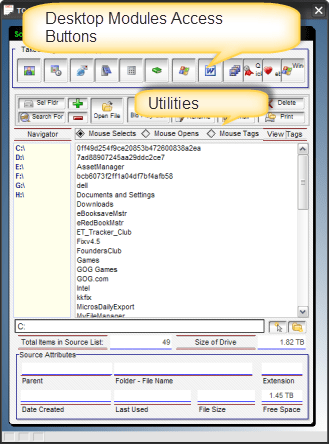 shows the File Manager with the new layout the way it will be seen when the file utilities are being used. The next image

shows the File Manager with the Contact app selected. The Navigation Pane now shows a list of views and actions the user can preform for Contacts and the Right Pane displays the results of the user selection. For example, I clicked on People and the list of People in our Contact App is displayed. If I chose Business, you would see a list of All Companies in the App. If I select a contact the Contact History form automatically opens for that Contact.
 Now that is Sweet!!!
So how did we do this? Actually the code is fairly simple. I need to tell the form what values to display and what action the buttons will perform based on the data displayed. I do this by using a variable which stores the name of the Module I wish to display. Once I know that, I set the data values for my list, both Navigator and Display then I use the value of the variable as a branching value in the On Change event for both list as well as all affected buttons. Buttons not used will be turned off and grayed out so as not to confuse the user.
Try to do this on your own. If you are having problems figuring out the code, send me an email with your solution attached to
NLawson@cdc-takecharge.com
I will review what you have done and get the fix back to you as fast as I can.
Our next session will finally look at the Document Manager which I feel is a huge part of our improved desktop. August tends to be a busy month for me so I will post the next session as soon as time and business allows.
Thanks again for stopping by and Remember, if you need help with an Alpha Software application or wish to inquire about a custom application for your business go to our website
and inquire or contact
NLawson@cdc-TakeCharge.com
Have a great day.
 Custome Database Design with Alpha Software
Leave a comment