
Hello Everyone
When designing, one must always consider the three F’s
- Form
- Function
- Features
To see the truth in this, you only need to look at the Smart Phone. When cell phones first became available, the were big and bulky and performed the function they were designed for. Making calls. As the market opened up and more business came into play they needed to find a way to make their phone different from the competitors. First they worked on form and function continually making the phones smaller and the batteries last longer. Next they added a computer processor and started to add features with the Contact app and address book. From that point forward each competitor who entered the market and with every release of a phone upgrade more and more features were added. Now, the ability to make calls is the least of the phone features and the function is more of an entertainment device then a phone.
My desktop app will follow that example. Instead of having a Menu
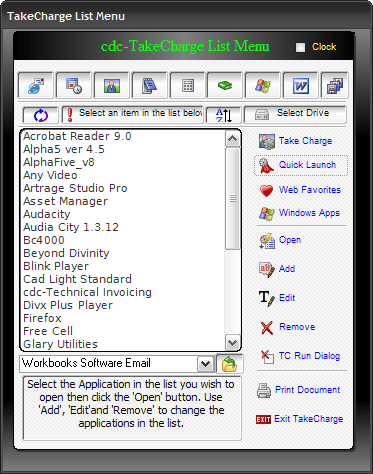 and a File Manager
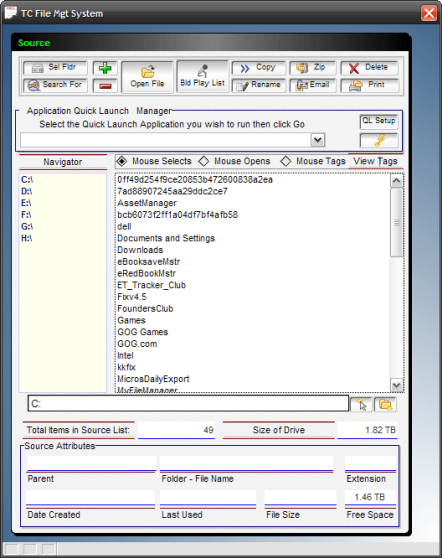
We will combine the two forms into one and we will add some new features such as Build Play List.
If you have ever tried to build a playlist in Windows Media Center it is not as simple as one would think. We use our tag file system to make it very easy to build a play list of songs, video’s or images. Watch this short video to see How the Build Play List will work and to see the changes started to accomplish our new design concept.
As you can see building a play list is easy.
Tag List and Target Form
Notice also we added a tag list form with Search Features and a target folder navigator. This form is to allow the user to review their tag list before continuing with their utility action to help insure they do not make an un-intended mistake.
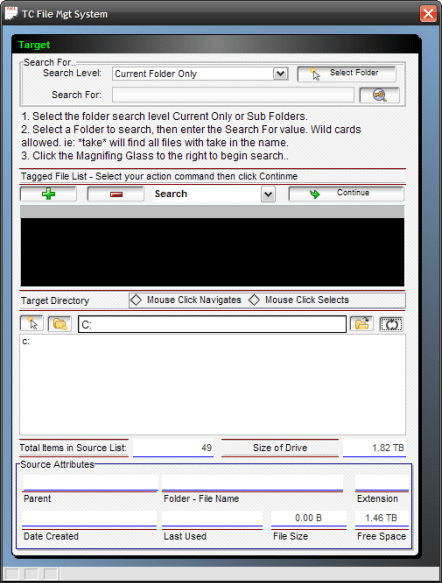
This form not only works as a review of the selected files and a File Folder Search utility, but as a dialog box as well. Depending which button on the Source Menu calls up the Target Form, the instructions at the top of the form change to fit the requested action. Once Continue or Search is started, the message box shows the progress of each file and displays a progress bar to keep the user informed.
Progress Bar:
We designed the progress bar using what we learned about object properties in our animation lessons. The bar itself is a text object which is hidden on the form and set to a width of .1 inches. When the function is started, we look at the number or records in the tag list or we pre-fetch our search list and get the number of records in it then we divide the width of the maximum size of the text object by that number and increment it up when each line in the list is complete. Here are segments of the actual code.
list2 = Listsource
topparent:text2.Object.width = .1
topparent:text2.show()
for each sel_file in list2
UpdateList = 4.4 / *count(listSource)utility processing code runs here.
topparent:text2.Object.width = topparent:text2.Object.width + UpdateList
ui_yield()next
The maximum size of our message box is 4.4 inches so we use that for the max size of our progress bar (text2). The ui_yield function gives the form a chance to repaint before going to the next file in the list. That is all there is to it.
In our next session we will look at the actual search feature and any form redesign on our Menu form.
Thanks again for stopping by and Remember, if you need help with an Alpha Software application or wish to inquire about a custom application for your business go to our website
and inquire or contact
NLawson@cdc-TakeCharge.com
Have a great day.
 Custome Database Design with Alpha Software
Leave a comment