
Hello everyone
An important part of our desktop application is the file management system. I believe the reason most computer users have cluttered desktops is because the process of managing and organizing their data is confusing for most. If you ask the average user where a particular program is store they believe is is on their desktop because that is where the icon to launch it is located not realizing the icon is just a link file pointing to the actual location of the program.
As someone who supports computer users I often get asked to help find files which were saved from an email attachment and the user cannot find them because the file did not go to the desktop as they thought it would. When I show them the File Explorer and how to search for files they are amazed that they did not know of this utility. The next call I get from them is to find a file they were moving using the file explorer drag and drop feature and the file disappeared.
Lets refer back to our design document and look at the File Management Section. We said the File Manager needed to include the following.
- Simple Tag File Utility system.
- Dual Pane Source and Target Windows
- Drive Navigator
- File Viewer
- Print Manager
- Standard Utilities – Copy, Move, Rename, Delete, Zip and E-Mail
We are going to add to that by including modules designed to perform a specific function. They are;
- Document, Spreadsheet and Productivity File Manager
- Search and Find feature
- Move and Back up
- Version Control
- Print Control
- E-Mail Attachment Manager
- Image and Multi-Media File Manager
- Search and Find feature
- Move and Back up
- Version Control
- Print Control
- Player Manager
- E-Mail Attachment Manager
as you can see, our design document is growing. If you look at each part of the File Management System, one can see they all could be on a single form. Remember however, we want our system to be simple. By creating separate managers, we can keep the user interaction simple and specific to the task at hand. We will start by looking at the Source pane of our File Manager.
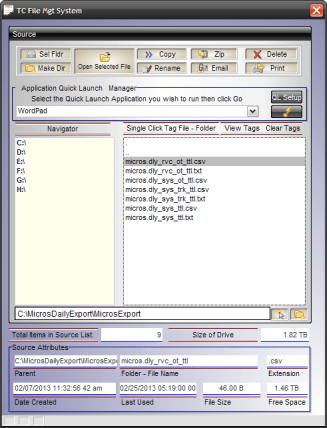
Source Pane
You can see from the image the File Manager is uncluttered and easy to use. The action buttons are located at the top. Directly below that is a drop down list of the users Quick Launch Applications for easy access. Next you have the Navigator Window with the Folder content viewer to the right. Below that is the source path then finally there is the Attributes of the selected file or folder. Above the Folder Content Viewer you will see three buttons.
- Single Click Tag File-Folder
- View Tags
- Clear Tags
The first button ‘Single Click Tag File-Folder’ if clicked will change to Single Click Open File Folder. When the button label says Tag then each file or folder in the list that is clicked with the left mouse button is tagged so the user can perform some or multiple utilities against the tagged files. When it says open then the mouse click on the item in the list will be opened. Below is a short video which demonstrates the use of this feature and also shows how we completed our Setup Wizard from the last session.
As you can see from the video, the File Manager is simple to use and by using the tag system with review of the items in the tag list, the user will have less chance of loosing files or of deleting important files.
I stated in the video that I would show how I control the Mouse on Click Event and here it is.
if FileMgtSystemS:button1.text = “Single Click Tag File – Folder”
uAction = “Open”
FileMgtSystemS:button1.text = “Single Click Open File – Folder”
else
uAction = “Tag”
FileMgtSystemS:Button1.text = “Single Click Tag File – Folder”
end if
When the user clicks the button, a global variable ‘uAction is set to either open or tag and the button label is changed to the proper description. Next the on change event uses these values to control the action of the mouse click.
FileMgtSystemS:vstartdir.refresh()
FileMgtSystemS:vfilepath.value = srfld
myFileS = vFilePath+chr(92)+vStartDir
if uAction = "Open" then
    dim ptr as P
    dim path as C

    FileMgtSystemS:vstartdir.Activate()
    path = myFileS
    if     right(Alltrim(myFileS),2) = "\." then
        path = file.filename_parse(myFileS,"D")
        srfld = path
        goto displayview
    else if right(Alltrim(myFileS),2) = ".." then
        path = Left(file.filename_parse(myFileS,"DP")+chr(92),-Len(WORD(myFileS,-2,chr(92)))-3)
        srfld = path
        goto displayview
    else if file.filename_parse(myFileS,"E") = ".zip"  then
        uaction = "ZipView"
        dim shared vzip as C
        vzip = file.ziplist(myFileS, "n - p" + chr(13) + chr(10))
        form.load("ZipViewer","popup","","center","center")
        ZipViewer.Activate()
        ZipViewer.Show()
        form.close()
    else if file.filename_parse(myFileS,"E") = ".bat" .or. file.filename_parse(myFileS,"E") = ".sys" .or. file.filename_parse(myFileS,"E") = ".ini" then
        if file.exists("notepad.exe") then
            sys_shell_wait("notepad.exe "+myFileS,.T.)
        else
            ui_msg_box("Error Opening Program","File 'notepad.exe' does not exist.",ui_stop_symbol)
        end if
    else
        ptr = filefind.first(Alltrim(myFileS))
        if ptr.is_directory() = .t. then
            path = myFileS
            srfld = path
            goto displayview
        else
            sys_open(myFileS)
        end if
    end if
else
    dim path as C
    if     right(Alltrim(myFileS),2) = "\." then
        path = file.filename_parse(myFileS,"D")
        srfld = path
        ListSource = ""
    else if right(Alltrim(myFileS),2) = ".." then
        path =     vFilePath
        srfld = path
        ListSource = *for_each(file,file,filefind.get(Alltrim(Var->path)+chr(92)+"*.*",FILE_FIND_NORMAL+FILE_FIND_DIRECTORY+FILE_FIND_ReadOnly+FILE_FIND_System,"PN"))+*for_each(file,file,filefind.get(Alltrim(Var->path)+chr(92)+"*.*",FILE_FIND_NORMAL+FILE_FIND_NOT_DIRECTORY+FILE_FIND_ReadOnly+FILE_FIND_System+FILE_FIND_Archive,"PN"))
    else
        ListSource = ListSource+myFileS+crlf()
        FileMgtSystemS:vstartdir.Activate()
    end if
end if
FileMgtSystemS:vfiledc.value = filefind.get(myFileS,FILE_FIND_NORMAL,"C")
FileMgtSystemS:vfileext.value = file.filename_parse(myFileS,"E")
FileMgtSystemS:vfilelu.value = filefind.get(myFileS,FILE_FIND_NORMAL,"T")
FileMgtSystemS:vfilename.value = file.filename_parse(myFileS,"N")
FileMgtSystemS:vfoldername.value = Left(Alltrim(file.filename_parse(myFileS,"DP")),-1)
FileMgtSystemS:vfilesize.text = bytes_to_mega(Val(Alltrim(filefind.get(myFileS,FILE_FIND_NORMAL,"L"))),2)
'FileMgtSystemS:vFilesFound.text = str(*count(vStartDir))
End
displayview:
vStartDir = *for_each(file,file,filefind.get(Alltrim(Var->path)+chr(92)+"*.*",FILE_FIND_NORMAL+FILE_FIND_DIRECTORY+FILE_FIND_ReadOnly+FILE_FIND_System,"N"))+*for_each(file,file,filefind.get(Alltrim(Var->path)+chr(92)+"*.*",FILE_FIND_NORMAL+FILE_FIND_NOT_DIRECTORY+FILE_FIND_ReadOnly+FILE_FIND_System+FILE_FIND_Archive,"N"))
ui_freeze(.t.)
if vWatch =1 then
    vWatch = 0
else if vWatch = 0 then
    vWatch = 1
end if
ui_freeze(.f.)
vFilePath = path
script_play("fAttrib")
It looks like a lot is going on in this code. Basically, if the variable uAction equals Open then the system does a series of checks on the selected value in the list to determine if it is a file ( it opens) or a directory (it Navigates) then acts accordingly. If uAction does not equal Open then it tags the selected item in the list and adds it to ListSource for later processing.
That is it. In our next session we will look at the actual utility commands and the Target pane for our dual pane file management system.
Thanks again for stopping by and Remember, if you need help with an Alpha Software application or wish to inquire about a custom application for your business go to our website
and inquire or contact
NLawson@cdc-TakeCharge.com
Have a great day.
 Custome Database Design with Alpha Software
Leave a comment