
Hello Everyone
Hope you had a Great 4th of July.
Like most people, there is nothing I hate more than getting something new and being forced to go through some sort of setup before I can begin enjoying my new product. With that in mind, our Desktop App will ship with the ability to run with default settings and the setup wizard will only be needed if the user decides to customize how the application works.
If they do decide to use the setup wizard then it must be easy to use and self explanatory. Our wizard uses a simple step procedure. Each step displays an information card with minimal user interaction. (see below)
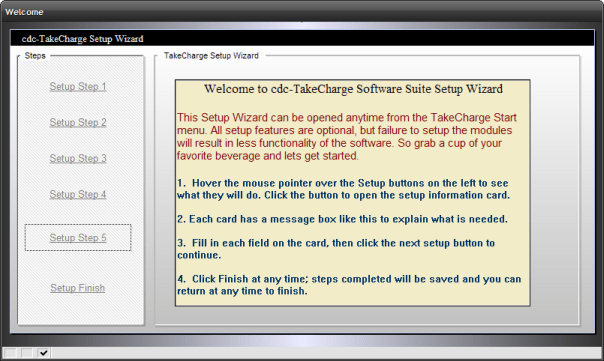
In order to create our setup wizard we need to go back to our design document and decide what features of our application can be customized. Our application consist of a clock, calendar and menu system as well as custom built application modules for our new desktop. Knowing this we can assume the following information will be needed to get the most out of the software.
Step 1 User Information – (see below)
- User Name Can be passed to all modules using the User Name (ie: Journal, Note Organizer etc.)
- Preferred EMail Account – Same as Above
- Use Password Choice – Provide program code flow control
- Password Field – Provides access to program data. If the user decides to not password their application, then none of this information is needed.
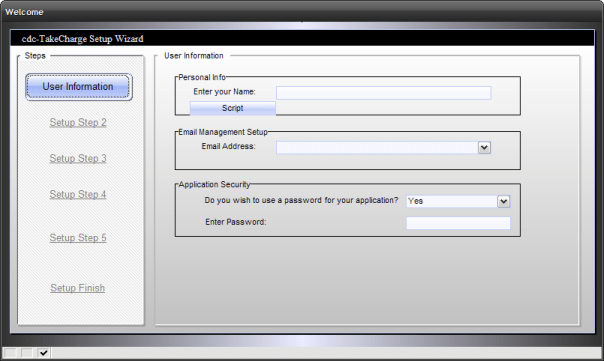 For now, this basic user information is all we need.
Step 2 Data File Folder Locations
Next we need to allow the user to identify where files of varying types reside on their hard drive. The types we will track are:
-
Documents
-
Spreadsheets
-
Images
-
Media Files
Many users will not know where their files are stored so they will need a system to search and find the file types. (see below)
 Above you can see Step 2 will set the default location of their data files based on the version of Windows OS they have. If they store their files in other locations, they can use the Select Fldr button to search for the proper folder location or they can just type it in manually. We could add the ability to move their files into their folder of choice on this screen but that will be a function on our File Manager System and I see no reason to duplicate the process here. We may however have a direct access button on the card which will open the File Management System in the selected folder as a starting point.
Step 3 File Management System
The File management system will work as a file explorer, launcher, version manager, Quick Launch Manager and file utility system. Since this part of the application has not been written yet, there are no images available. An overview of the File Management System is listed below.
-
File Explorer – Allows user to search and find files by many wildcard types
-
Launcher – Pressing Enter on any file in list will open the file in the associated program.
-
Version Manager – Will help the user keep track on all documnets and data files and their revision dates.
-
Quick Launch Manager – Gives the user a simple point and click setup process for their Quick Launch Menu
-
File Utility System – An easy to use tag file list builder for organizing and performing
-
Copy
-
Move
-
Delete
-
Zip / UnZip
-
Email
-
Rename
-
on files and folders.
Step 4 Web Bookmark Manager
The web bookmark manager provides a bookmark organizer with a web search feature which allows the user to choose from the top search engines or run the search on all at once so they can compare the results.
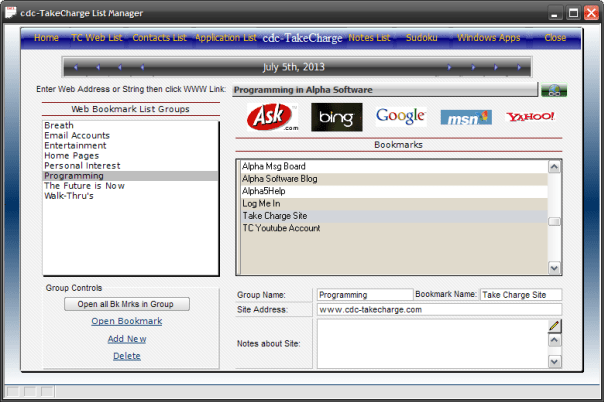 Once setup, the bookmarks will show up as menu items on the TakeCharge Start Menu. (The actual design of the Web Bookmark Manager form will be slightly different.)
Step 5 Install PDF Printer Driver
If you are an Alpha Software developer then you know the 3rd party PDF printer driver does not always install correctly. This step forces the driver to reinstall using the preferred settings and will work in most cases.
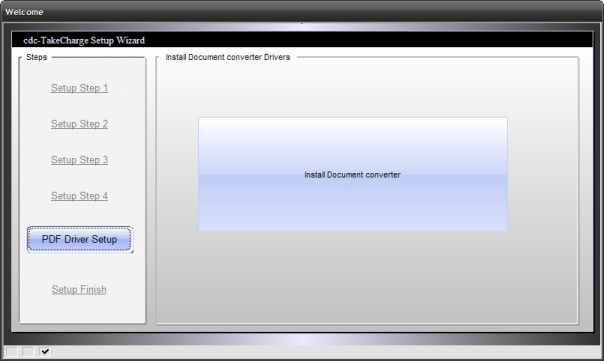 For those that do not, there will be a link to a print document providing step by step instructions on how to manually install the drivers.
This is the only step which is required since we use the PDF reader on the user’s system as a report viewer. The information card will have a test driver button at the top of the card. If it fails, the install driver button will be displayed. If the test fails again a button to print the manual instructions will be displayed.
That’s the end of this session and the end of chapter one. Next we will discuss the File Management System which is a key component of our application.
Thanks again for stopping by and Remember, if you need help with an Alpha Software application or wish to inquire about a custom application for your business go to our website
and inquire or contact
NLawson@cdc-TakeCharge.com
Have a great day.
 Custome Database Design with Alpha Software
Leave a comment