
Hello everyone
We are changing the pace here and will be showcasing routines not widely discussed in Alpha Software; mainly graphics and automation. To start with, we will do three simple animations; draw a line on a form, move a text box across the form and bounce a ball. Each of these animations are written in Alpha Software using xBasic. Watch the short video to see the graphics in action.
Before we get to the xBasic code, we need to create the objects and create a few variables.
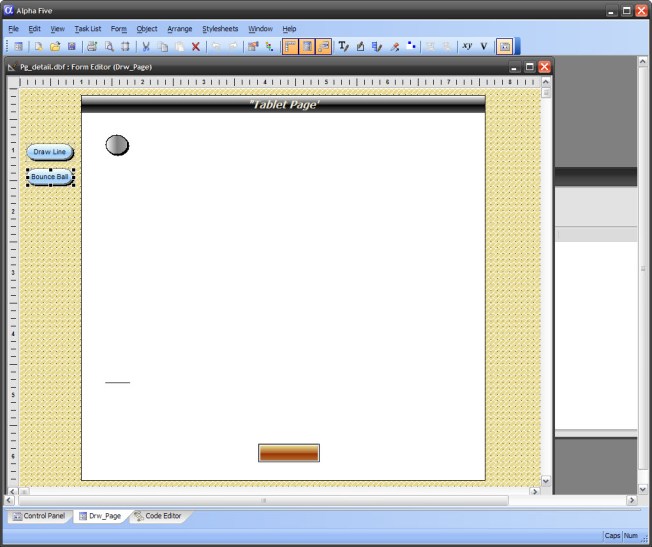
The image above shows our form with a ball object (ball1), a line (line1) and a text box(text1). Note; the ball is a text box as well set to oval shape and renamed ball1. Are variables are;
xBBeg = 0.75 'Beginning position of ball
xBEnd = 5.8 ' Ending position of ball
xBPos = 0.06 ' Current position of ball
xBounce = 1 ' Number of bounces
xDir = "Down" ' Direction of ball ovement
dl = "" 'Control timer action
xLen = 0.25 ' Line length
Each variable is declared on the form as a session variable. This makes them available to us as long as the form is open. To perform animation on an object you need to modify the object properties to give the appearance of animation. This is easily done by using the Object Explorer.
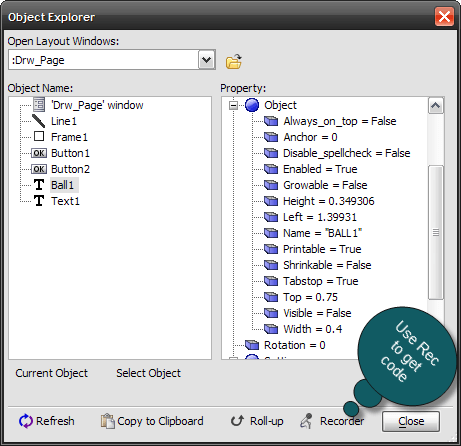
In a previous lesson I discussed how to use the recorder to get object property code so I will not go over it again. I will say, using it will make your coding life much easier.
Now lets look at moving the text box across the screen. This is done by adding code to the form on-Key event.
'Date Created: 06-Apr-2013 05:32:07 PM
'Last Updated: 06-Apr-2013 05:36:01 PM
'Created By  : cdc
'Updated By  : cdc
if A_USER.KEY.value = "{LEFT}" then
    A_USER.KEY.handled = .T.
    if A_USER.KEY.event = "down" then
        if topparent:Text1.Object.Left  >= 1.25
            topparent:Text1.Object.Left  = topparent:Text1.Object.Left - .15
        end if
    end if
else if A_USER.KEY.value = "{RIGHT}" then
    A_USER.KEY.handled = .T.
    if A_USER.KEY.event = "down" then
        if topparent:Text1.Object.Left  <= 7.25
            topparent:Text1.Object.Left  = topparent:Text1.Object.Left + .15
        end if
    end if

end if
As you saw in the video, holding down the left keyboard arrow key moves the box to the left and the right key moves the box to the right. How could you use this? I will say you are only limited by your imagination.
Now, lets look at the draw line code. This using the variables and the on-Timer event of the form.
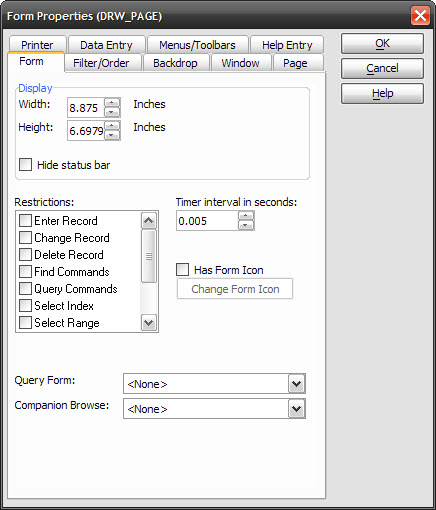
The lower the number of timer intervals the more often the timer event fires. When the user clicks the draw line button the following code runs.
xLen = .05
topparent:Line1.Object.Width  = .1
topparent:Line1.Object.Visible  = .t.
dl = "Draw Line"
This information is used by the timer event to draw the line.
'Date Created: 06-Apr-2013 03:59:12 PM
'Last Updated: 07-Apr-2013 01:03:32 PM
'Created By  : cdc
'Updated By  : cdc
if dl = "Draw Line" then
    if topparent:Line1.Object.Width  <= 6.75 then
        xlen = xLen+.15
        topparent:Line1.Object.Width = xLen
    end if
else if dl = "Bounce Ball" then
    if xBounce <=15 then
        if xDir = "Down" then
            if xBPos >= 5.8 then
                xBounce = xBounce + 1
                xDir = "Up"
                xLen = xLen * .75
            else
                xBPos = xBPos+.21
                topparent:BALL1.Object.Top = xBPos
            end if
        else
            if xBPos <= xBEnd - xLen* .75 then
                xDir = "Down"
            else
                xBPos = xBPos-.21
                topparent:BALL1.Object.Top = xBPos
            end if
        end if
    end if
end if
end
For the draw line, we only need the top part of the if statement. Using the width property of the line object, we are saying if the line width is less the 6.75 inches then add .15 inches to the current length and redisplay on the form. Pretty simple. A similar procedure could be used to create a page turning animation.
Finally let’s look at the ball bounce. This is the fun one and requires some imagination because Alpha Software is not designed to do this type of process. First the button on push event.
'Date Created: 06-Apr-2013 02:56:02 PM
'Last Updated: 07-Apr-2013 01:13:53 PM
'Created By  : cdc
'Updated By  : cdc
topparent:Ball1.Object.top  = 1.25
xLen = 5.05
xBPos = 1.25
xBounce = 1
topparent:Ball1.Object.Visible  = .t.
xDir = "Down"
dl = "Bounce Ball"
As with the line draw, we set the values of the variables and pass them to the on timer event. You will notice I did not use the beginning and ending ball position variables but I could have if the routine was more complex. Now look at the second part of our on timer event if statement. First we set the number of bounces then we set the direction and determine if the ball has reached the bottom of the page. If it has we change the direction to up and set the uppermost point of the ascend to 75% of the original drop distance. This is then repeated 14 more times giving the appearance of bouncing.
There you have it. We created three types of animation using xBasic in Alpha Software. As stated in the video we will next use what we learned to create a simple pong game.
Well that’s it for today. I hope you found this lesson helpful and I hope you enjoy the rest of this series.
Remember, if you need help with an Alpha Software application or wish to inquire about a custom application for your business go to our website
and inquire or contact
NLawson@cdc-TakeCharge.com
Have a great day.
 Custome Database Design with Alpha Software
Leave a comment