
Hello Everyone
Today’s lesson is about code branching in xBasic based on user choices. For our example we have created an open ended search feature in our King James Bible Reader. Based on the user’s input into the search fields, the code branches and searches the correct table for the requested bible verses. The video below shows how the new search feature works and gives an overview of our lesson today.
Sit back, relax and enjoy the show, then finish reading this post for more in depth details on how the code works.
In the video, I said the code for the display Bookmark Selection is fairly simple so I did not discuss it. Here is the code which runs on the push event of the ‘Bookmark Selection’ button.
'Date Created: 19-Feb-2013 02:16:37 PM
'Last Updated: 19-Feb-2013 02:16:37 PM
'Created By  : cdc
'Updated By  : cdc
parentform.commit()
'Create an XDialog dialog box to prompt for parameters.
DIM SHARED BMName as C
DIM SHARED varC_result as C
heading_string = "Enter the name for this Bookmark."
ok_button_label = "&OK"
cancel_button_label = "&Cancel"
Delete XdialogStyle
dim XDialogStyle as p
XDialogStyle.AccentColor = "White"
XDialogStyle.Color = "Blue Gray"
varC_result = ui_dlg_box("Bookmark Dialog",<<%dlg%
{Windowstyle=Gradient Radial Bottom Right}
{region}
{sp=11}{text=42,1:heading_string};
{endregion};
{region}
{sp=2}[.50BMName];
{endregion};
{line=1,0};
{region}
<*24=ok_button_label!OK> <24=cancel_button_label!CANCEL>
{endregion};
%dlg%)

CName = VAR->BMname

DIM Append as P

a_tbl = table.open("Bookmarks")
append.t_db = "Reader"
append.m_key = ""
append.t_key = ""
append.m_filter = ""
append.t_filter = ""
append.type = "All"
append.m_count = 12
append.m_field1 = "ID"
append.m_exp1 = "@READER->ID"
append.m_field2 = "LINK"
append.m_exp2 = "@READER->LINK"
append.m_field3 = "REF_NBR"
append.m_exp3 = "@READER->REF_NBR"
append.m_field4 = "BOOK_NBR"
append.m_exp4 = "@READER->BOOK_NBR"
append.m_field5 = "CHAPTER_NBR"
append.m_exp5 = "@READER->CHAPTER_NBR"
append.m_field6 = "VERSE_NBR"
append.m_exp6 = "@READER->VERSE_NBR"
append.m_field7 = "WRITTEN_TEXT"
append.m_exp7 = "@READER->WRITTEN_TEXT"
append.m_field8 = "BOOKTITLE"
append.m_exp8 = "@READER->BOOKTITLE"
append.m_field9 = "VLINK"
append.m_exp9 = "@READER->VLINK"
append.m_field10 = "PICKED"
append.m_exp10 = "@READER->PICKED"
append.m_field11 = "BM_NAME"
append.m_exp11 = "Var->CName"
append.m_field12 = "MY_THOUGHTS"
append.m_exp12 = "@READER->MY_THOUGHTS"
append.t_count = 0
a_tbl.append()
a_tbl.close()

form.load("MyBookmarks","popup","","center","center")
MyBookmarks.Activate()
MyBookmarks.Show()
form.close()
As you can see form the code we pop-up a xDialog box which prompts for the bookmark name. Then we run an append which appends all records from the reader table to the bookmark table. Since the reader table only has one record, there is no need to apply a filter or master and transaction ID’s. After the append finishes we open our bookmark form and remember, when you pop up a form you must include a
form.close()
in the calling code.
Now lets look at the branching code. We will start by looking at the changes to our form.
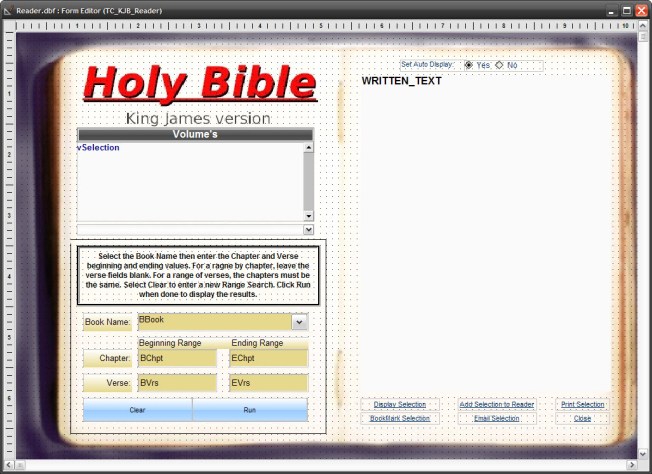
BBook, BChpt, EChpt, BVrs and EVrs are variable fields we created for our new search. To display this view we added Range to our vSelection list and a new page to our conditional object. We also created two new buttons, Clear and Run. When the user clicks ‘Clear’ the following runs on the on push event of the button.
'Date Created: 28-Feb-2013 11:50:54 AM
'Last Updated: 28-Feb-2013 11:50:54 AM
'Created By  : cdc
'Updated By  : cdc
parentform.commit()
BBook = ""
BChpt = ""
EChpt = ""
BVrs = ""
EVrs = ""
All that actually happens is we clear any values in our variable fields allowing the user to change his / her search criteria.
The ‘Run’ code is where the branching takes place.
'Date Created: 04-Mar-2013 12:44:02 PM
'Last Updated: 04-Mar-2013 12:44:02 PM
'Created By  : cdc
'Updated By  : cdc
parentform.commit()
if BVrs <> "" then
    if BVrs < EVrs .and. BChpt = EChpt then
        ui_msg_box("","B-C-VR")
    else if BVrs = EVrs .and. BChpt = EChpt then
        ui_msg_box("","B-C-V")
    else if BVrs < EVrs .and. BChpt < EChpt then
        ui_msg_box("","B-CR-VR")
    else if BVrs = EVrs .and. BChpt < EChpt then
        ui_msg_box("","B-CR-V")
    end if
else if BVrs = "" then
    if BChpt = "" then
        ui_msg_box("","Book")
    else if BChpt < EChpt then
        ui_msg_box("","B-CR")
    else if BChpt = EChpt
        ui_msg_box("","B-C")
    end if
end if
Notice that we build the search on the form from the book name down to the verse numbers and in the code above we search from the verse numbers first to the book name. This is done to insure all possible search choices are addressed. For example, if the BVrs field is blank, then no search that includes verses or a verse range needs to run so we can skip all of that code. This approach works well with all code branching. Set your criteria then build your code branching on the greatest range to the smallest.
As I stated in the video, I am providing the framework for the code branching but it is up to you to write the acutal code for finding the proper verses and posting them to the reader table. The code you write will replace each of the ui_msg_box statements. Each statement gives you a clue into what values you should look for based on the following.
- B = Book
- C = Chapter
- V = Verse
- R = Range
As an example, if the message box returns B-CR-VR then you are looking for the requested book, and the chapter range and the verse range for the last chapter in the chapter range. (An example is shown in the above video.)
Try your hand at writing the code and if you sent me your solution to NLawson@cdc-takecharge.com I will be happy to review it and give you a thumbs up or debug your answer if it is not correct.
Well that’s it for today. I hope you found this lesson helpful and our next couple of lessons will complete the Bookmark process and form. Additionally we will look at creating a daily verse display for our calendar object. I hope to have it up in a few days.
Remember, if you need help with an Alpha Software application or wish to inquire about a custom application for your business go to our website
and inquire or contact
NLawson@cdc-TakeCharge.com
Have a great day.
 Custome Database Design with Alpha Software
Leave a comment