
Hello Everyone
In creating our new lesson I decided to design this lesson as if the audience knows nothing about database applications in general and specifically Alpha 5 as a development platform. With that said, lets get started.
Alpha Software defines itself as an ‘Enterprise relational database management system for planning, creating and distributing database solutions.’ Personally I find their statement to be factual and correct. I have been designing in Alpha Software since 1993 and have created business applications in every version from Alpha 3.0 in DOS to the current version 10.5 for Windows. The applications are so stable, I still have some customers from 1993 still using the original applications I wrote. Am I saying I write a great application? No, for when I started I had no programming knowledge only the desire to learn.
Database Solutions
A database is an application which consist of tables and sets. Sets are tables which are joined together in a relational way i.e. Invoice_Header.tbl to Invoice_Detail.tbl joined on key value Inv_Nbr in a one to many relation.
Tables and sets will display and control data through the use of forms and browses. A form presents one record at a time and a browse shows all records based on the given query just like a spreadsheet. When you create a set, you can have a form which shows a single record with a browse showing all linked child records.
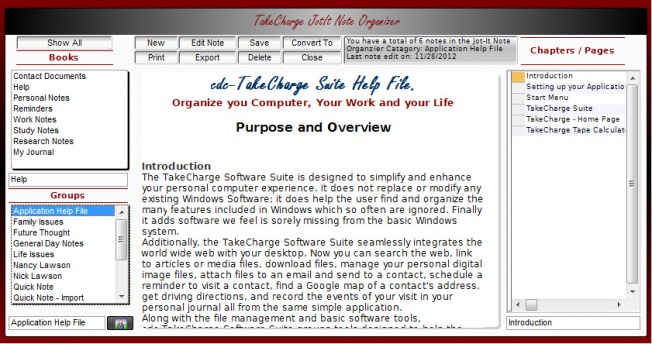
In the image above, Groups represent the parent record and Chapter/Pages are the relational child records.
When you create a database, you are creating the application you are designing. As a good rule of thumb, each database should have it’s own folder and all files and tables which make up the application should be in this folder. In our example, our application is;
TakeCharge_Manager.adb
and our folder is;
c:\TC_Suite\KJB
In our application we have to create two tables.
- Verses – A dbf table with each verse a a separate record.
- Reader – A dbf table with a single record
To create a table in Alpha Software
- Go to the Control panel for the application you created
- Right click on the white space of the control panel
- Select New
- Select Design
You will be presented with a blank page that looks like the one displayed below. Here you will fill in the field information which will make up the table. When done, click on save and give the table a name. For ease of coding later, try to avoid spaces in the table names.
The two images below show the structure of the two primary tables in our lesson application.
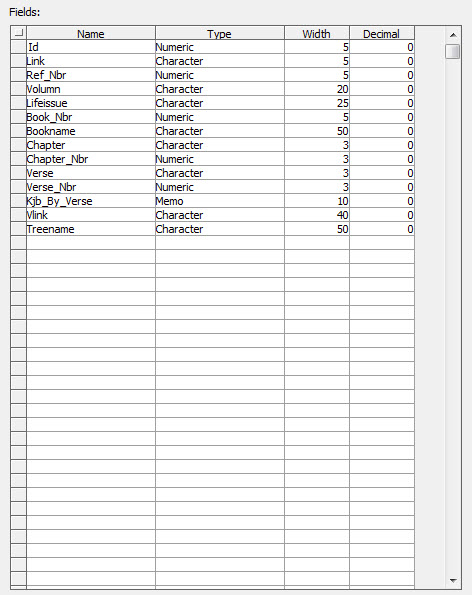
The structure of The Verses table is;
and the structure of Reader is;
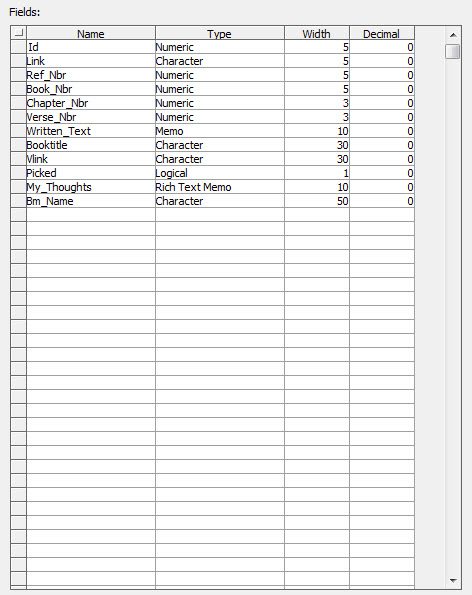
Each of the tables have linking values as well as character descriptive fields, numeric fields and memo fields. Currently these are fields I expect to need, but may not. If I do not need or use a specific field in either of the tables I can delete them during final review and testing.
I have created two more tables called Chapters and Books. Each is identical to Verses, but the records in chapters show all verses by book and chapter and in books each record shows all verses by books of the bible. I will explain why I chose to do this later.
For now, the only form I need is on the Reader table. Below is how it may look.
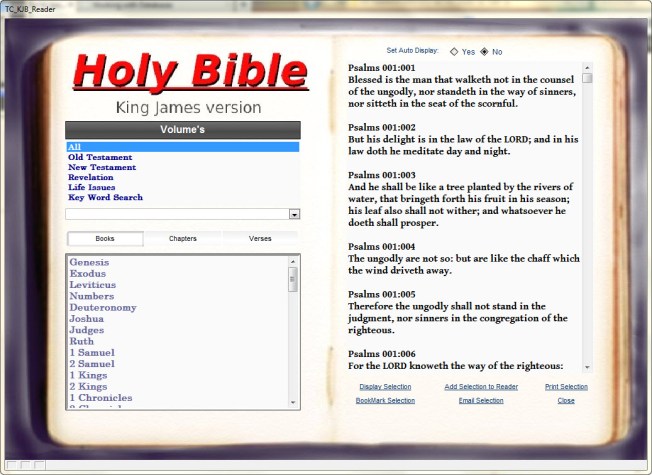
In the image above the form has
- a jpg background,
- a Combo Control list
- a Record list object
- a memo field
- Six direct access control buttons
In our next lesson we will discuss the design of each of the form elements as well as the form itself and the first action button ‘Display Selection’.
Well that’s it for today. Lesson two will be posted in a few days. Remember, if you need help with an Alpha Software application or wish to inquire about a custom application for your business go to our website
and inquire or contact
NLawson@cdc-TakeCharge.com
Have a great day.
 Custome Database Design with Alpha Software
Leave a comment