
Hello Everyone
Today’s lesson will look at controlling the sate of objects on a form using various xBasic methods. Knowing in advance what you expect from the form objects helps you write efficient and compact code. Watch the short video above to see what we mean.
First lets look at the changes we made to the form.
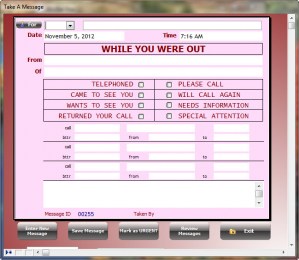
Notice we changed the form look and button styles to match the Review Message Form and added a Progressive Look up, a Enter New Button and a Save Button; all of which were missing from the original form. We also changed the method for selecting who gets the message and how to Mark a record as Urgent.
As I explained in the video, the for button on the form was used to pop up a list array of names of anyone in the system who could receive messages.
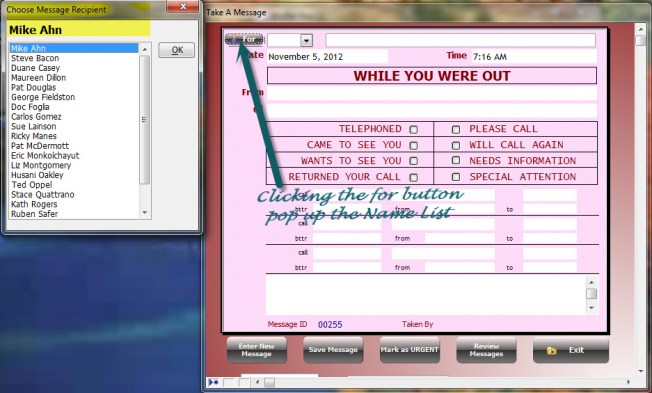
The code on the For button is as follows:
dim rc as N
dim selection as C
dim i AS N
dim indx AS N

rc = reccount("message_tr")

dim names[rc] as P
dim nameslist[rc] as C

names.initialize_from_table("message_tr",".T.","tr_last_name")
for i = 1 to rc
    nameslist[i] = fullfamiliarname(names[i].tr_familiar,names[i].tr_last_name)
next
selection = nameslist[1]

ui_dlg_box("Choose Message Recipient",<<%a%
{Xsize=2}
{position=remember=cmrbox}
{font=tahoma,12,bold}
{text=35,2selection};
{font=tahoma,9}
[.40,20selection^#nameslist!change]||<&OK!ok_button>
%a%,<<%b%
if a_dlg_button = "change" then
        indx = nameslist.find(selection)
        a_dlg_button = ""
else if a_dlg_button = "OK" then
end if
%b%)

topparent:message_for_id.value = names[indx].tr_id
topparent:reciever_name.refresh()
Basically what happens here is they set an array and use it to display all names in the message_tr table. The array is then displayed in a dialog box and when the user selects a name, the ID value is passed to the message for ID field. As stated om the video, the receiver name is a calculated field and it does not always refresh when the name is selected because the record has not been saved yet so we chose to do it another way using a record list combo field look up.
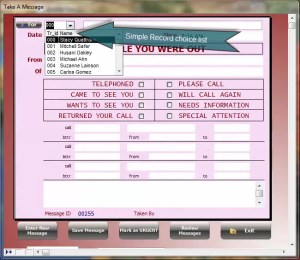
This method is simple and only requires the receiver name be set to the for variable as part of the On Change event of the ID field. Later we will be adding the ability to navigate through the records of the Take Message form and the same procedure can be used to place the receiver name in the for variable by adding the following code to the ON Fetch event of the form.
Take_Message:for0.text = Alltrim(Take_Message:tr_first_name0.text)+" "+Take_Message:tr_middle_name.text+" "+Take_Message:tr_last_name0.text
Take_Message:for0.refresh()
Take_Message:taker_name.refresh()
Now let’s look at the Mark as Urgent button. Again as stated in the video I believe the code they used is effective, but redundant because each of the objects referenced by the code share the same state on the form. For example, if one is visible, they all are visible. Knowing this, our code does the same thing theirs does in a simpler format.
if topparent:text27.object.visible = .t. then
    topparent:text27.object.visible = .f.
    topparent:text28.object.visible = .f.
    topparent:urgent.value = .f.
else
    topparent:text27.object.visible = .t.
    topparent:text28.object.visible = .t.
    topparent:urgent.value = .t.
end if
Here we only check the state on one object then set the properties for all based on the single object’s state.
Well that’s it for today. I hope you found this lesson helpful. Be sure to let us know.
 Custome Database Design with Alpha Software
Leave a comment