
Hello Everyone
Today we will examine the Log In button on our Sign in form. This code is an excellent example of managing object properties and their methods. Watch the above video to get the overview of what is being done and how it works then proceed with this lesson.
In the video I talk about setting object property values and if you are familiar with this process then you know what to do. Others may want to use the object explorer in Alpha Software to see what object property values can be set.
To access the object explorer you must be in design mode on your form. Click on View then Object Explorer.
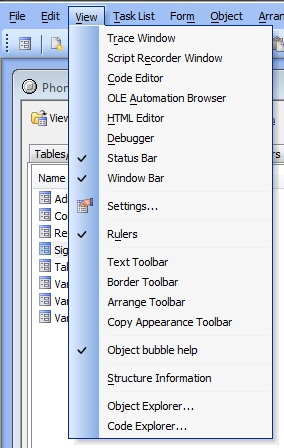
The object explorer will open allowing you to see all properties and methods currently associated with each object on the form. The example image below shows the button 1 object visible = true.
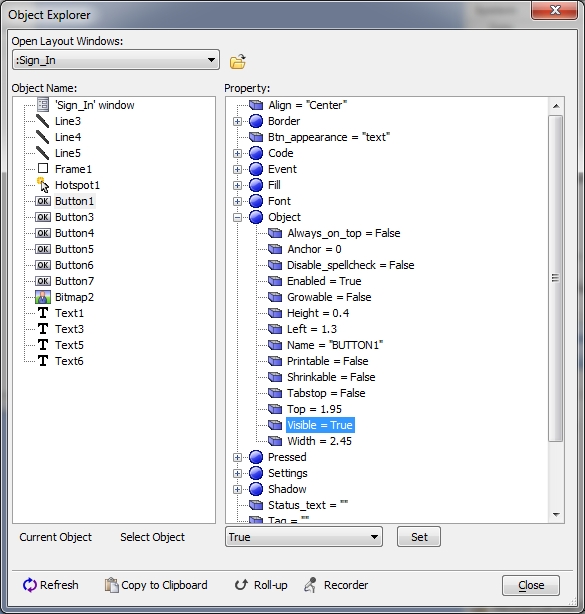
This would be written as
Sign_In:button1.object.visible = .t.
The above code line explicitly calls the object by naming the form and object. You can also use the Relative method
topparent:button1.object.visible = .t.
Both work fine but when you type in the form name you get a progressive syntax builder displayed on the screen which allows you to pick the object and properties from drop down list. This is very helpful when you are just starting out. You may have noticed in the video that we used the Relative method on our button.
Notice the Recorder option at the bottom of the image above. You can use the recorder to write your xBasic code by following these steps.
- Select and object in the Object Explorer.
- Select the property you wish to change for the object.
- Use the drop down at the bottom of the Object Explorer dialog to select the value you want.
- Click Set next to the drop down.
- Finally Click Recorder.
A dialog box showing the Relative and Explicit xBasic code will display. Pick the one you want then click copy to clipboard and paste into your code page. This is another excellent tool for learning how to control and change object properties using xBasic code.
In our code we set the following values when Ricky Logged In
DIM varC_result as C
DIM goodtogo as L
DIM user_password as C
DIM stored_password AS C

goodtogo = .F.
user_name = ""
user_password = ""
user_id = ""

varC_result = ui_dlg_box("Please Login",<<%dlg%
{position=remember=ploginbox}
{region}
{ysize=2}
{xmargin=4,2}
{font=Arial,11}
;User:| [%ke=message_tr,{keylist_build("H=.025,1:25",alltrim(tr_First_name)+" "+alltrim(tr_last_name)+SPACE(50)+if(tr_administrator,"T","F")+tr_id,alltrim(tr_First_name)+" "+alltrim(tr_last_name)+SPACE(50)+if(tr_administrator,"T","F")+tr_id)}{}%.25user_name!change_user_name]
;Password:| [%p%.25user_password];
{endregion};
{line=1,0};
{region}
{justify=center}
<*15&OK!OK> <15&Cancel!CANCEL>
{endregion};
%dlg%,<<%code%
if a_dlg_button="change_user_name" then
       user_id = right(user_name,3)
       a_dlg_button = ""
end if
if a_dlg_button="OK" then
'    ui_msg_box("",user_name)
    stored_password = alltrim(lookupc("First",user_id,"tr_password","message_tr","Tr_ID"))
    select
        case len(alltrim(user_password)) = 0
           ui_msg_box("No password entered","You must enter a password for access."+crlf()+"Please try again.")
           a_dlg_button=""
        case else
            if stored_password <> alltrim(user_password) then
                   ui_msg_box("Sorry...","That password is not valid."+crlf()+crlf()+"Please try again.")
                   a_dlg_button=""
               else
                   a_dlg_button=stored_password
                   goodtogo = .T.
                   if left(right(user_name,4),1) = "T" then
                          is_admin = .T.
                   else
                       is_admin = .F.
                   end if

'                   ui_msg_box("",is_admin)
            end if
    end select
end if
%code%)

IF goodtogo THEN
    topparent:Text1.Text = "Welcome, "+word(user_name,1)
    topparent:Text1.Object.Visible = .T.
    topparent:button3.Text = "Log Out"
    topparent:button1.Object.Visible = .f.
    topparent:Button1.Object.enabled = .f.
    topparent:Text3.Object.Visible = .T.

    IF is_admin = .T. THEN
        topparent:button5.Object.Visible = .T.
        topparent:button6.Object.Visible = .T.
        topparent:button7.Object.Visible = .T.
    ELSE
        topparent:button5.Object.Visible = .T.
        topparent:button6.Object.Visible = .T.
    END IF
topparent:button3.Activate()
END IF
The first part of this code creates the user select dialog box. Next it filters the messages based on the selection and password. Then is allows or disallows admin functions based on the user status. Finally it sets the properties of the objects on the screen.
One of the object values we changed is the text for button3
topparent:button3.text = “Log Out”
Now we use the property value to control the action on the push event of button3.
if topparent:button3.text <> "Log Out" then
    topparent.close()
    a5.close()
else
    topparent:Text1.Object.Visible = .f.
    topparent:button3.Text = "Exit"
    topparent:Button1.Object.enabled = .t.
    topparent:button1.Object.Visible = .t.
    topparent:Text3.Object.Visible = .f.

    IF is_admin = .T. THEN
        topparent:button5.Object.Visible = .f.
        topparent:button6.Object.Visible = .f.
        topparent:button7.Object.Visible = .f.
    ELSE
        topparent:button5.Object.Visible = .f.
        topparent:button6.Object.Visible = .f.
    END IF
topparent:button3.Activate()

end if
Here we are telling the application that if the text on button 3 =”Log Out” then reset the page and objects back to sign in status, otherwise we want the button action to close the application completely.
That’s it for today. I hope you found this helpful and if so let us know. Our next lesson will be posted soon.
Have a great day.
 Custome Database Design with Alpha Software
Leave a comment