
Hello Everyone
As stated in the last lesson, we will discuss the creation of the dialog box which displays when you click ‘Read Me’ on the Sign In form. The video above gives a quick overview of the various ways to write the code to build a dialog box and I encourage you to watch it before continuing.
In the video we contrast two ways to write the message dialog box but in fact there are more. One could write a simple ui_msg_box() and attach it to the on push event of the button; create a form with a Rich Text variable object on it which contains the message or create an HTML page and call it up from the on push event of the Read Me button. Each of these options will work so it comes down to what you want to do and what best fits the overall design of your application.
In our rewrite of ‘It’s for You’ we chose to use a xDialog box which allows us better design control with more options.
Our dialog box
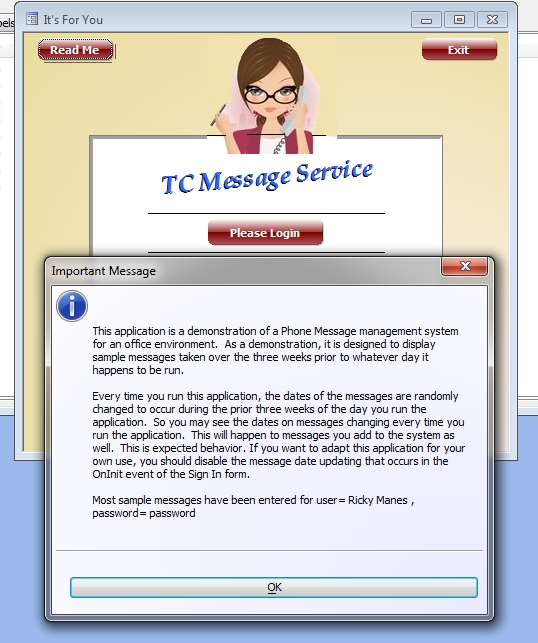
is presented in a clean crisp way which is easy on the eyes and professional in appearance. The code is shown below.
DIM x as C
DIM SHARED varC_result as C
x = "This application is a demonstration of a Phone Message management system for an office environment.  As a demonstration, it is designed to display sample messages taken over the three weeks prior to whatever day it happens to be run." +crlf(2)+"Every time you run this application, the dates of the messages are randomly changed to occur during the prior three weeks of the day you run the application.  So you may see the dates on messages changing every time you run the application.  This will happen to messages you add to the system as well.  This is expected behavior. If you want to adapt this application for your own use, you should disable the message date updating that occurs in the OnInit event of the Sign In form. " +crlf(2)+"Most sample messages have been entered for user= Ricky Manes , password= password "
ok_button_label = "&OK"
cancel_button_label = "&Cancel"
Delete XdialogStyle
dim XDialogStyle as p
XDialogStyle.AccentColor = "White"
XDialogStyle.Color = "Blue White"
varC_result = ui_dlg_box("Important Message",<<%dlg%
{Windowstyle=Gradient Radial Bottom Right}
{region}
{image=$sys_information}{sp};
{lf=4}
|{text=75,15:x};
{endregion};
{lf=4};
{line=1,0};
{region}
{lf=4};
{SP}<*80=ok_button_label!OK>
{endregion};
%dlg%)
Please note that in the line ‘x = ‘ (x is our text variable)you will see the control line feed function written like this
crfl(2)
This terminates the current line of text, inserts a blank line and starts a new line of text, which gives the appearance of a nice paragraph break.
The original method for building the dialog box was an action script. The video above explains how it was done and the end result looks like this
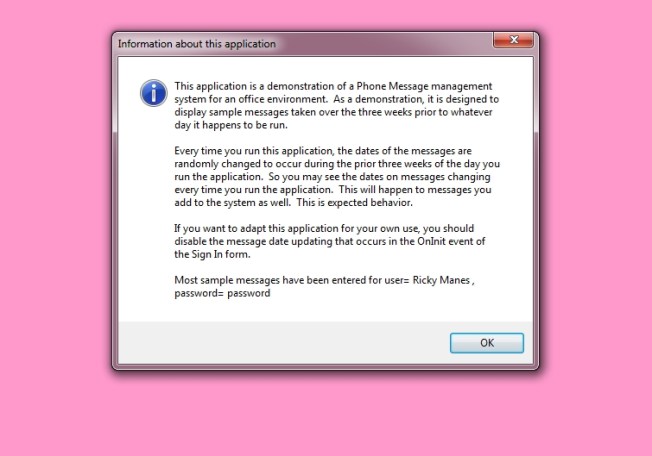
As you can see, not much difference between the two. In fact the only real difference is this method builds a ui text box which has a built in windows alert sound which I find annoying.
You will find most action scripts build routines using high level functions created in Alpha Software. If you are creating a small application with minimum records this works fine. However, large applications will run slower if designed with Action Scripts because it adds another layer of translation before the application passes the request to Windows to perform what ever functions you require. This could be the difference in perception of a professionally designed application and one that is not. With that said, I say hats off to Alpha Software for creating a development platform which provides both choices.
That’s all for today. I hope you found this lesson helpful and if you did, please let us know. Our next lesson will discuss the xBasic code needed to run the sign in button on the Sing In form.
Have a great day.
 Custome Database Design with Alpha Software
Leave a comment