
Hello everyone.
Today we are starting a new lesson session on writing xBasic code and how it compares to Alpha Software’s Action scripting and high level commands. The video below shows the tutorial application provided by Alpha Software called ‘It’s for You’. We will use this tutorial as a guide and in the process make a new message taking program.
As you can see from the video the program is a shocking pink and very old in design. The fact is this tutorial has been around since 2002 and has not been updated.
To bring up the tutorial in your Alpha Software program (I am using version 10), open your application and from the select database dialog choose ‘Sample and Tutorial Databases’ from the options on the left. Next select Learning xBasic from the list on the screen. Alpha Software will build the application and take you to the control panel for the sample message application.
You can work directly in this tutorial for our lessons or you can recreate the application making the changes I will be making as we go along.
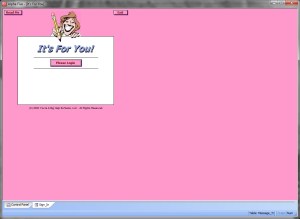
First, lets look at the Sign in screen. Click on the tab labeled Forms in the control panel then click Sign In. The original sign in form looks like this,
and our new sign in form will look like this.
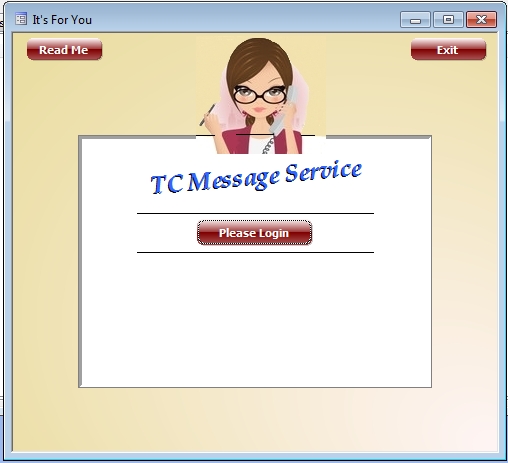
Since I will be building a new application, I made two critical changes.
- I changed the Secretary bitmap to a royalty free image I found on the web in public domain.
- I changed to name to TC Message Service
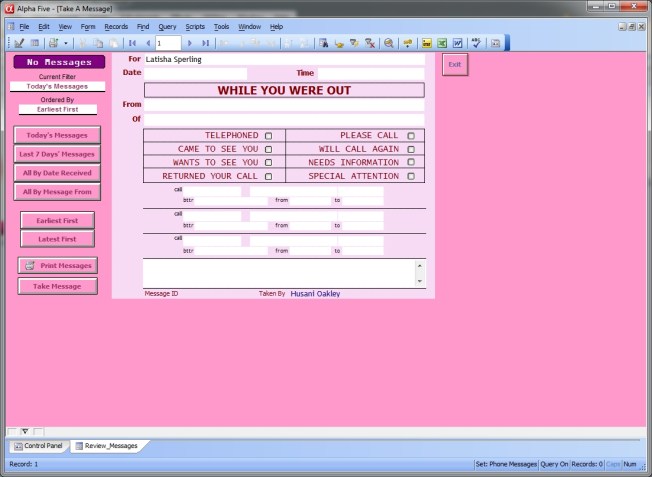
Next I made changes to the message review page. The original looks like this,
and our new form will look something like this.
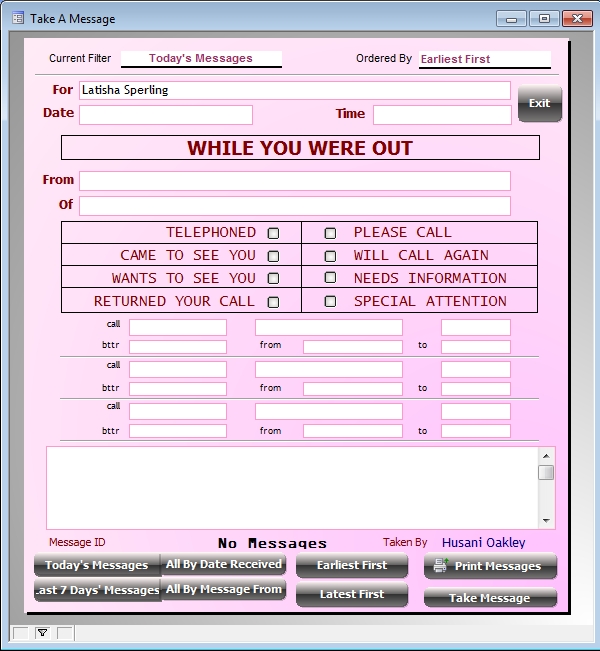
This form is not quite done but is close to how it will look when we are done. Additional forms which need changing are the message writer form and administration form.
On the control panel, if you click on Code you will see various scripts and functions written for our application. This is the examples we will study. We will also look at how to build tree views, manage object properties and contrast high level Action Scripting with xBasic code. Now we are free to create a new and better Messaging program as part of our tutorial.
Well that’s all for today. Our next lesson will show how the Read Me button was created on the Sign in page. Have a great day.
 Custome Database Design with Alpha Software
Leave a comment