
Hello Everyone I had a pretty busy week with custom software request so I was unable to post the next plan but today I am ready to proceed.
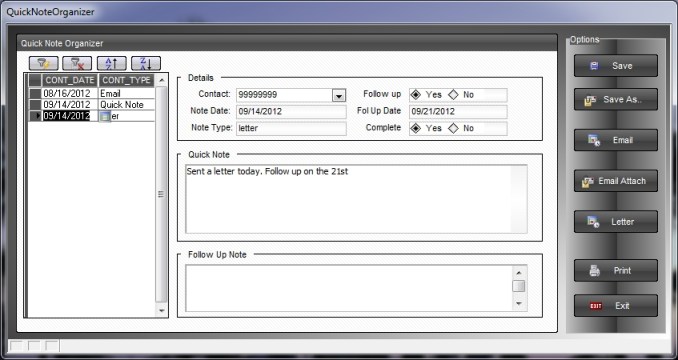
In the previous lesson I stated we would look at grouping our activities by focus date and using the super control calendar to control our data. As I was putting the lesson together, I had to build a new form and provide data search and query controls for the form. This is an important step so I am changing the lesson to show how this was done. Below is the form I created.
As I mentioned in the previous lesson, creating a pop up style application leaves you without access to drop down menu’s and tool bars. Typically the tool bar is used to group action buttons which control data views, queries, statistics and more. Depending on the use of the form you create, these action button can be very necessary and important to the proper design of your application.
Notice in the above image we have four action buttons above the browse on the left side of the form. These button control our data views for our quick note organizer. We have from left to right:
- Quick filter – Filters the records based on the object on the form which has focus.
- Show All – Cancels all previous queries and displays all records.
- A to Z – Sorts the records in Ascending Order based on the object on the form which has focus.
- Z to A – Sorts the records in Descending Order based on the object on the form which has focus.
At first glance, you might think the action on both the form button and the tool bar button would be the same but they are not. When you click a button on the tool bar the object on the form maintains focus. When the click a button on a form the button get focus so if you are trying to do a quick filter on a field on your form and you click a button on your form your query will fail because the field no longer has focus. To over come this we use the following code on our button before we execute our query.
if obj(topparent.active()).class = “button” then
obj(topparent.active_prev()).activate()
End if
‘Now run your code
topparent.QuickFilter()
Basically what we are saying is if the current abject is a button on the form then we put the focus back on the previous object to have focus before we clicked the button, then we execute the code. This simple piece of code is an excellent control for managing all form related processes in your application. For example, if the user arrives at a field on the form which requires specific action from another field the code can either allow or disallow access based on the value in the previous field.
To see how all of this was done, watch our short video above and our next lesson will show how to control our data using the focus date from our super control calendar.
If you have specific Alpha Software question or need help on a project, we are available.
 Custome Database Design with Alpha Software
Leave a comment