
Hello everyone
It’s Labor Day and I hope all are having fun. Today’s lesson is about controlling data entry on the form’s you create for your application.
An important aspect in program design is controlling the data entry process for the end user. Regardless of how attractive a form may be, if the data entry is awkward or difficult the user will not use your application. Alpha Software has several tools to help you control the data entry on your forms.
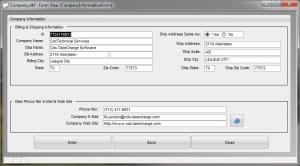
We created three new forms for our application the
Company Information form:
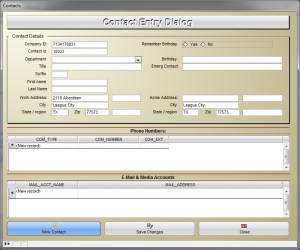
Contact Entry Form
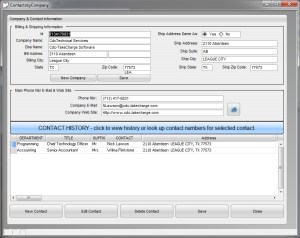
and the Contacts by Company form
On a form if the user is doing straight data entry, you want to insure the fields are laid out in a logical order and are grouped with like values. On our Company Information form we use Set Tab Order to control the data flow on the form.
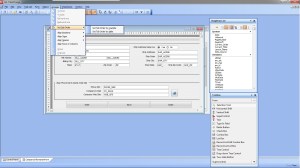 If you look closely, the drop down menu for Arrange has Set Tab Order as an option on the menu. Under Set Tab Order you have two choices, By Example or By Table. Each are easy to do; just follow the on screen prompts. It is important to note that when you drag an object on a form in Alpha Software, by default the object is set as a tab stop. I mention this because you will not want all of the objects on the form to be part of the tab order. To turn off the tab stop for an object, right click on the object, select the settings tab then uncheck the tab stop option.
The Contacts by Company form has several new code events for controlling data entry which are explained below.
- New Contact opens the Contact Entry form and sets it to New Record allowing data entry for all contact information.
DIM Shared varP_ContactEntryForm as P
DIM layout_name as c
layout_name = “ContactEntryForm”
varP_ContactEntryForm = :Form.load(layout_name,”popup”,””,”center”,”middle”)
varP_ContactEntryForm.new_record()
varP_ContactEntryForm:comp_ID.text = ContactsbyCompany:id.text
varP_ContactEntryForm:Address_1.text = ContactsbyCompany:bill_addre.text
varP_ContactEntryForm:Address_2.text = ContactsbyCompany:bill_addr0.text
varP_ContactEntryForm:City.text = ContactsbyCompany:bill_city.text
varP_ContactEntryForm:State_Region.text = ContactsbyCompany:state.text
varP_ContactEntryForm:Zip.text = ContactsbyCompany:zip.text
varP_ContactEntryForm:Home_City.text = ContactsbyCompany:bill_city.text
varP_ContactEntryForm:Home_State.text = ContactsbyCompany:state.text
varP_ContactEntryForm:Home_Zip.text = ContactsbyCompany:zip.text
varP_ContactEntryForm:Department.activate()
varP_ContactEntryForm.show()
form.close()
Since the new contact will be for the company displayed on the form, the company related fields in the contact table will be filled in automatically reducing data entry for the user.
- Edit Contact pops up the same form, but displays the information for the contact selected in the contact browse.
DIM layout_ptr as P
layout_ptr = :Form.load(“ContactEntryForm”,”popup”,””,”center”,”center”)
layout_ptr:tables:People.filter_expression=”CONTACT = ‘” +CONTACT.text+ “‘”
layout_ptr:tables:People.order_expression=””
layout_ptr:tables:People.query()
layout_ptr.show()
layout_ptr.activate()
form.close()
Here we use a query expression on the people table to filter the records to the proper contact.
- Delete Contact deletes the contact selected in the contact browse of the form.
r_nbr = recno(“people”)
t = table.open(“people”)
t.delete_range(“Recno()=Var->r_nbr”)
t.close()
R_nbr is a global variable we created for the sole purpose of tracking record numbers in external tables. When a table is embedded in a browse window, recon() will return the record number for the record selected in the browse. We then use that value to set the range of records to delete.
- Contact History Displays the people form for the contact selected allowing all activities, memo’s and contact information for the selected contact.
DIM Shared varP_People_cdc as P
DIM layout_name as c
layout_name = “People_cdc”
varP_People_cdc = :Form.load(layout_name,”popup”,””,”center”,”middle”)
varP_People_cdc:PL_Contact.activate()
varP_People_cdc:PL_Contact.text = ContactsbyCompany:contact.text
varP_People_cdc:button4.push()
varP_People_cdc.show()
form.close()
Here we load the people form assign the contact to PL_Contact (progressive look up) then push the search button on the form. Button4.push() This process sets the contact and establishes all proper links for the various types of contact data.
Finally we do a progressive lookup to the zip database provided by Alpha Software and add the code to the on change event of the bill_city field
xCO_City = ContactsbyCompany:bill_city.text
con_city = table.external_record_content_GET(“zip”, “RTrim(City)+’:’+RTrim(State)+’:’+RTrim(Zip)”, “”,”City=Var->xCO_City”)
ContactsbyCompany:state.value = word(con_city,2,”:”)
ContactsbyCompany:zip.value = word(con_city,3,”:”)
if ContactsbyCompany:shipsameas.value = .t. then
ContactsbyCompany:ship_addre.value = ContactsbyCompany:bill_addre.text
ContactsbyCompany:ship_addr0.value = ContactsbyCompany:bill_addr0.text
ContactsbyCompany:ship_city.value = ContactsbyCompany:bill_city.text
ContactsbyCompany:ship_state.value = ContactsbyCompany:state.text
ContactsbyCompany:ship_zip.value = ContactsbyCompany:zip.text
end if
That’s basically all we did to make each of these forms very user friendly with simple and intutive data entry flow.
Watch this short video to see the simplicity with which this can be done.
If you enjoyed this lesson be sure to let us know. Thanks again for stopping by.
 Custome Database Design with Alpha Software
Leave a comment