
Hello again.
Before we begin our new lesson, lets take a moment to look back at what we have accomplished so far. Below is the application before we started to modify it.
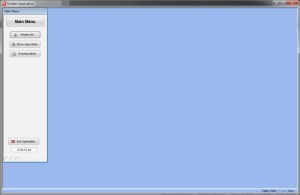
Navigation bar to the left and a big blue space filling the screen. Now lets look at where we are so far.
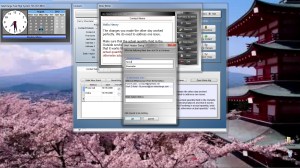
- We have a clock – calendar as a front page.
- Our forms float above the desktop allowing the desktop image to show through.
- We added a progressive look up as well as a rolodex search feature.
- We added unlimited phone and media account tracking
- We wrote an interface to any default browser.
- We created a custom Note Writer
- Finally, we incorporated an interface to the user’s default email client.
Pretty impressive if I do say so myself.
If you look at the image above, you will notice the E-Mail Header Dialog box has changed from the last lesson. Using Alpha Software’s advanced xDialog features we have increased the functionality and simplicity for the user. Lets take a closer look.
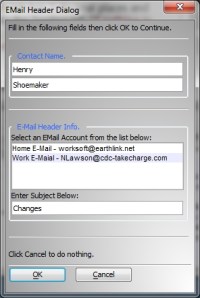
Notice we have four sections to the dialog;
- The Header
- Contact Name
- E-Mail Header Info
- Footer
The original xDialog code is displayed in lesson eleven. Here we will show the changes for each section of the dialog box.
First we have to declare our variables.
Dim SHARED xFName as C
Dim SHARED xLName as C
DIM SHARED xto as C
DIM SHARED xSubj as C
DIM SHARED varC_result as C
Next we set the default values
auto_list_xto = table.external_record_content_GET("web_mail_accounts", "Alltrim(Mail_Acct_Name)+\" - \"+Rtrim(Mail_Address)","Mail_Acct_Name","Contact_ID = '" + People_cdc:CONTACT_ID.TEXT + "'")
xFName = People_cdc:f_name.text
xLName = People_cdc:l_name.text
Now we build our formatted list
Dim format as p
Format.tab_stops=""
Format.odd_row_color="White"
Format.even_row_color="Blue White"
Format.odd_selected_color="Dark Blue"
Format.even_selected_color="Dark Blue"
Format.font="Arial,8"
Format.font_color_unselected="Black"
Format.font_color_selected="White"
Format.lastbutton="OK"
Format.group_size=1
Format.number_rows=.f.
Format.alternating_bands=.t.

'Apply 'owner draw' formatting information to the list
auto_list_xto = a5_owner_draw_list_fmt(auto_list_xto,Format)

temp_count = w_count(auto_list_xto,crlf())
DELETE a_xto
DIM a_xto[temp_count] as c
a_xto.initialize(auto_list_xto)
temp_count = w_count(auto_list_xto,crlf())
DELETE a_xto
DIM a_xto[temp_count] as c
a_xto.initialize(auto_list_xto)
Finally we set the values for all other objects on the dialog as well as the color and style of the xDialog box itself.
heading_string = "Fill in the following fields then click OK to Continue."
footer_string = "Click Cancel to do nothing."
ok_button_label = "&OK"
cancel_button_label = "&Cancel"
Delete XdialogStyle
dim XDialogStyle as p
XDialogStyle.AccentColor = "#127+127+127"
XDialogStyle.Color = "#255+255+255"
varC_result = ui_dlg_box("EMail Header Dialog",<<%dlg%
{Windowstyle=Gradient Radial Bottom Right}
Header:
The header section is a general message to the user requesting an action or alerting the user to an important event. In this example, we set the text for the header as a variable then called in the dialog where we wanted it to show.
{region}
{text=50,1:heading_string};
{endregion};
{region}
{line=1,0};
{lf};
Contact Name:
This section is wrapped in a Blue frame and displays the values of Contact First Name and Last Name. The blue wrapper gives the area an appearance of separation and importance.
{ymargin=0,0}
{xmargin=1,1}
{ysize=0}
{blueframe=1,1:   Contact Name.   }
{region}
[.50xFName];
[.50xLName];
{endregion};
{lf};
{line=1,0};
{lf};
E-Mail Header Info:
This section displays our formatted list and our subject variable wrapped in a blue frame as well.
{ymargin=0,0}
{xmargin=1,1}
{ysize=0}
{blueframe=1,1:   E-Mail Header Info.   }
{region}
Select an EMail Account from the list below: ;
[%d;O={@@}%.50,5xto^#a_xto];
Enter Subject Below:;
[.50xSubj];
{endregion};
Footer:
Like the header section the footer supplies additional information for the user and is placed in the same manner as the Header.
{lf};
{line=1,0};
{lf};
{text=50,1:footer_string};
{endregion};
Finally we finish off our code for the xdialog with the placement of the buttons
{line=1,0};
{region}
<*15=ok_button_label!OK> <15=cancel_button_label!CANCEL>
{endregion};
Below is the code for interfacing with the external email program.
%dlg%,<<%code%
if a_dlg_button = "CANCEL" then
End
end if
xEM = word(xto,2," - ")
xSubj = xSubj
dim xBody as C
dim rtf_Text as C
tbl = table.current()
if Note_Writer:button39.text = "Edit Follow Up Memo" then
    rtf_text = *bin_to_rtf(tbl.cont_memo)
else
    rtf_text = *bin_to_rtf(tbl.FU_memo)
end if
attachments = ""
xbody = *rtf_to_html(rtf_text)
email_client_external(xEM,xSubj,xBody, attachments)
%code%)
Want to see it in action, watch our short video.
That’s it for today. If you found this lesson helpful, let us know.
 Custome Database Design with Alpha Software
Leave a comment