
Today’s lesson looks at the difference between standard memo fields and rich text memo fields and the xbasic code required to extract data from either. We will also examine the process for controlling object properties on the screen and how you can use those properties as a means of branching code.
A standard memo field is basically a text box with some formatting features included. You can enlarge your fonts or make then smaller, bold and italicize and apply a date and time stamp. That just about it. This type of field is good for quick messages only. The Rich text memo field is much more robust. Basically it works like Word Pad in Windows but does not accept images or tables easily. You can also export the rich text memo field to Word Pad for further enhancement.
In our Contact Application, we have two memo fields; Cont_Memo and FU_Memo (Follow up memo). In order to demonstrate the different ways to interact with each, I have changed the Cont_Memo field to Rich Text.
On our form we have a button labeled ‘Show Follow Up Memo’ see below.
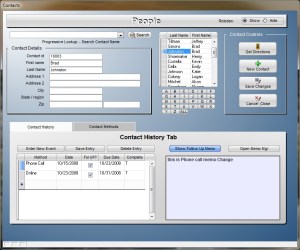
This button plays two important roles in our application. It displays the appropriate memo in the text box below the button and when the Memo Manager is called it ‘s label acts a control to tell the editor which type of memo to open. Rich Text or Standard Memo. Here is the code on the button’s on push event.
'Date Created: 13-Aug-2012 01:03:55 PM
'Last Updated: 17-Aug-2012 02:38:42 PM
'Created By  : cdc
'Updated By  : cdc
if People_cdc:button39.text = "Show Follow Up Memo" then
    dim c_ID as C
    dim cMemo as C
    c_ID = ""
    c_ID = People_cdc:act_id.text
    t = table.open("act_memos")
    t.fetch_first()
    while .not. t.fetch_eof()
        if t.act_id = c_ID then
            CMemo = t.fu_memo
            People_cdc:text6.text = CMemo 'Text object = memo field value.
        end if
    t.fetch_next()
    end while
    t.close()
People_cdc:button39.text = "Show Contact Memo"
else
    dim c_ID as C
    dim cMemo as C
    c_ID = ""
    c_ID = People_cdc:act_id.text
    t = table.open("act_memos")
    t.fetch_first()
    while .not. t.fetch_eof()
        if t.act_id = c_ID then
            dim t as P
            dim bin as B
            f = t.field_get("cont_memo")
            r = rtf.create("")
            r.Binary_Text = f.value_get()
            bin = r.Binary_Text
            CMemo = *BIN_TO_PLAIN(bin) 'Rich text must be converted to plain text to use with a text object
            People_cdc:text6.text = CMemo
        end if
    t.fetch_next()
    end while
    t.close()
    People_cdc:button39.text = "Show Follow Up Memo"
end if
People_cdc:browse2.Activate()
The first section of our code deals with the standard memo field. Since the standard memo text is plain text, we can simply find the record in the memo table with the proper activity id then set the text object on our People form to equal the memo filed in the memo table.
The second part of our code deals with the rich text memo field and is a little more complicated. Here we must convert the rich text in the memo field to binary then convert that to plain text before we can assign the string to the text object on the People form.
Notice that at the bottom of each part of our if else statement we set the button property for it’s text to the opposite value. This resets the button so each time it is pressed, the opposite code runs. In addition to this, we have a New form called Note_Writer. see below
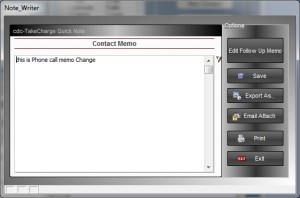
This was designed using the drag drop form editor and has a conditional object with a Contact page and a Followup page each displaying the proper memo field. Also there is on fetch events for the people form as well as the activity browse embedded on the people form.
Watch our short video to see how it all comes together.
That’s it for today and I hope you found this lesson helpful. If so, be sure to let us know. Have a great day.
 Custome Database Design with Alpha Software
Leave a comment