
Hello Everyone
In the last training session I said we would discuss the memo entry process and the differences between a standard memo field and a rich text memo field. As I was setting up this lesson, I noticed there were several things that needed to be done before we could actually do that.
Alpha Software has a design feature for each table called field rules. If you right click on a table in the control panel of your application, you will see ‘Edit Field Rules on the menu. Inside field rules is the option to set rules which govern the behavior of the data entry, or the look of the data on the screen. In addition you can set up posting rules, look up values, validation rules and much more. We will discuss only a few of these rules today, but first lets discuss our default people form..
Upon entry to the people form the first tab shows contact history. This was an original design that shows the various activities which were recorded, the date entered and if there’s a follow-up involved. Also in the browse was the original contact memo and a follow up memo field.
Personally I don’t like memo fields in a browse so my design will remove the two memo fields and place a rich text object on the form which will display the selected memo. Entering aand editing the memo will be done through a pop up form. This gives us more flexability in data management which we will use in our next lesson. Here is a look at how the form will look when we finish our next lesson.
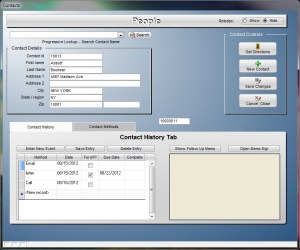
As I tested entering records in the original design I noticed the Activity ID was not set to auto increment and it needed to be. The date entered had no default value and there was no control over the data entry process. Now each of these issues can be addressed using xbasic on the actual form but a simpler solution is to use the field rules for the affected table. Since entering activities is what we are doing, it is the activity table we must look at.
When you open the field rules for the activity table you will see a drop-down list of all fields in the table. Displaying the list will show no field rules are set ( A check appears next to fields with field rules.). First we will address the Act_ID field. On the tab labeled ‘Field Types’ select the Auto Increment option.
Next select ‘Date Entered’ from the list then select the ‘Data Entry’ tab. Select simple default expression in the default mode field then enter
Date()
in the default value field. Finally check the option to Set the default value at start of data entry.
Next we want ‘Cont_Type’. Here we are using the ‘Look up’ tab. Set the Look up Style to Previous values, check display as a drop down list, Allow any value and finally select Popup on entrance in the Auto popup field.
The last field we will set in field rules for is the ‘FU_Date’ (Follow Up Date) field. Again we are using the ‘Data Entry’ tab. In the skip field enter ithe following
if(follow_up=,.t.,.f.,.t.)
This tells the browse to skip the follow up date field if there is no follow up needed.
Additionally we added buttons to the New Contact History page and did some properties formatting. Watch our short video to see how it all comes together.
That’s it for today. Remember our next lesson will look at memo fields and rich text memo fields as well as how to fetch values from memo fields of both types. We hope to see you then.
 Custome Database Design with Alpha Software
Leave a comment