
Hello everyone, it’s Monday and I hope you had a nice weekend.
Today’s lesson will show you how to create a conditional object and make it appear as a tabbed form on the displayed page. A tabbed form is an excellent way to organize and display data information on the screen, but outside of that it does little else.
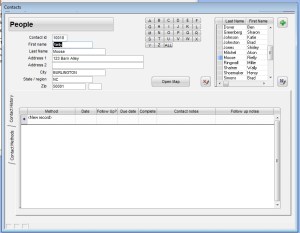
Standard Tab Form
In contrast, using a conditional object allows you to do the same as above as well as build a custom look up, set variables, control the properties of objects and better manage data entry.
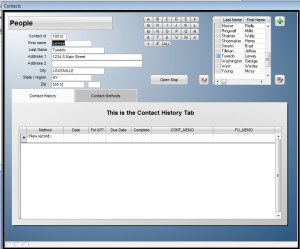
Form using Conditional Object
To start with, lets look at the properties page for a tabbed form. If you already have a tabbed form on your page, right click on the form and select properties. Otherwise, drag the tabbed form object from your object toolbox to your form then right click and select properties.
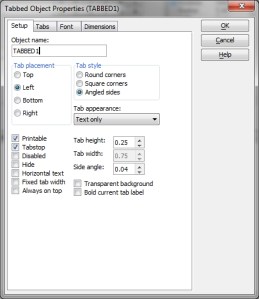
As you can see, there are several things you can do; set tab placement, color, tab shape, bold text and even make the tabbed object transparent. What you cannot do is set the object style to gradient and you are limited in using object code.
There are few limits using a variable object. Since you will control the conditional object with a variable and in this example change the variable using button objects, you can write any code you want (within the limitations of the form), assign any values to any objects on the screen, build list, popup forms etc. If it can be written in Alpha Software, it can be written here.
The downside to this method is instead of a simple properties box like the tabbed form we have to write some object properties code setting the edge values and background colors of the buttons we created. The code will be added to the on initiate of the form and on the on push event for each button. Here is how it’s done for this example.:
‘The On Initiate code set’s the objects to display the first page of the conditional object. The first button matches the On Initiate and each successive button reverses the choices for edge and background color.
xTab = “Contact History” ‘ Sets the Conditional Object value
People_cdc:cond1.refresh() ‘ Refreshes the Conditional Object‘ Sets the button edges for each button
People_cdc:Button5.border.Has_Bottom_edge = .f.
People_cdc:Button6.border.Has_Bottom_edge = .t.
‘ Sets the button background for each button
People_cdc:Button5.fill.Color = “Off White”
People_cdc:Button6.fill.Color = “Gray-25”
People_cdc:button4.Activate()
People_cdc:text2.text = “This is the Contact History Tab”xModule = “Contact Management”
xForm = “Menu”
xObject = “CContact History”
xHelp = xModule+”.”+xForm+”.”+xObject
xTab is a variable we declare on the form’s variable window which is accessed from the menu in the design window. This variable is used to tell the conditional object to display a different page.
To see how it all comes together, watch this short video.
 Custome Database Design with Alpha Software
Leave a comment