
One of the nice features of Alpha Software is it’s ability to control the display area of a form. The feature we will discuss today is the conditional object.The purpose of the conditional object is to allow the developer to show objects conditionally. For example, if you are creating payment screens, you would not need to see credit card fields on the form if the customer choose to pay by cash or check. The conditional object would hide the credit card fields unless the pay type choice was Credit Cards.
When you are in design mode of your form, you will see ‘Conditional Object’ as a choice on your toolbox drag drop list.
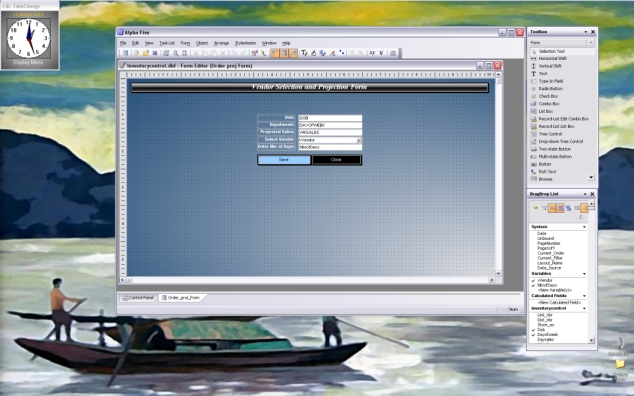
Select the conditional object in the list and drag it on the form giving it an area as big as you feel you will need. Note: You can always change the size later as you need.
Once the conditional object is on the form, you need a variable or trigger event to tell the conditional object what to do. In the Menu under Forms you will see variable. Select it and add a variable to control the conditional object. Typically I use a numeric variable but it can be any type because it is the change event of the variable which controls the conditional object.
Drag the variable to your form and change the field type to some sort of choice list. For this demo I used radio choice. The values I gave it were
Personal | 0
Business |1
Finally in the variable’s on change event I told it to refresh the conditional object.
ContactEntry:cond2.refresh()
The last step is to add layers to the object and add fields to each layer. Watch the short video below to see how this is done.
 Custome Database Design with Alpha Software
Leave a comment